10 project planning tools teams are switching to in 2026

Project planning is tricky, even though most project management software promises to make it easier. You pick a project planning tool, roll it out to your team, and three months later you realise: it’s either too simple, too bloated, or simply doesn’t do what you actually need.
Gantt charts? Everyone has them. But baseline tracking? Not so much. Offline mode? Many promise it, few deliver it properly. Smartsheet drops the free plan after a 30‑day trial. Wrike quietly rebuilt its free tier at the start of 2026 and now caps you at 200 active tasks. Microsoft Project is still the only self‑hosted option in this list. Those are the kinds of details that matter when you’re picking planning software.
Our comparison looks at ten project planning tools from the point of view of project planning realism: dependencies, baselines, capacity planning, offline behaviour, and how honest their free plans really are.
Ten best planning tools: quick comparison
The table below breaks down the key features project managers tend to check before buying: dependencies, baselining, resource management features, and some more.
| Tool | Dependencies | Auto‑reschedule | Baselining | Resource planning | Offline | Free plan |
|---|---|---|---|---|---|---|
| Monday.com | ✅ FS/SS/FF/SF | ✅ | ✅ Available (in Gantt) | ✅ On Enterprise | ✅ Mobile‑only | 2 users, unlimited projects |
| Planyway | ✅ blocks / is blocked by | ✅ Via Jira | ❌ None (Planned vs. Tracked report only) | ✅ Workload view | ❌ None | ✅ Up to 10 users |
| Trello | ❌ None natively | ❌ | ❌ | ❌ | ⚠️ Mobile limited | 10 boards, unlimited cards |
| MS Project | ✅ FS/SS/FF/SF | ✅ | ✅ Baseline 0–10 | ✅ | ✅ Desktop | ❌ None |
| Zoho Projects | ✅ FS/SS/FF/SF | ✅ | ✅ Up to 15 baselines (Enterprise) | ✅ Workload Report | ❌ None | 3 users, 5GB storage |
| Asana | ⚠️ Blocked by / Blocking | ✅ | ❌ None (methodology only) | ✅ Workload view | ⚠️ Mobile limited | 2 users, unlimited tasks |
| ClickUp | ⚠️ Waiting on / Blocking | ✅ | ⚠️ On roadmap for 2026 | ✅ Workload view | ❌ None | Unlimited users, 60MB |
| Smartsheet | ✅ FS/SS/FF/SF | ✅ | ✅ Variance columns | ✅ Resource Management | ❌ None | ❌ None since 2024 |
| Teamwork | ✅ Supported | ✅ | ⚠️ Methodology and templates only | ✅ Supported | ❌ None | ⚠️ Up to 5 users |
| Wrike | ✅ FS/SS/FF/SF | ❓ Not confirmed | ✅ Baseline Tracking | ✅ Workload charts | ❌ None | ✅ Available |
Our evaluation methodology for selecting the best project planner tools
The goal of our comparison isn’t to crown the best project management software. We're breaking this down to help your team find project planning software that fits how your team already plans projects.
We looked at four things for every tool on this list:
- Which planning software truly respects nside each platform handle workload.
- What the reality is around free plans, self‑hosted options, and offline behaviour, so you don’t discover hard limits halfway through a project.
- How each vendor approaches security and compliance, from SOC reports to ISO 27001 and other certifications.
We pulled facts from vendor documentation, help centers, public trust and security pages rather than just marketing landing pages, and we combined that with our own experience and the experience of our clients.
Monday
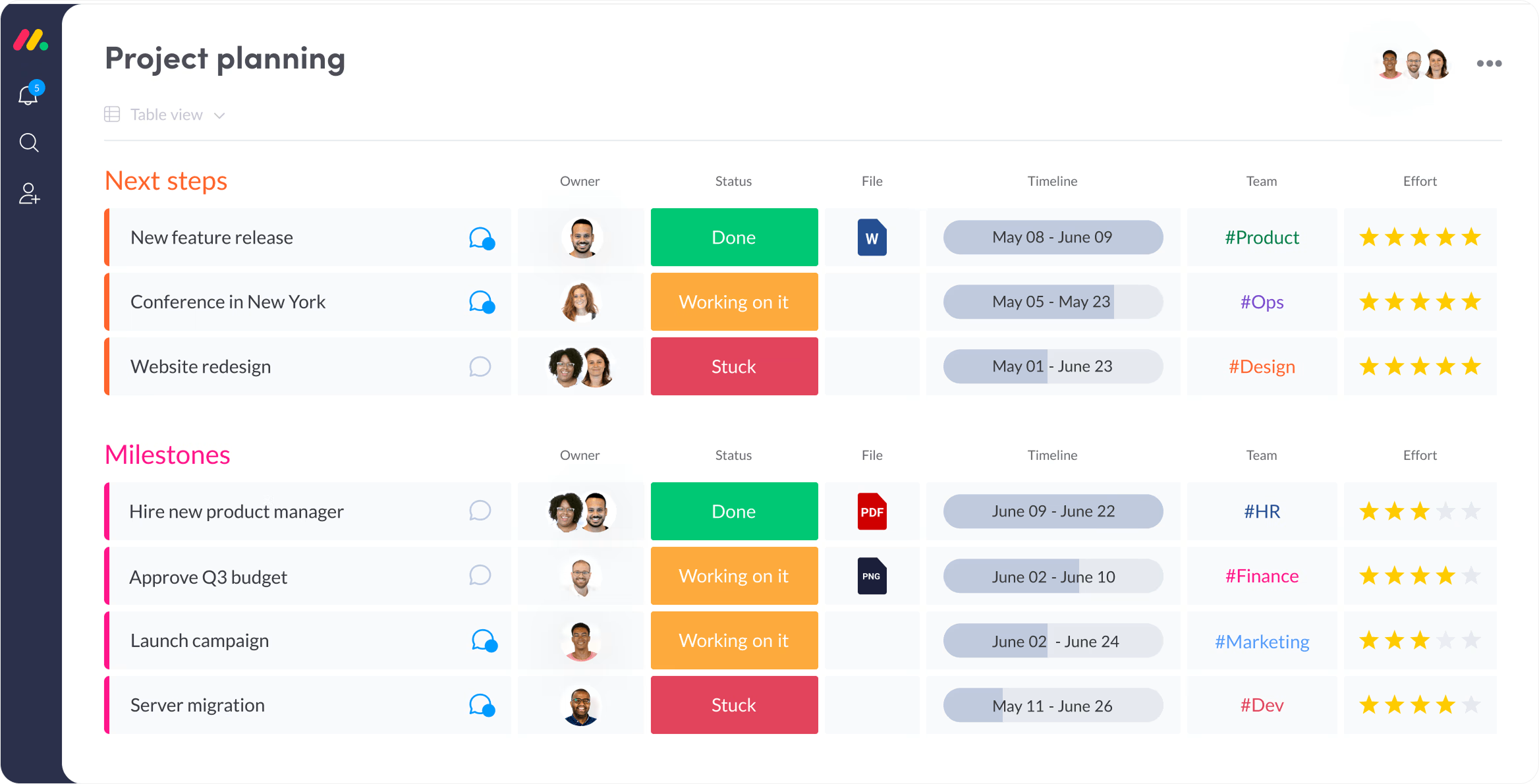
Monday is a visual work OS for teams that plan in colour. Boards, status columns and colour‑coding help people see project status at a glance.
Planning core:
- Monday gives Gantt charts, roadmaps, and sprint boards for lightweight sprint management.
- It supports full FS/SS/FF/SF dependencies with three behaviour modes: Flexible, Strict and No action, and dependent tasks reschedule automatically when dates move.
- On Enterprise plans, Monday adds Resource Directory, Resource Planner and portfolio‑level heatmaps for resource management.
- There is baselining in the Gantt view, so you can save a snapshot of the schedule and compare it with the current plan.
- Offline use is mobile‑only; web and desktop work online.
Pros:
- New users usually learn Monday in a day without formal project management training.
- The Pro plan gives up to 25,000 automations per month, which covers heavy workflow automation.
- There are 200+ templates for different project management scenarios.
Trade‑offs:
- All paid plans have a 3‑seat minimum, which is expensive for very small teams.
- Built‑in time tracking is only available on Pro at around $19 per user per month.
- For complex multi‑phase projects with formal governance, Monday can feel light.
Best for:
Mid‑to‑large software development teams that have outgrown spreadsheets but don't want the complexity of Jira
Pricing:
The free plan covers 2 users with unlimited projects. Paid plans start around $12 per seat per month with annual billing.
Planyway
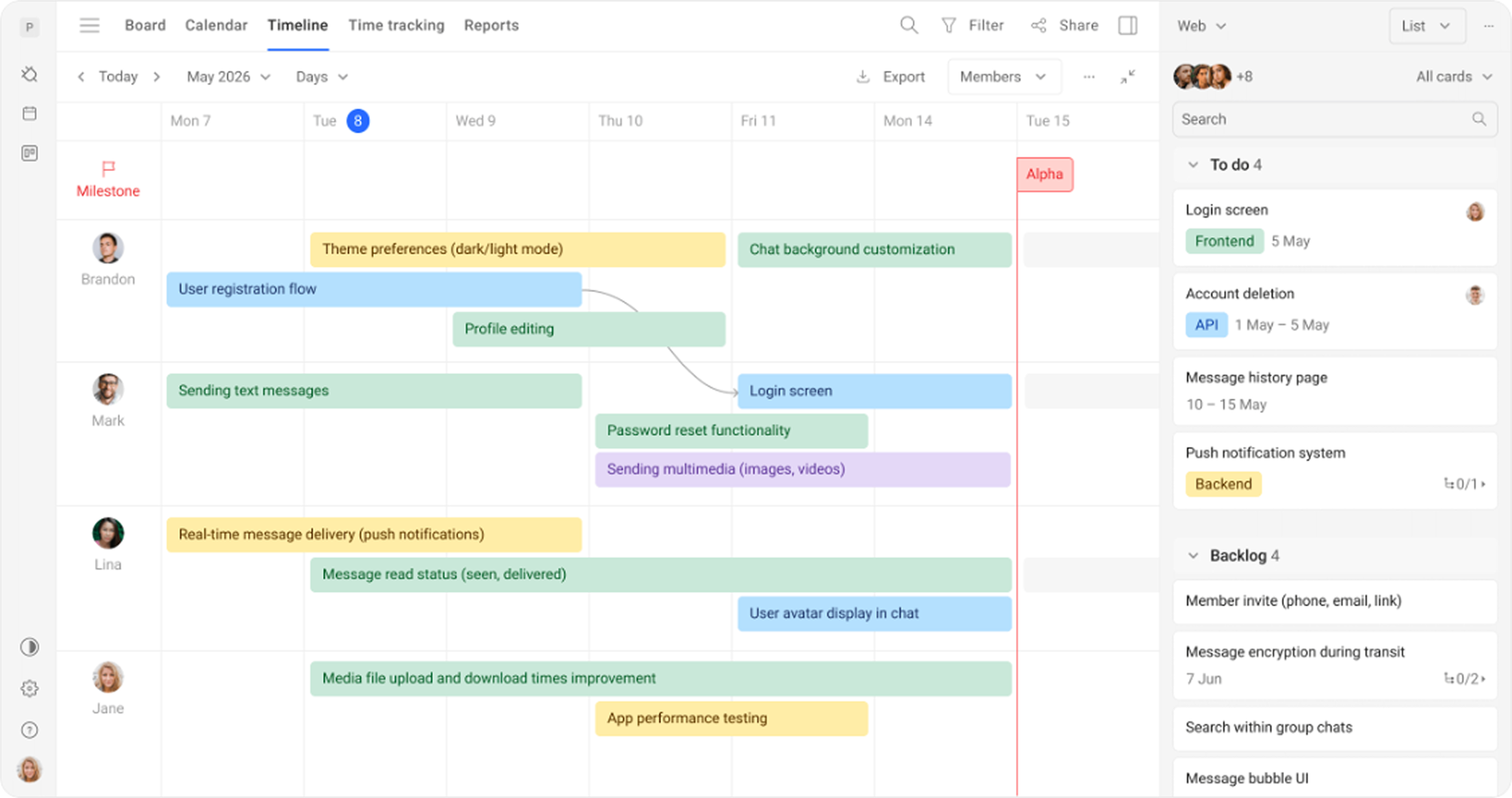
Planyway is a Jira- and Trello-native project planning platform that helps teams manage cross-functional projects without leaving their existing workspace. Basically, the plugin adds a visual planning layer on top of Jira and Trello, helping teams turn scattered tasks into structured project plans.
With Planyway, teams can visualize work on interactive timelines, plan projects across multiple boards and Jira projects, manage dependencies, and drag and drop tasks to adjust schedules.
Planning core:
- In Jira, Planyway allows teams to plan work visually with Gantt timelines, cross-project planning, resource management, time tracking, and reporting, all in one.
- In Trello, it adds calendars, timelines, and workload views to cards.
- For dependencies, Planyway shows blocks / is blocked by links and syncs them from Jira or Trello.
- For resource planning, the Workload view shows per‑person load, working hours, and overload indicators.
- There is no classic baseline feature; instead, Planyway offers a Planned vs Tracked report that compares planned and tracked time tracking on tasks.
Pros:
- Jira teams stay inside their main project management software and get clearer project planning views.
- Trello teams keep the boards they like and gain planning software features such as timelines and workload management.
- Resource and capacity planning are documented and supported by heatmaps.
Trade‑offs:
- There is no full baseline of the schedule; plan vs actual time is handled per task.
- Security documentation is less detailed than for larger project planning tools.
- Planyway only makes sense if your team uses Jira or Trello.
Best for:
Software teams in Jira or Trello that need planning, workload management, and time tracking without moving to a separate tool.
Pricing:
Planyway has a free plan for small teams of up to 10 users. Paid plans are listed on the website.
Trello
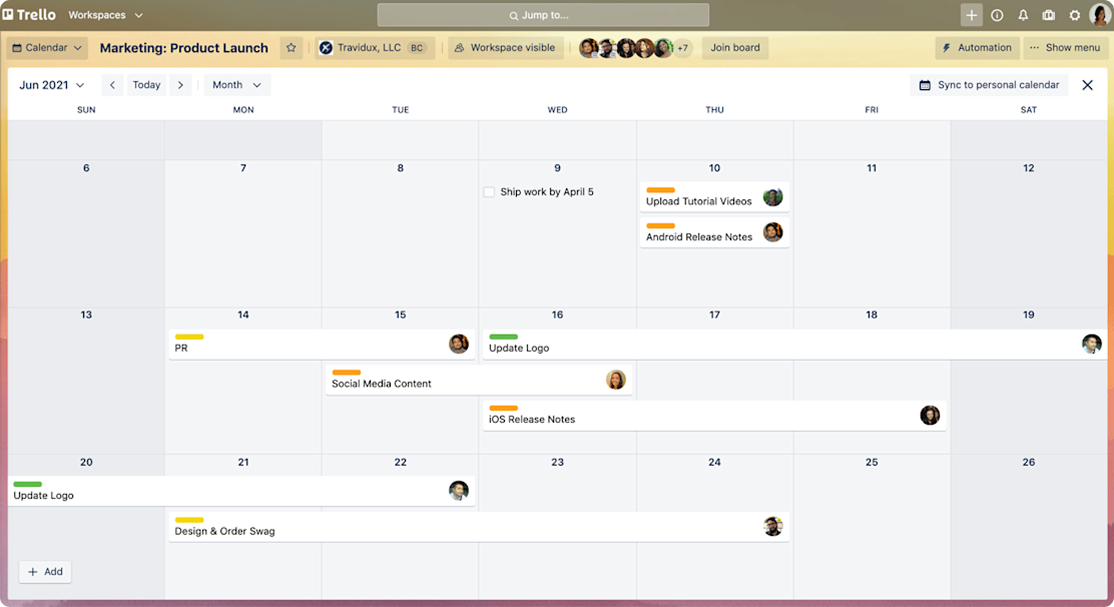
Trello is a lightweight Kanban tool with almost no learning curve. Boards, lists and cards keep task management simple.
Planning core:
- The main view is the board. Calendar and timeline views only appear through Power‑Ups.
- There are no native dependencies; you need Power‑Ups for dependency management.
- Trello does not support baselining.
- There is no native resource planning.
- Offline support is limited to the mobile app.
Pros:
- Trello has the lowest learning curve; most team members understand it immediately.
- The free plan gives 10 boards, unlimited cards and unlimited collaborators.
- The Power‑Up ecosystem lets teams add project planning tools when needed.
Trade‑offs:
- Any serious project planning requires paid Power‑Ups.
- On free, 250 Butler automation runs per month are not enough for a heavily automated workflow.
- There is no baseline or resource management, which limits planning depth.
Best for:
Small project teams with simple Kanban workflows and straightforward project tasks.
Pricing:
The free plan includes 10 boards, unlimited cards and 250 Butler runs per month. Paid plans unlock more boards, workflow automation and Power‑Ups.
Microsoft Project
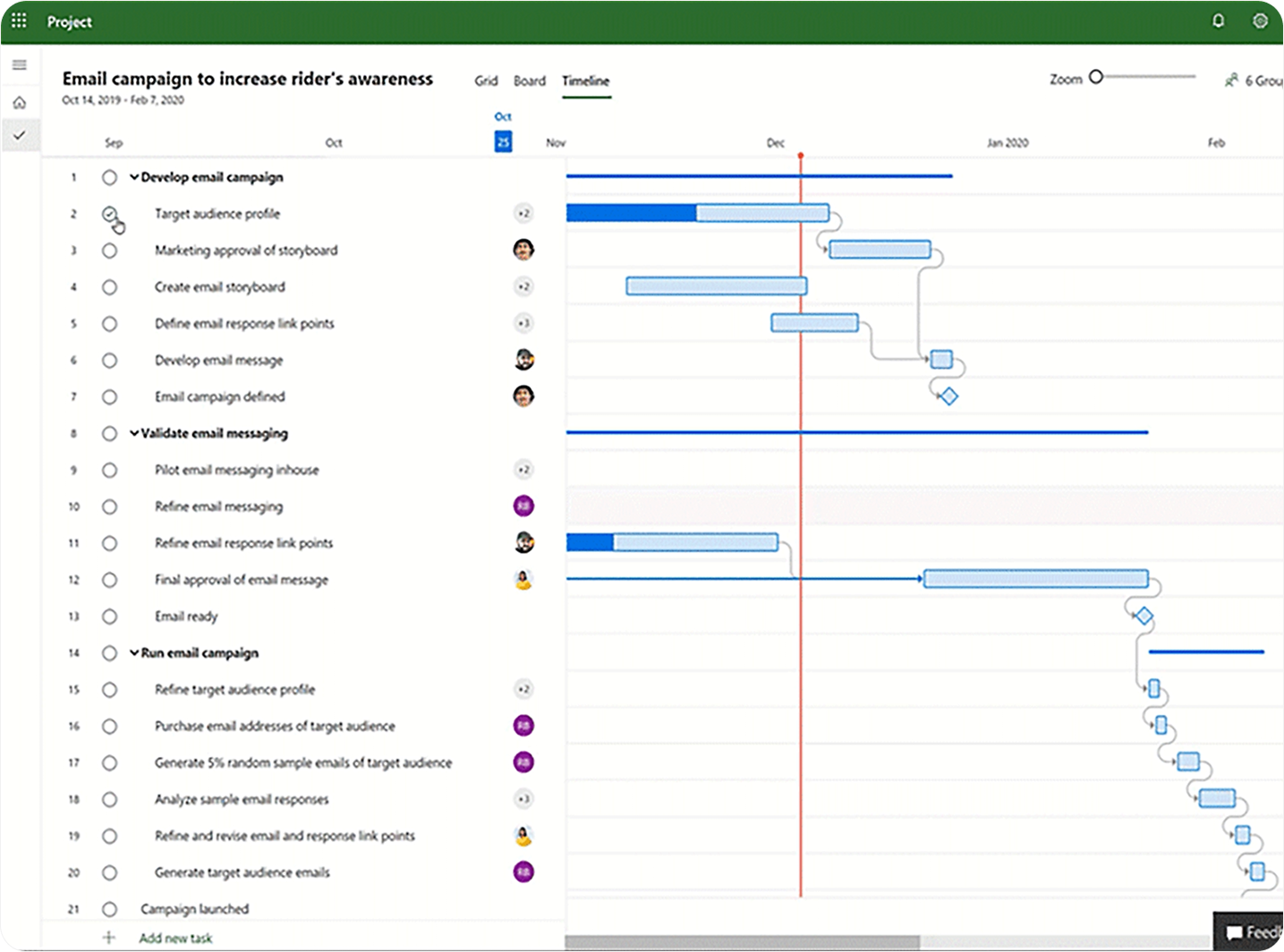
Microsoft Project is classic scheduling software for engineering, construction and governed environments. It was built for formal project planning.
Planning core:
- It supports full FS/SS/FF/SF dependencies between tasks.
- Auto‑reschedule is part of the core: dependent tasks follow changes on predecessors.
- Baselining is fully implemented with Baseline 0–10 per project for plan vs actual comparison.
- Resource planning is central, from individual resources to larger resource pools.
- Microsoft Project offers self‑hosted deployment via Project Desktop and Project Server.
- The desktop version works offline by default.
Pros:
- Microsoft Project has deep scheduling logic and handles complex project timelines.
- Multiple baselines let teams track changes across the life of a project.
- It is the only self‑hosted project planning software in this group.
Trade‑offs:
- There is no free plan.
- The learning curve is steep, and the UX feels older than modern project management tools.
- Team collaboration often requires extra tools like Microsoft Teams.
Best for:
Construction, engineering and PMOs that need formal project planning, baselines and self‑hosting.
Pricing:
There is no free tier. Pricing is per user licence or subscription and must be checked directly with Microsoft.
Zoho Projects
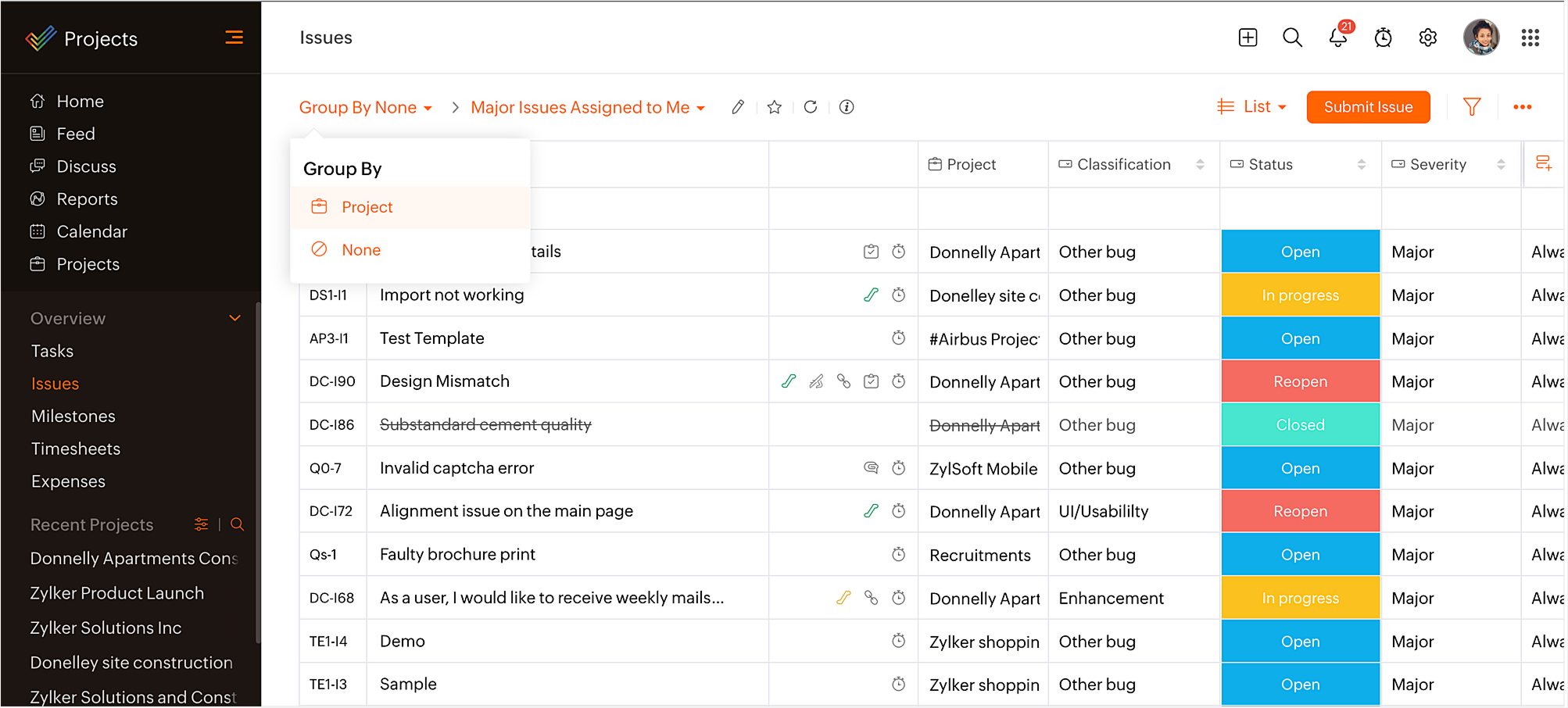
Zoho Projects is traditional Gantt‑centric project planning software with real baselines and a more formal planning style.
Planning core:
- It supports full FS/SS/FF/SF dependencies on tasks.
- Auto‑reschedule shifts downstream tasks when predecessors move.
- On Enterprise, you can store up to 15 baselines per project and compare plan vs actual.
- For resource planning, Zoho Projects includes a Workload Report with heatmaps, so you see resource allocation and overload.
- Zoho Projects does not offer offline mode.
Pros:
- Zoho Projects provides strong Gantt charts with proper dependencies and lag.
- Native baselining on Enterprise is uncommon among cloud project management tools.
- It is cheaper than Microsoft Project for teams that want similar planning logic.
Trade‑offs:
- Baselines are limited to the Enterprise plan.
- The free plan is modest, with 3 users and 5GB storage.
- The UX is more utilitarian than newer tools.
Best for:
Teams that want Microsoft Project‑style project planning without the price and training effort of Microsoft Project.
Pricing:
The free plan covers 3 users and 5GB storage. Paid plans start around $5 per user per month, with baselining on Enterprise.
Asana
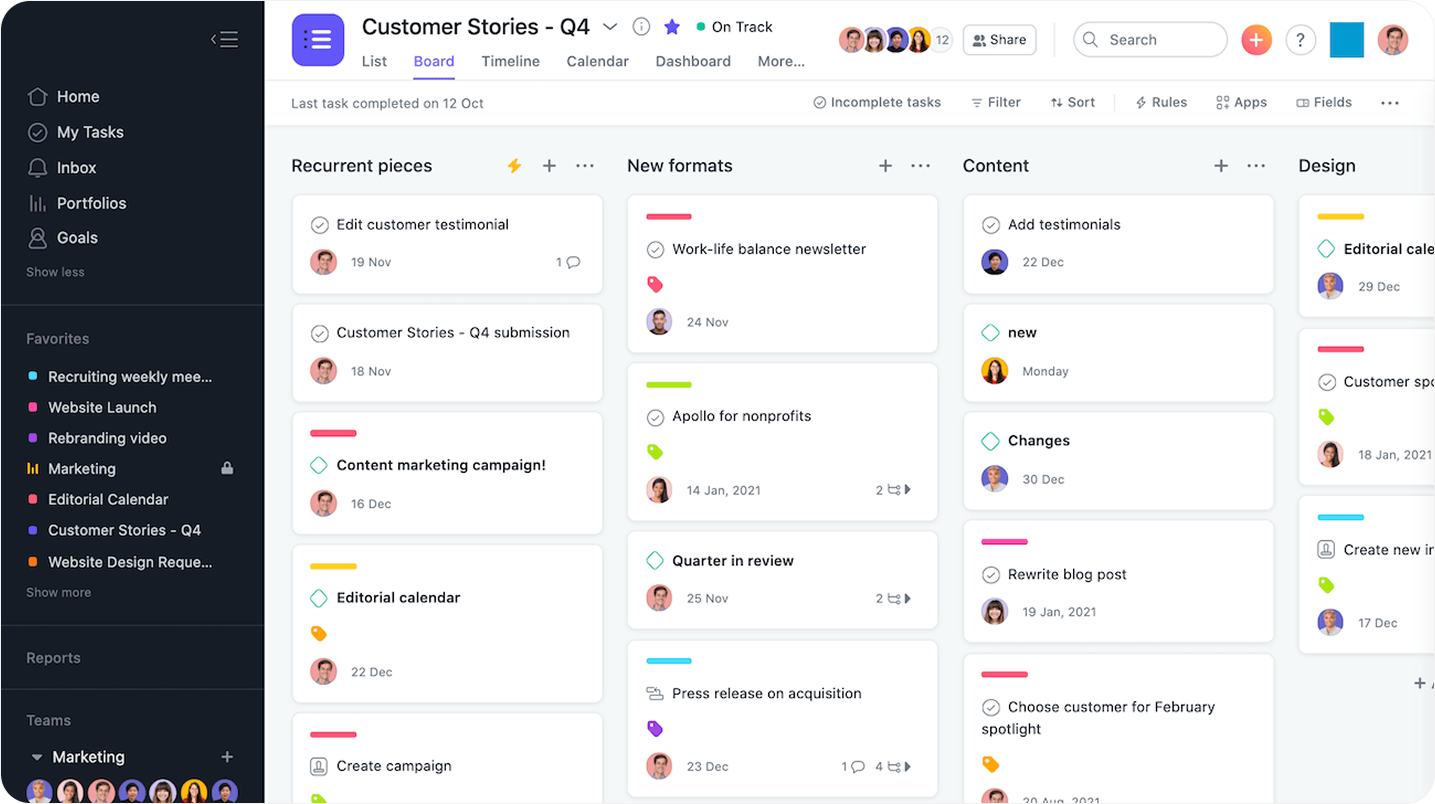
Asana is flexible work management for cross‑functional teams. It uses a simpler dependency model and has a strong security stack.
Planning core:
- Dependencies use a Blocked by / Blocking model rather than formal FS/SS/FF/SF types.
- Auto‑reschedule shifts dependent tasks when blocking tasks change dates.
- There is no native baseline feature; baselines appear only as methodology in Asana’s content.
- For resource planning, Asana offers a Workload view that shows workload management across team members.
- Offline support is limited to the mobile app.
Pros:
- Asana suits cross‑functional teams and different project management use cases.
- Auto‑shifting dependencies reduce manual editing when schedules change.
- Security is strong, with SOC 1/2/3, multiple ISO 27001‑family standards, HIPAA, FedRAMP, GDPR.
Trade‑offs:
- The simplified dependency model does not fit strict scheduling needs.
- There is no native baselining, so plan vs actual reporting needs other tools.
- More detailed resource management lives on higher paid plans.
Best for:
Cross‑functional teams that need flexible project management software and strong security, but do not require formal baselines.
Pricing:
Asana’s free plan now covers around 2 users with unlimited tasks. Starter plans start near $10.99 per user per month.
ClickUp
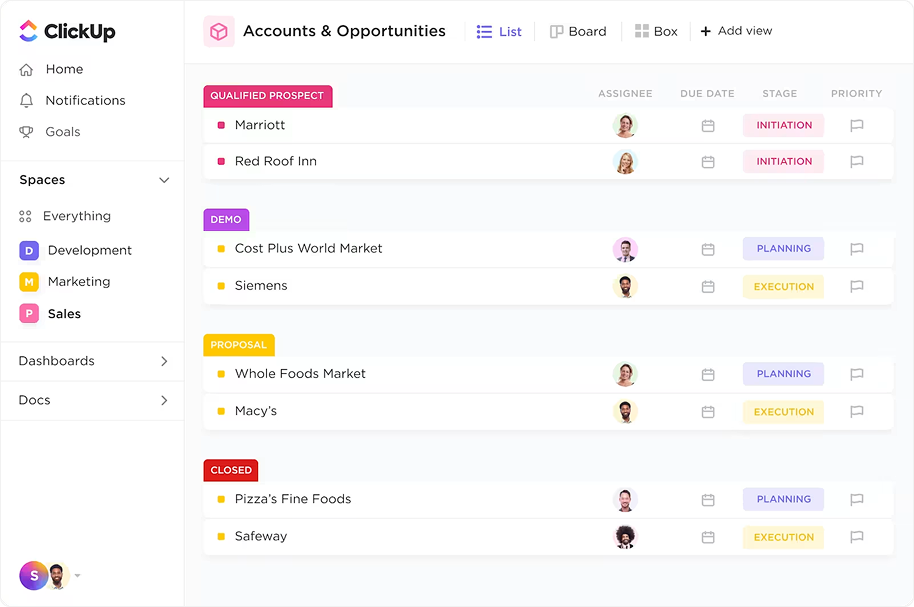
ClickUp is an all‑in‑one workspace that combines task management, project planning, collaborative docs and dashboards. It supports dependencies and has broad security coverage.
Planning core:
- Dependencies use a Waiting on / Blocking model rather than explicit FS/SS/FF/SF labels.
- Auto‑reschedule shifts tasks when you enable the relevant ClickApp and move predecessor tasks.
- There is no native baseline feature yet; baselining is on the roadmap for 2026.
- For resource planning, ClickUp includes a Workload view for capacity planning.
- ClickUp does not support offline mode.
Pros:
- ClickUp gives full dependency support with automatic rescheduling in its Gantt charts.
- It is highly configurable, from custom fields and statuses to views and advanced reporting.
- The security stack is broad, covering SOC, multiple ISO standards, PCI DSS, HIPAA and GDPR.
Trade‑offs:
- Deep configuration makes onboarding harder for new users.
- There is no current baseline feature; it is only planned for the future.
- The free plan has a 60MB storage cap, which is low for document‑heavy projects.
Best for:
Teams that want one project planning tool for managing tasks, docs and light project management, and can wait for baselines.
Pricing:
The free plan supports unlimited users with 60MB file storage. Paid plans start around $7 per user/ month.
Smartsheet
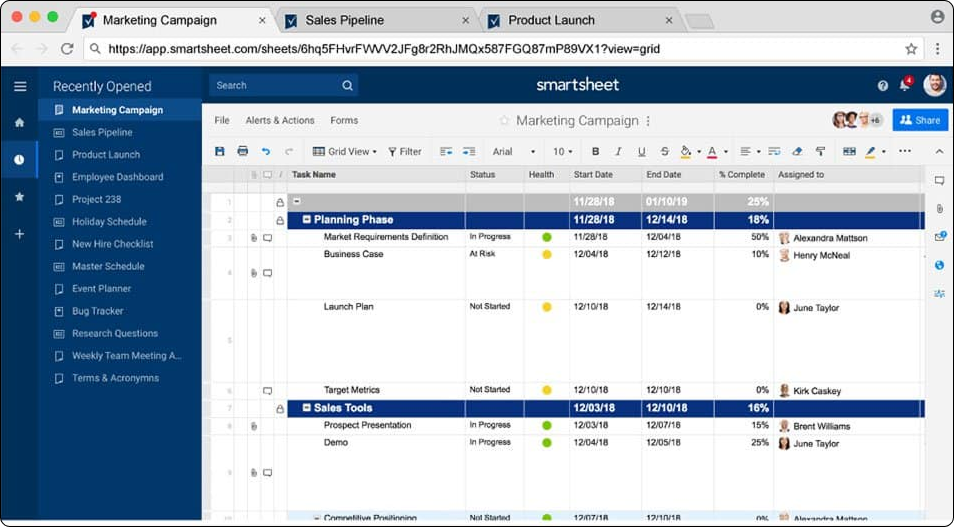
Smartsheet is spreadsheet‑first planning software for PMOs and enterprise teams. It suits people who already work in Excel‑style grids.
Planning core:
- It supports FS/SS/FF/SF dependencies using predecessor‑based fields.
- Auto‑reschedule recalculates dependent tasks when predecessor dates change.
- Baselining appears through variance columns, which show plan vs actual on Pro and higher plans.
- Smartsheet includes a Resource Management module with heatmaps for resource planning and capacity planning.
- There is no real offline mode, despite older marketing wording; online access is required for sheets.
Pros:
Smartsheet feels familiar to teams used to spreadsheets.
Variance and baseline‑like tracking are built into project management features.
- Security and compliance include SOC 2, ISO 27001/17/18/701 and FISMA.
Trade‑offs:
- Since 2024, there is no permanent free plan; only a 30‑day trial is available.
- Offline behaviour does not match some third‑party claims.
- Grid‑based UX is not ideal for teams that prefer more visual project planning tools.
Best for:
PMOs and enterprise teams that manage project data in spreadsheets and need structured project planning and variance tracking.
Pricing:
Smartsheet offers a 30‑day trial and then paid plans. Pro starts around $7 per user per month, with variance and baseline‑style columns on Pro+ and above.
Teamwork
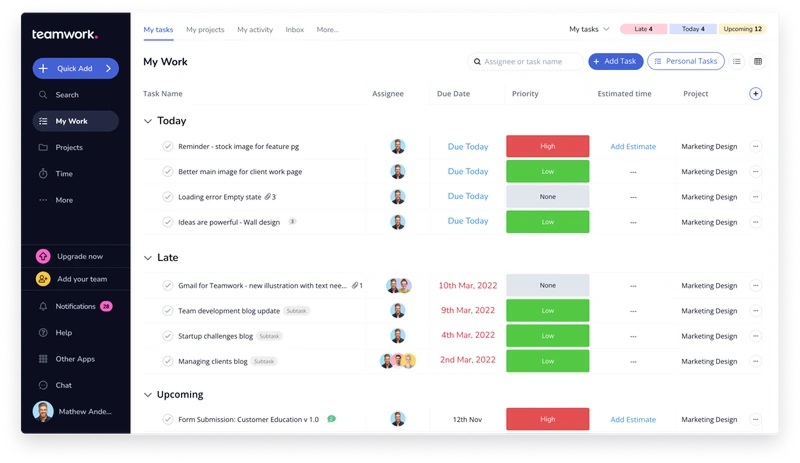
Teamwork is built around client project planning for agencies, consultancies and professional services. It combines project management, time tracking and billing.
Planning core:
- Teamwork supports task dependencies; users can link tasks and see how changes affect others.
- Auto‑reschedule lets you edit and shift dependent tasks when schedules move.
- Resource planning and utilisation are central because Teamwork focuses on billable client work.
- There is no documented offline mode.
Pros:
- Teamwork fits agencies and service teams that need time tracking, billing and project management in one place.
- It offers project templates tuned for client work and clear project status for clients.
Trade‑offs:
- There is no public trust center with full security certifications listed.
- Baseline and dependency features are less formal than in heavier project planning tools.
- The free plan is limited to about 5 users, which caps team size.
Best for:
Agencies and professional services teams that run client projects and care about billable utilisation and invoicing.
Pricing:
Teamwork has a free tier for up to 5 users. Paid plans and limits are listed on the current pricing page.
Wrike
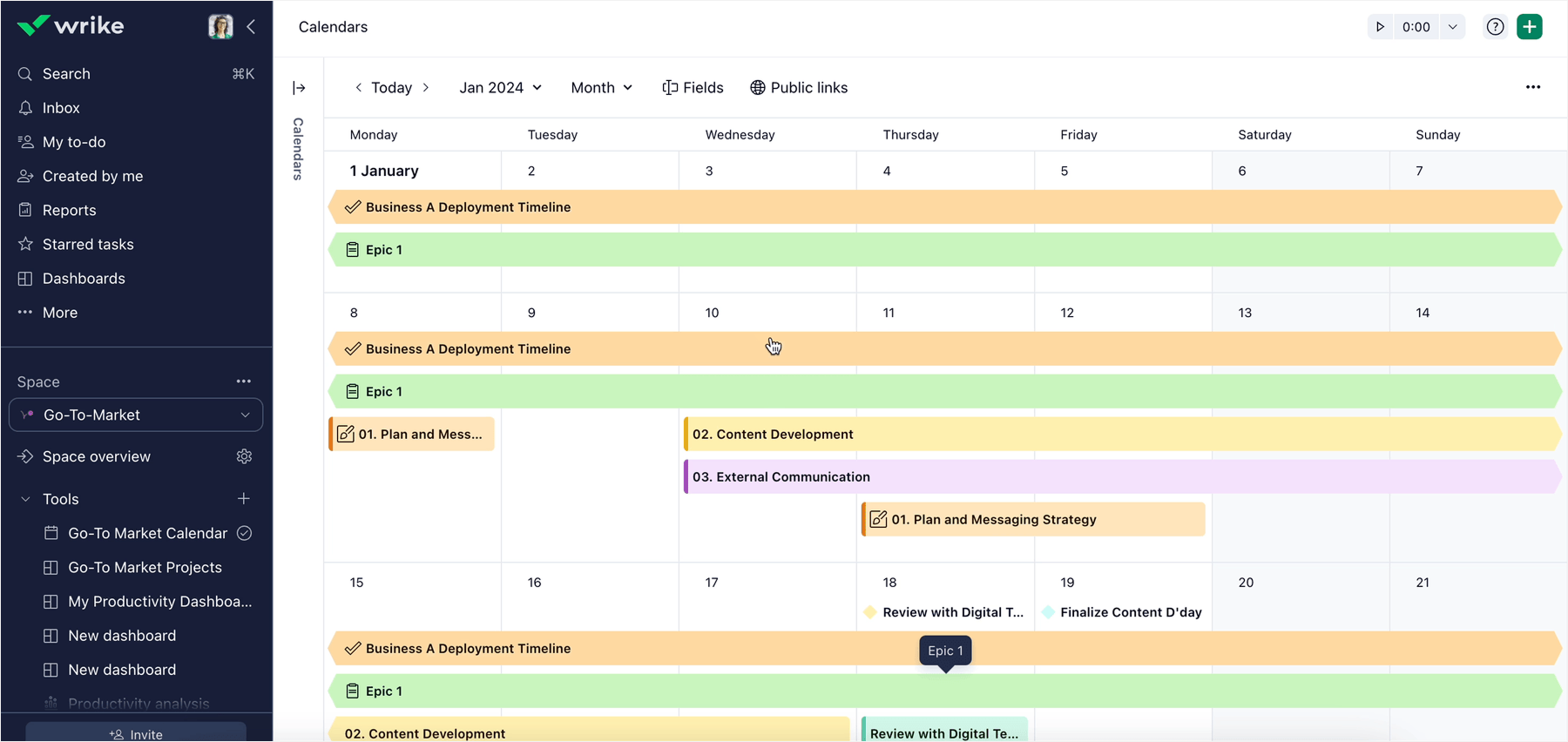
Wrike is an enterprise work planning software with native baselines, strong dependencies, and serious resource management.
Planning core:
- Wrike supports full FS/SS/FF/SF dependencies between tasks in its Gantt charts.
- Auto‑reschedule behaviour is not clearly confirmed in docs and should be tested in a trial.
- It offers Baseline Tracking for folders, projects, and tasks on Business and higher plans, so teams can compare plan vs actual.
- For resource planning, Wrike provides Workload charts and capacity views.
- There is no documented offline mode.
- The free plan was updated in January 2026 and now includes unlimited users, 200 active tasks, and 2GB storage.
Pros:
- Wrike combines strong dependencies with native baseline features, which is rare among cloud project planning tools.
- Its security stack is solid: SOC 2 Type II, multiple ISO 27001‑family standards, HIPAA, GDPR, CSA STAR, TX‑RAMP.
- The free plan is generous on users, making it easy to run pilots with full teams.
Trade‑offs:
- The 200 active task limit on free is tight once you run several larger projects.
- Advanced project management features and reporting live on higher‑tier plans.
- An online‑first instrument
Best for:
Enterprise teams that need baselines, formal dependencies and robust resource management in their project planning software.
Pricing:
Wrike’s free plan includes unlimited users, 200 active tasks and 2GB storage. Paid plans start around $9.80 per user per month.
Some tips for choosing project planning software that fits your workflow
Don't commit to any planning software without putting real projects through it. That pilot tells you more than any feature grid.
A practical way to do this:
Define your primary planning pain point
Is it unrealistic schedules, hidden overload, missing baselines, or poor visibility across multiple projects? Project planning tools solve different problems, so naming yours upfront helps. Once you know your biggest bottleneck, it's much easier to ignore flashy features that won't move the needle for your planning process.
Shortlist two or three tools
Pick tools that address your main pain point: Planyway for capacity planning in Jira/Trello, Zoho Projects or Wrike for formal baselines, Microsoft Project for governed schedules, Asana or ClickUp for cross‑functional planning. Try not to compare too many platforms at once, while testing two or three strong candidates makes it easier to identify deal-breakers.
Run a pilot with your actual team
Set up one real project in each tool. Use real tasks, dates, and people. Then see which tool helps you allocate resources, track progress, and surface project health without heroic manual effort. Pay attention to how quickly your team adopts the tool and whether it reduces planning overhead instead of creating extra administrative work.
Conclusion
There isn’t a single best project planning software for 2026, and it’s very unlikely there will be one in 2027 either. The way teams work and the way they plan that work differ wildly: every project and every team has dozens, sometimes hundreds, of small specifics. You can only choose a good tool once you understand your own process and how well each planning software adapts to it.
Some projects need space to think and simple structure. Others need precise sequencing and a tight schedule. Others live or die on communication and governance.
What matters more than brand is:
- Does this planning software support how this project actually runs?
- Does it surface issues early instead of only reporting them after the fact?
- Does it reduce coordination effort instead of adding process?
Most teams that plan well use a small stack on purpose: one place to think and organise, one place to manage real schedules where dependencies and baselines matter, and one place to communicate. The mistake is believing a new tool will remove the need to make trade‑offs or to manage time and scope. Planning software can help, but it can’t do that thinking for you.


FAQ
There is no single best project management software. Match the tool to your project's planning style and constraints. Microsoft Project, Zoho Projects and Wrike are stronger on formal dependencies and baselines. If you're looking for more flexible work management tools, you might want to try other project management software, such as Monday, Asana, or ClickUp. If you work in Jira/Trello and need to add advanced planning capabilities here, Planyway is your tool.
Microsoft Project remains the classic scheduling tool in formal project management, especially in construction and engineering. In software development and cross‑functional work, Jira plus Planyway, Wrike, Asana and ClickUp are more common as everyday project planning tools.
Different project management tools offer different capabilities depending on the complexity of your projects and team needs. Some focus on simple task organization and collaboration, while others provide advanced features such as Gantt charts, resource management, time tracking, reporting, and project portfolio management. Popular project planning tools include Monday, Planyway, Trello, Microsoft Project, Zoho Projects, Asana, ClickUp, Smartsheet, Teamwork, and Wrike. Each solution is designed for different scenarios — from managing individual projects and team workflows to coordinating complex, enterprise-level project portfolio management.