Project management software: top 10 picks we tested and reviewed

Choosing the best project management software must be one of the most difficult quests of them all. Pick the wrong tool, and you're stuck with an infrastructure that doesn't do justice to your team's mode of working, causes multiple admin headaches, and makes finding a single update feel like an archaeological expedition. The market for online project management tools is crowded — every vendor's homepage says roughly the same thing about their management software: powerful, flexible, built for teams like yours.
So instead of listing project management features off spec sheets, we tested the ten project management tools below the way a real team would: set up a project, tried to plan projects the way we actually work, tested task management and time tracking, invited a few people, and tried to break things.
Best project management software: quick comparison
The honest answer is that no tool in our list or any other list is the best project management software for everyone (shocking!). Some are built for software development teams who live in tickets, some for creative teams and agencies juggling clients, and some for cross-functional teams who just want managing tasks without a fight. The real challenge is figuring out what your team actually needs — and finding which tool can give you that.
| Platform | Best for | Team size | Free plan | Starting price |
| Jira | Software development teams running Agile/Scrum | 10+ | Up to 10 users | $7.91/user/mo |
| ClickUp | Teams wanting one tool for everything | Any size | Unlimited projects, users, 60MB file storage | $7/user/mo |
| Notion | Docs-heavy teams that also need light PM | Small–mid | 10 guests, 7-day history | $10/user/mo |
| Airtable | Teams managing structured, project data | Small–mid | Limited free plan | $20/user/mo |
| Trello | Small teams that want a clean, simple board | Small | 10 boards, unlimited projects | $5/user/mo |
| Linear | Development teams that live in tickets | Small–mid | Up to 10 members | $10/user/mo |
| Asana | Marketing, ops, and cross-functional projects | Mid–large | Up to 10 users | $10.99/user/mo |
| Fibery | Teams that want to build their own system | Small | Up to 10 users | $12/user/mo |
| Miro | Visual planning and team collaboration | Any size | Yes, limited | $8/user/mo |
| Basecamp | Small teams and client-facing agencies | Small–mid | 1 project, 1GB file storage | $15/user/mo |
What is the best project management software tool? Detailed breakdown
We picked these ten project management tools using three checks: does it hold up once a real team uses it daily? Does it have a free plan worth trying? And does it do at least one thing better than the other nine? Most project management tools offer the same core features on the surface, so we focused on where each one actually diverges.
Jira: best for Agile-first software development teams
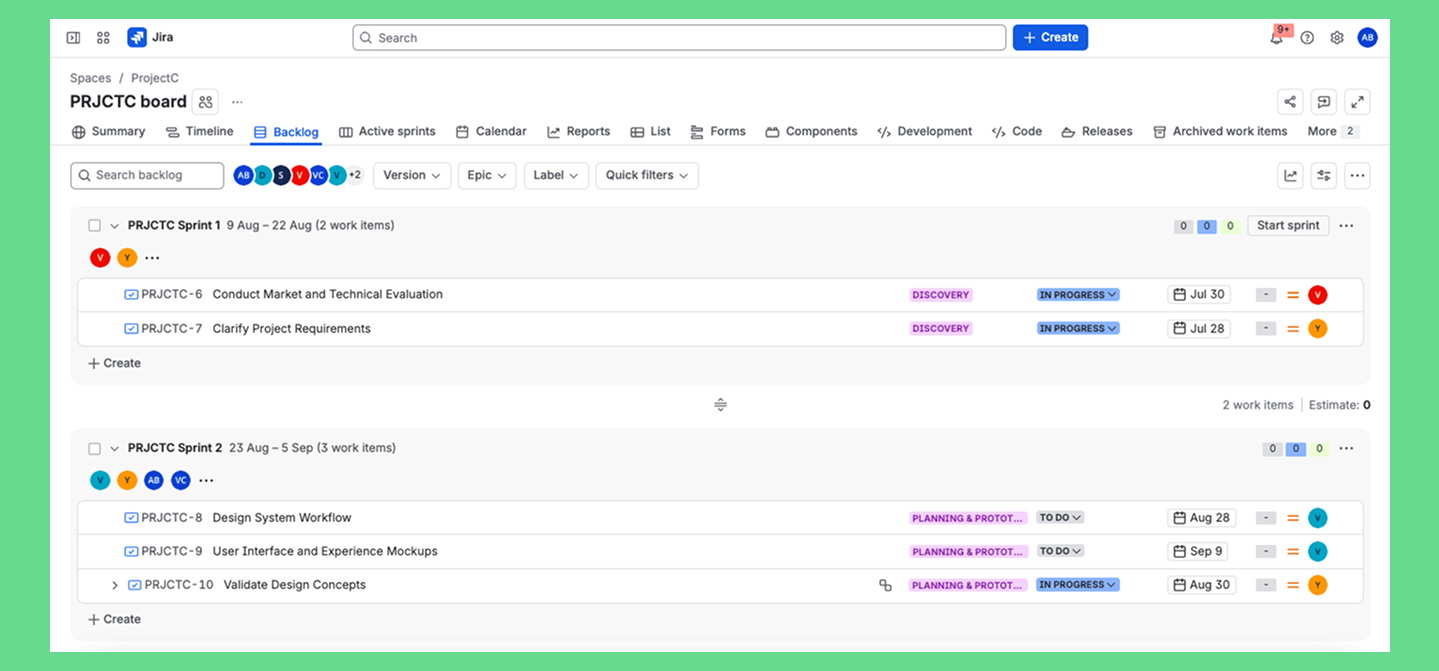
Jira is the default choice and a household name among software development teams running Scrum or Kanban. It's a highly customizable platform for issue tracking and project management that adapts to any workflow, including Agile, Waterfall, or everything in between. Jira started as a bug tracker but evolved into a flexible system for planning, tracking, and releasing software (and beyond).
On one hand, it's highly customizable, data-packed, and flexible enough to support tech-first teams of all sizes. On the other hand, plenty of teams install it, then slink back to spreadsheets because Jira’s flexibility often means too much configuration (the kind that requires dedicated admins).
Standout features:
- Deep customization — highly configurable workflows, custom fields, and issue types to match any development process.
- Advanced Roadmaps (Premium) — native Gantt-style portfolio planning for high-level project visualization.
- Jira Service Management (JSM) — adds ticketing, SLA tracking, and dynamic request forms for teams managing external support or IT requests.
- Agile-native backbone — purpose-built for Scrum and Kanban with sprints, backlogs, and detailed reporting out of the box.
- Atlassian ecosystem — connects natively with Confluence for documentation and Bitbucket for code, plus a Marketplace with thousands of add-ons to extend Jira further
Pros:
- Scales cleanly from a 10-person Kanban board to a multi-team portfolio management setup, including large scale projects.
- Deep reporting on project progress, tasks completed, and project timelines, with a clear project status view at every level.
- Advanced admin controls for complex projects with dependencies across teams, backed by SOC 2 and ISO 27001 certification, audit logs, and SSO on higher tiers.
- A genuine self-hosted option (Jira Data Center) for organizations that need to keep data on their own servers — most tools on this list are cloud-only
Cons:
- Steep learning curve for non-technical team members: non-dev teams usually give up sooner or later without a dedicated admin.
- Configuration tends to sprawl into chaos without ownership, and it's overkill for recurring tasks and day-to-day task tracking outside of software work.
- Limited resource management features (no individual capacity management even on premium tiers).
Pricing: Free for up to 10 users; Standard starts at $7.91/user/month (annual billing) and Premium at $14.54/user/month.
Best for: engineering and product teams already living in an Agile workflow, especially ones with a dedicated Jira admin.
What users say:
“Saves hours each week by quickly reprioritizing work during sprint planning” — G2 review title, Jira
“It's way too much for a 2 person team”
— comment, r/agile
What we say: Teams that blame Jira for being too complex almost always skipped assigning someone to own the configuration. We haven't seen a case of Jira chaos that didn't trace back to exactly that.
Who should skip it: marketing, sales, or client-facing teams without dev-level patience for configuration or without anyone to own the setup.
P.S. Planyway (hi!) extends Jira with visual planning tools that connect timelines, calendars, workload, and cross-project planning in one place. You can build realistic delivery plans, balance work across teams, and adjust schedules as priorities change — all while staying fully synced with Jira.
ClickUp: Best for teams wanting an all-in-one workspace
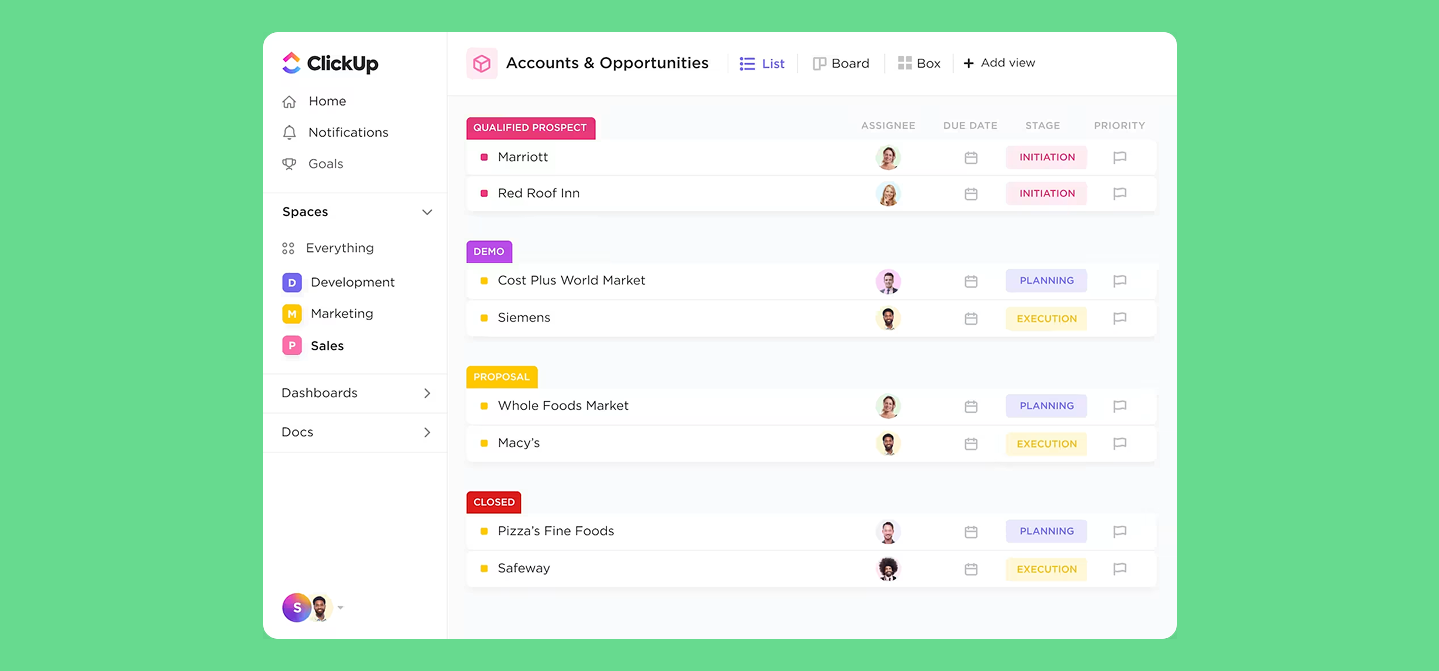
ClickUp's pitch is boldly simple: one app to replace them all. And in some sense, the platform walks the talk, as ClickUp is an all-in PM tool that combines tasks, documents, chats, spreadsheets, Gantt charts, and other tools into a single workspace.
But that initial bloat is also what makes ClickUp so intimidating for first-time users, especially if they’re after a plug-and-play project management solution. Getting in, at least, lives up to that plug-and-play promise, with ready-made importers from Jira, Asana, and Trello.
Standout features:
- Native Workload view and capacity planning, plus custom fields and workflow automation.
- Quick task creation with templates that generate tasks on a schedule.
- Two-way Google Calendar sync (Outlook and Apple Calendar only sync one-way), on top of 1,000+ other native integrations (Slack, GitHub, HubSpot, and more).
- 15+ switchable task views (List, Board, Gantt, Calendar, Timeline) built on the same underlying data.
- Basic offline mode for task creation (search and subtasks still need a connection).
Pros:
- Resource management and workload management built in, so no separate paid tier required.
- Free forever plan covers unlimited projects, tasks, and users, with 60MB file storage and one intake form.
- Built-in timesheets track progress on time spent per task, useful for productivity analysis without a separate app.
- Deep customizable templates for almost any workflow automation.
Cons:
- Performance is the most consistent complaint we found: boards loading fast elsewhere can take five to ten seconds here.
- The sheer number of project management features creates a real steep learning curve for new users, and mobile lags behind desktop.
- The app is Cloud-only (has no self-hosted option), so this is off the table for organizations with a hard data-residency requirement.
Pricing: Free plan with unlimited projects and users; Unlimited plan starts at $7/user/month.
Best for: teams that want task management, docs, and light resource management in a single tool.
“ClickUp has saved me a lot of time” — review, Capterra
“I really feel that they've tried to do too much, too soon”
— comment, r/projectmanagement
Who should skip it: teams that just need a fast, focused Kanban board for recurring tasks — the feature depth becomes overhead if you're not using most of it.
Notion: Best for knowledge-heavy teams
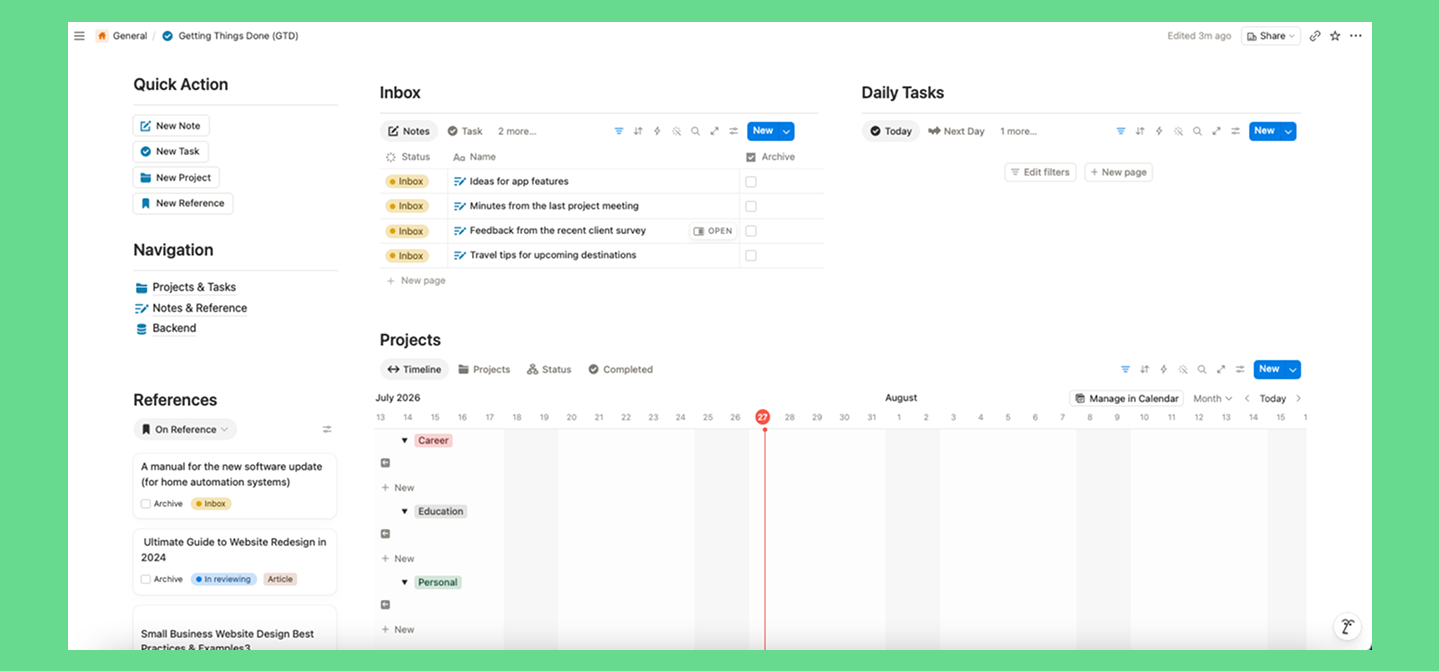
Notion is an all-in-one workspace built around a single flexible unit (the block), which can be text, a task, or a database row. That lets it double as a knowledge base, a lightweight task tracker, and even a simple website that can be shared to the public.
With that said, Notion started as a docs-and-wiki tool and still works best there. The bottleneck shows up when a team asks it to carry the full weight of project management alone. It's cloud-only, with real but limited offline access on desktop and mobile. Data exports easily to Markdown/CSV, though nested pages and databases rarely survive the move into another tool intact.
Standout features:
- Fully customizable databases with linked relations, rollups, and formulas across pages.
- Flexible views — table, board, calendar, timeline, and gallery.
- A huge, community-driven template library covering everything from OKRs to personal CRMs.
- Notion AI built in for writing, summarizing, and searching across the whole workspace.
- Public page publishing, letting a workspace double as a lightweight website with no separate hosting.
Pros:
- Notion combines task tracking with documentation in one place — all the context lives right next to the task.
- With the tool’s fully customisable structure, teams can shape a board or backlog around their actual process.
- Guests are cheap on paid plans, which is useful for looping a client or contractor into one specific project if needed.
- Security credentials are solid: SOC 2 Type II, ISO 27001, and ISO 27017 certification, relevant if a client or compliance review is ever in the picture.
Cons:
- Notion doesn't offer native sprint management, burndown charts, or time tracking, so teams doing real Agile work usually end up bolting on a separate tool.
- There's no org-wide way to see assigned tasks at scale. Once multiple departments build their own databases, cross-functional visibility takes deliberate structure, and even then, it may still fall short.
- Workflow automation with real triggers isn't native either, so status changes and notifications need manual updates or a third-party tool.
Pricing: Free plan available (10 guests, 7-day history); Plus starts at $10/user/month.
Best for: small teams that want documentation, a lightweight backlog, and simple task management in one connected workspace.
What users say:
“The ability to link tables together (Relations) and create different views is the best” — G2 review, Notion
“it quickly becomes a beautiful mess if everyone doesn't strictly follow the rules”
— Capterra review, Notion
Who should skip it: any cross-functional teams set up with more than one department creating its own bases.
Airtable: Best for teams managing data-heavy workflows
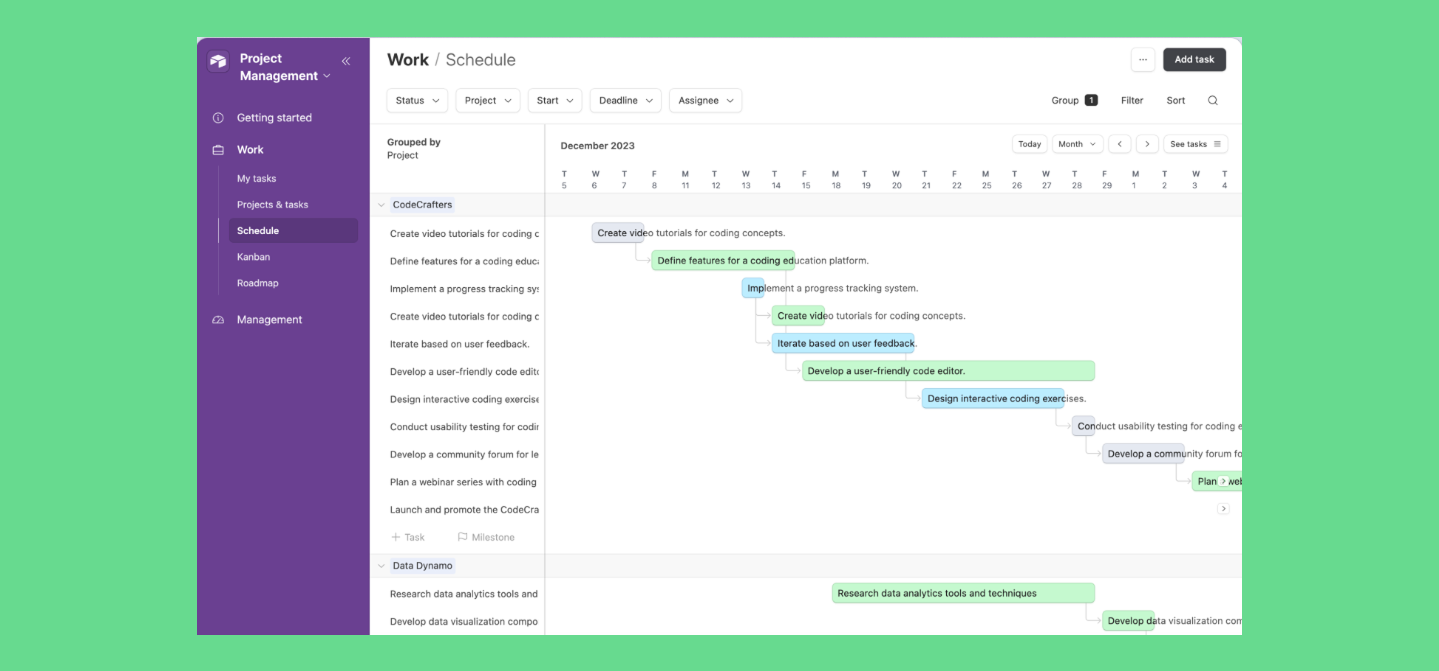
Airtable is a hybrid between a spreadsheet and a database, and that in-between identity is both its strength and its most common source of confusion. Teams that treat it as a relational database tend to love it, while those expecting Excel might have a rough first month.
Standout features:
- Airtable offers native integrations with widely used work tools, including Slack, Jira, Salesforce, Outlook Calendar, GitHub, Zendesk, and Miro, so teams can connect their base to the systems they already use.
- Linked records and rollup fields turn a spreadsheet-like base into a relational database with automatic summaries.
- Interfaces let teams build role-specific views that hide database complexity from non-technical users.
- The hybrid spreadsheet-database model gives Airtable flexibility that plain task boards do not have.
Pros:
- Strong fit for workflows where data is connected across multiple tables and needs automatic aggregation.
- Flexible enough to support custom operational setups without code.
- Interfaces make it easier to roll Airtable out across different stakeholders and departments.
- Easy to start with, while still offering room to build more advanced structures over time.
Cons:
- The relational model creates a real learning curve for teams that expect Excel-like behavior.
- Airtable can support project management, but it lacks the depth of a dedicated PM suite, so advanced planning and resource workflows often require extra setup.
- It is cloud-only, with no native offline mode and no self-hosted option, so teams cannot rely on it in disconnected or on-premise environments.
- Data migration is possible, but Airtable’s CSV and import constraints make larger or more structured moves harder than they look.
Pricing: Free plan available; Team plan starts at $20/user/month — the highest starting price on this list.
Best for: teams tracking structured, relational project data that occasionally need light project tracking layered on top.
What users say:
“The ability to link records across different tables means we can connect” — G2 review, Airtable
“a workspace can very quickly suffer from "base and field bloat” — G2 review, Airtable
Who should skip it: teams whose main need is straightforward task tracking without much relational data behind it.
Trello: best for smaller teams
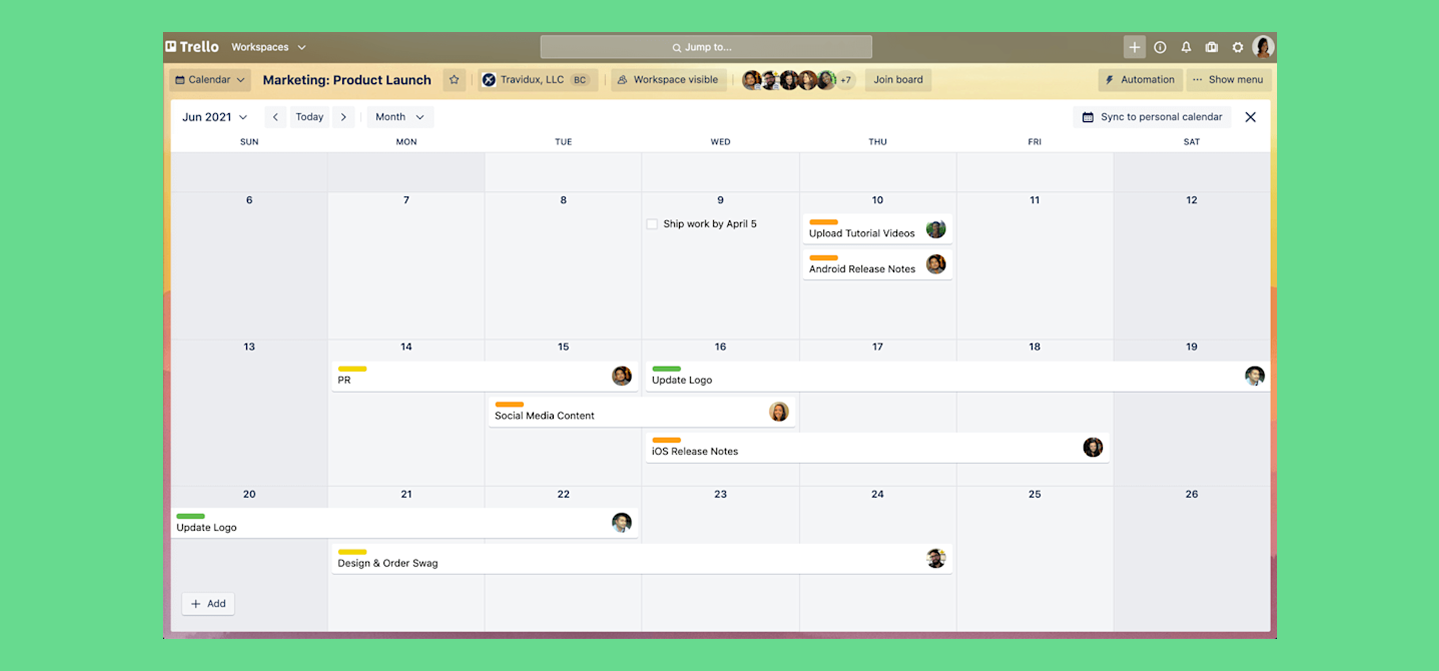
Trello is a visual project and task management tool built around the Kanban methodology. Its biggest strength is simplicity and clarity: everything revolves around boards, lists, and cards that you can move around with drag and drop. It works especially well for small teams with one or two active projects, but once the setup grows to a dozen boards, it becomes harder to keep everything in one place.
Best for: small teams and solo projects that want a fast, visual board without a setup phase.
Standout features:
- Trello is a Kanban-based project and task management tool built around boards, lists, and cards, so teams can organize work in a visual workflow.
- Butler automation lets users set up rules, buttons, and scheduled actions without code.
- Power-Ups and integrations extend Trello with tools like Google Calendar, Slack, Google Drive, Dropbox, and Gantt-style add-ons.
- Card mirroring and advanced checklists help coordinate related work across boards.
Pros:
- A very short path from signup to a working board, which makes Trello easy to adopt for small teams.
- A free plan that includes up to 10 boards per workspace, unlimited cards, and Power-Ups for third-party add-ons.
- Built-in Butler automation available on all plans for basic recurring tasks and simple workflow rules.
- Native integrations with tools like Slack, Google Calendar, Google Drive, Dropbox, and Microsoft Teams through Power-Ups and workspace features.
Cons
- No native org-wide view that shows project progress across multiple boards in one place.
- No built-in resource management or workload management, so Trello is not designed for capacity planning.
- Advanced views such as Timeline, Calendar, Dashboard, and Map are only available on paid plans.
- The Kanban-first structure stays intentionally simple, which becomes limiting when workflows get more complex.
- Cloud-only, with no self-hosted or on-premise option.
Pricing: Free plan with 10 boards; Standard starts at $5/user/month; Premium at $10/user/month.
What users say:
The magical visual simplicity for my straightforward workflows — Capterra review, Trello
“the 5,000-item limit in certain views poses a real bottleneck:
— Capterra review, Trello
That capacity gap is where Planyway 👋 comes in. It adds a visual planning layer to Trello, bringing timelines, calendars, workload management, and multi-board planning into one workspace. From there, you can see everyone's workload across connected boards, identify overloads, and adjust assignments before schedules slip.
Who should skip it: any team already juggling more than a handful of boards.
Linear: Best for engineering teams that need an issue tracker
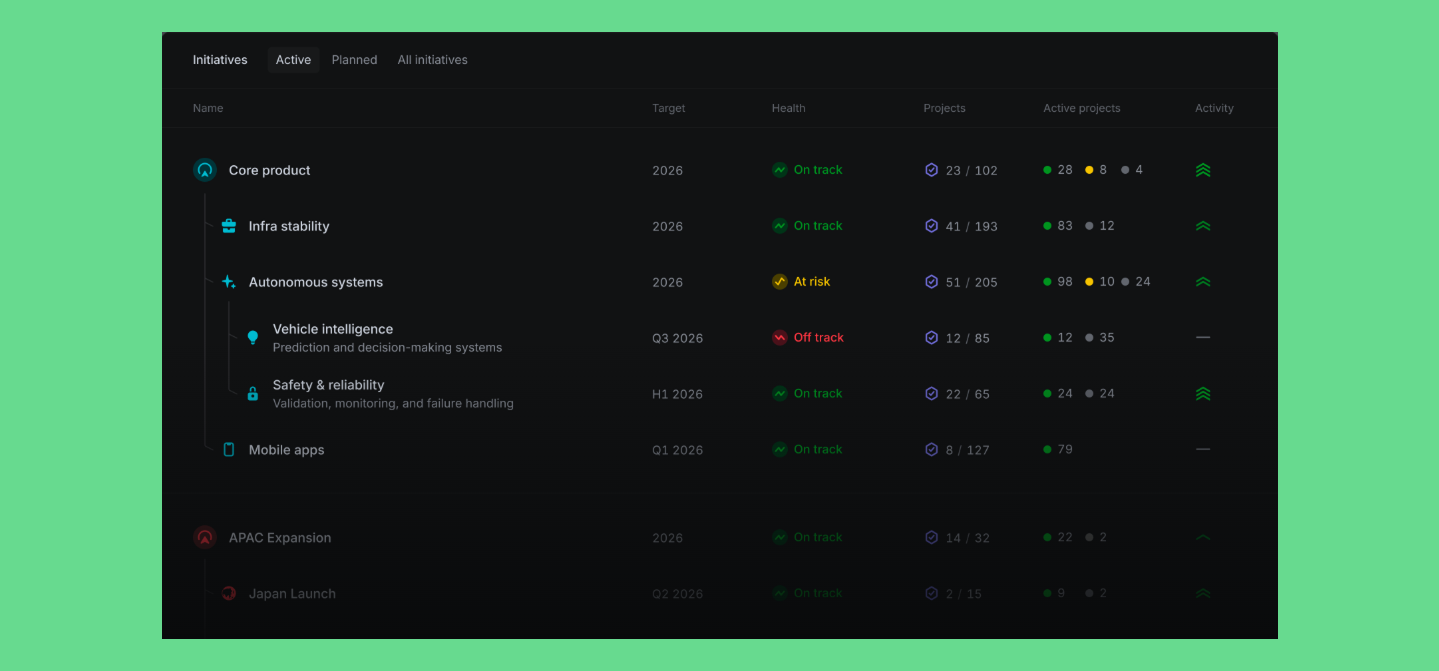
Linear is a minimal, high-performance issue-tracking tool for teams that want to manage work through tickets, sprints, and backlog views. It builds its identity around being the anti-Jira, as its focused design keeps things simple and fast, but it becomes less flexible when the workflow needs to expand beyond the core development team.
Standout features:
- Sprint planning and backlog views are streamlined for engineering teams that work directly in tickets.
- Customer Requests gives teams a native way to collect and manage external feedback.
Pros:
- Noticeably faster and cleaner than most other project management software on this list.
- Opinionated defaults make it easy to get a usable workflow running in just a few clicks.
- Well suited to internal engineering teams that want to move quickly without heavy configuration.
- Customer Requests adds a simple way to bring outside feedback into the same workflow.
Cons:
- Custom fields are deliberately not supported, which limits flexibility for more complex workflows.
- No native read-only access for external clients or contractors on a single project.
- Reporting is lighter than in Jira, which makes it harder to prove project progress to non-technical stakeholders.
- Linear is great for a compact engineering team, but it becomes less practical when the workflow has to stretch across multiple departments and needs more flexibility.
Pricing: Free plan for up to 10 members and 2 teams; paid plans start at $10/user/month.
Best for: software teams that want a fast, keyboard-driven issue tracker without Jira's configuration overhead.
What users say:
“It feels snappy in a way a lot of project management tools don't” — G2 review, Linear
“Not built for non-technical teams”
— G2 review (5-star overall), Linear
Who should skip it: agencies or any team that regularly loops in clients or contractors on individual projects.
Asana: Best for marketing, operations, and cross-functional teams
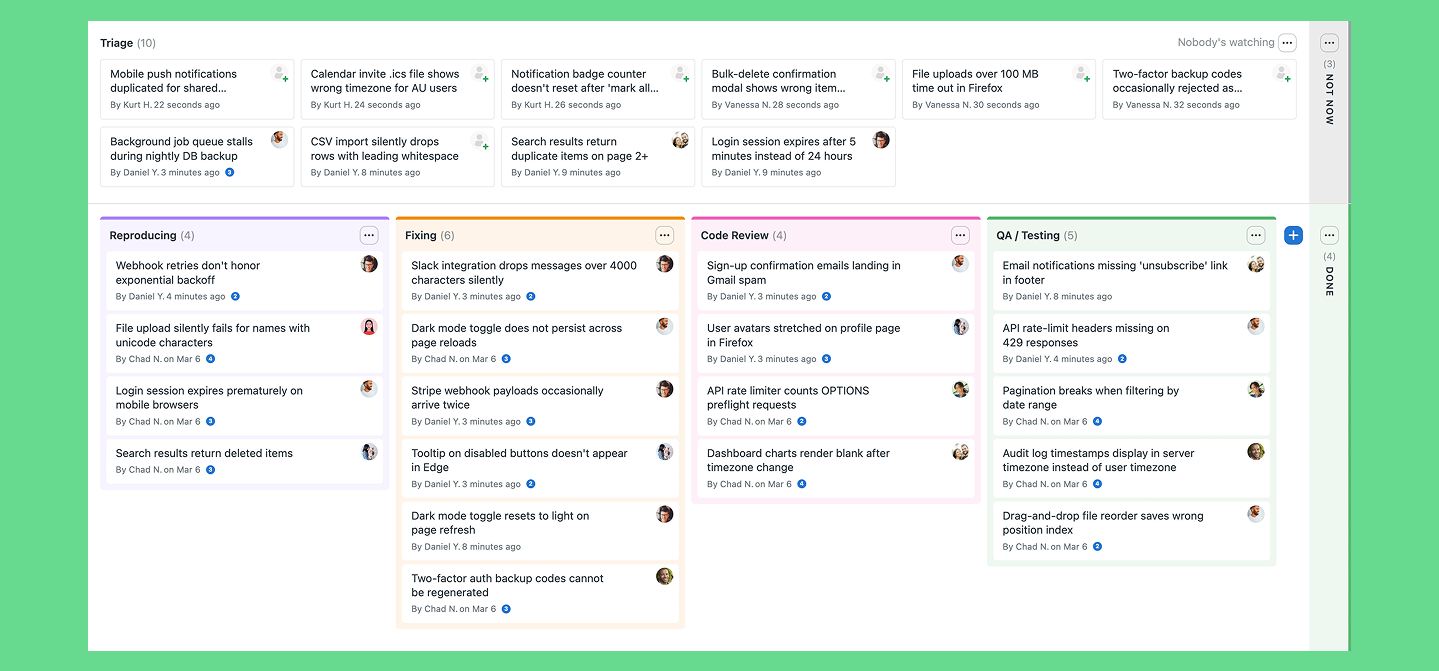
Asana is a work management platform built around tasks, projects, and cross-team collaboration. It sits in the middle of this list on purpose. It owns more structure than Trello and less overhead than Jira, being built for cross-functional teams running marketing, ops, and product together.
For project management specifically, that shows up as structured intake through request forms, a timeline view for planning, and — once you're past the free tier — portfolio-level workload management across multiple projects at once.
Standout features:
- Every person gets a single view of everything assigned to them, pulled in automatically from every project they're part of.
- Workload view and Goals both unlock on Advanced: Workload shows who's overloaded across every project they're assigned to, while Goals ties individual tasks back to measurable, company-level objectives.
- Workflow Builder lets teams visually map a process that spans multiple departments — handoffs, approvals, and all.
- Asana's AI layer, Smart Summaries and Smart Rules, turns task comments into a status update and automates handoffs, though the most useful pieces are gated to Advanced and Enterprise.
Pros:
- Guests are free and unlimited on every paid plan, so bringing in clients or external stakeholders doesn't cost extra seats.
- The timeline view and dashboards are clean enough that non-technical stakeholders can read them without a walkthrough.
- The Free plan covers up to 10 users with the basics, with no time limit forcing an upgrade.
- Asana holds an unusually deep certification stack for its price point — SOC 2 Type II, four ISO certifications, GDPR alignment, and a HIPAA assessment.
Cons:
- Workload management and resource allocation sit behind the Advanced tier.
- Goals and portfolio management are missing from both Free and Starter, so a team that outgrows the basics has to jump straight to Advanced. There's no middle tier to ease into strategic-level tracking.
- It's cloud-only with no self-hosted option, and offline access is limited to the mobile app — desktop and browser both need a connection.
- Moving data in works well through CSV import and dedicated wizards from Trello and Jira, but moving out means manually rebuilding custom rules and fields in whatever tool comes next.
Pricing: Free plan for up to 10 users; Starter at $10.99/user/month; Advanced (unlocks workload management) at $24.99/user/month.
Best for: marketing, operations, and cross-functional teams that need portfolio-level visibility without an engineering-heavy tool.
What users say:
“Its portfolios and workload tracking provide clear cross-functional visibility” — G2 review, Asana
“advanced automation rules, workload management, and portfolios are locked behind higher-tier plans” — G2 review, Asana
Who should skip it: small, single-function teams that don't need portfolio management or cross-department visibility.
Fibery: Best for complex workflows that demand a build-your-own-system
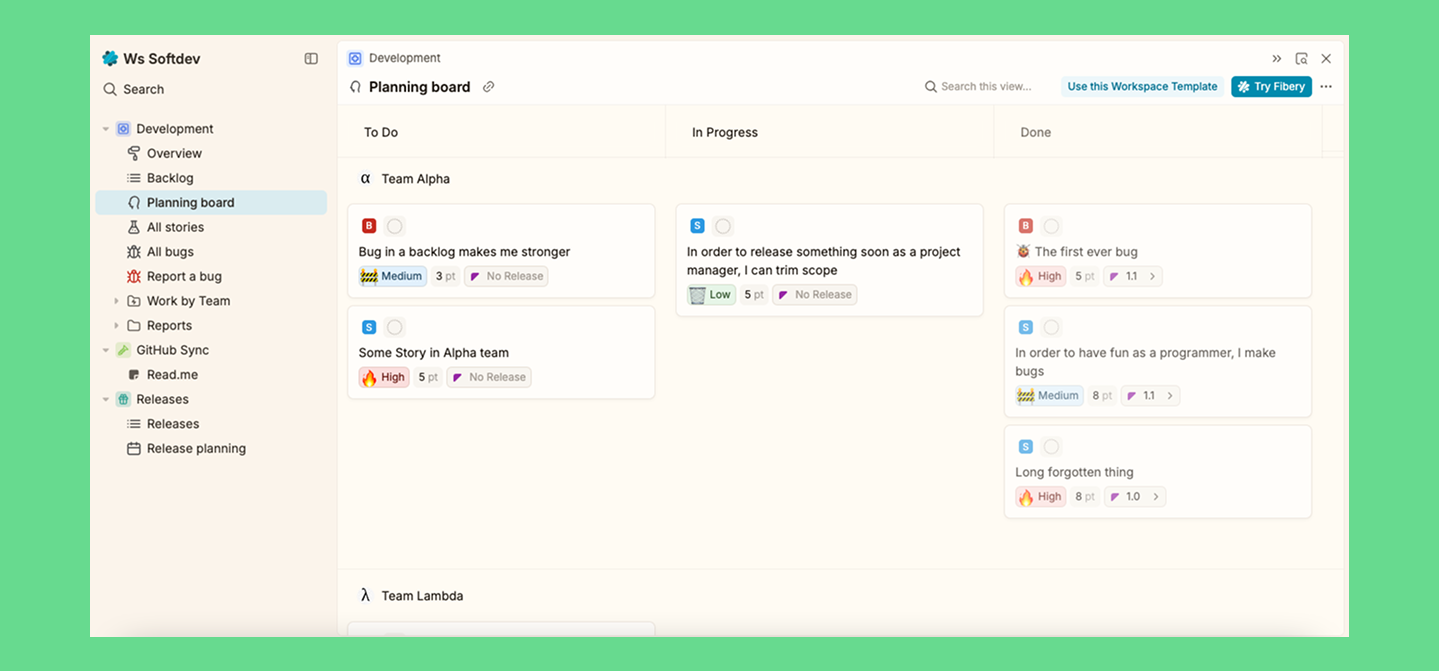
Fibery is a flexible platform for building your company's own “operating system” — a construction kit for assembling a workspace that fits your actual processes, instead of bending your processes to fit the rigid rules of pre-built software.
Standout features
- Fully connected custom databases let teams link any type of data to any other — roadmaps to customer records, goals to tasks.
- No-code automation can span multiple linked databases at once, handling workflows that don't fit a standard “if this, then that” template.
- AI comes bundled into every paid plan and can now connect directly to external AI assistants like Claude through MCP.
- Timeline view lets teams visualize dependencies between tasks, and dates shift automatically across linked items when one task moves.
Pros
- The platform offers extreme flexibility for teams whose workflow automation needs don't map to any standard tool.
- The Free plan covers teams of 10 or fewer with unlimited entities, strong enough to connect strategy, roadmap, and execution in one linked system.
- Fibery holds SOC 2 Type II certification and is GDPR compliant, which matters if a client or compliance review is ever in the picture.
- Any workspace admin can export the full account in Markdown, CSV, and file format.
Cons
- Resource management and capacity planning across multiple projects has no native support.
- Flexibility creates real setup time.
- It's cloud-only with no self-hosted option and no offline mode.
Pricing: Free plan for up to 10 users; Standard starts at $12/user/month.
Best for: teams with unusual workflows and the patience to configure a custom system.
What users say:
“We can understand connections and relations between different Entities” — G2 review, Fibery
“has its limit if you want to manage teams that work across different projects”
— Capterra review, Fibery
Who should skip it: teams that want a working system on day one.
Miro: best for hybrid/remote teams that need an infinite visual canvas
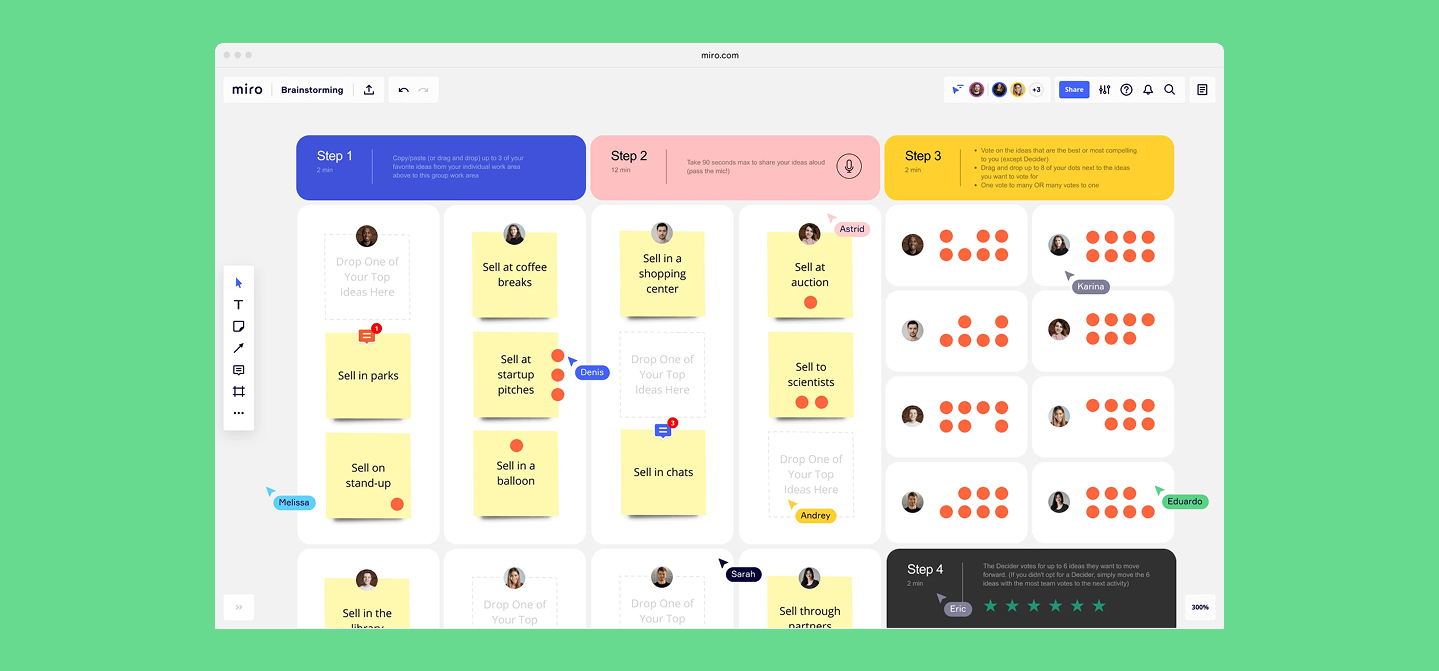
Miro is an online whiteboard for real-time collaboration — the virtual equivalent of a flip chart or whiteboard in a meeting room. Miro isn't really competing with the rest of this list for the same job. Instead of managing tasks or databases, it gives a team an infinite canvas for sketching, sticky notes, diagrams, and live brainstorming.
Standout features
- An infinite canvas lets an entire team sketch, add sticky notes, and build diagrams together in real time, without ever running out of room mid-session.
- Talktrack lets someone record an async video walkthrough of a board, which matters for distributed teams that can't always get everyone live at once.
- Native integration with Microsoft Teams and Microsoft 365 Copilot brings board access directly into tools teams already use for meetings.
- Miro holds SOC 2 Type II and ISO 27001 certification, with EU data residency available on every plan and US, AU, and JP residency on Enterprise.
Pros
- Best-in-class for visual planning and workshop-style team collaboration.
- Miro has native Microsoft ecosystem integration, which is unusual among visual-first tools.
- The Free plan is genuinely usable for smaller teams and occasional sessions.
Cons
- There is no native status tracking, assignment history, or task tracking, and boards can pile up fast without lifecycle management.
- It's cloud-only with no self-hosted option and no offline mode.
- Board export and import works for moving between regions or accounts, but sharing permissions don't carry over and have to be rebuilt from scratch.
Pricing: Free plan available; Starter plan begins at $8/user/month.
Best for: cross-team planning sessions, roadmap visualization, and brainstorms.
What users say:
“We now use the board for brainstorming then move the actual work into clickup”
— comment, r/miro
Who should skip it: anyone hoping one tool can replace both a whiteboard and a tracker.
P.S. If Miro is where you draft roadmaps but Jira is where work happens, Planyway for Jira gives you the same easy, visual roadmap planning experience — with the flexibility to keep plans as drafts or sync them with Jira when they’re ready for execution.
Basecamp: Best for small to mid-sized teams and client-facing agencies
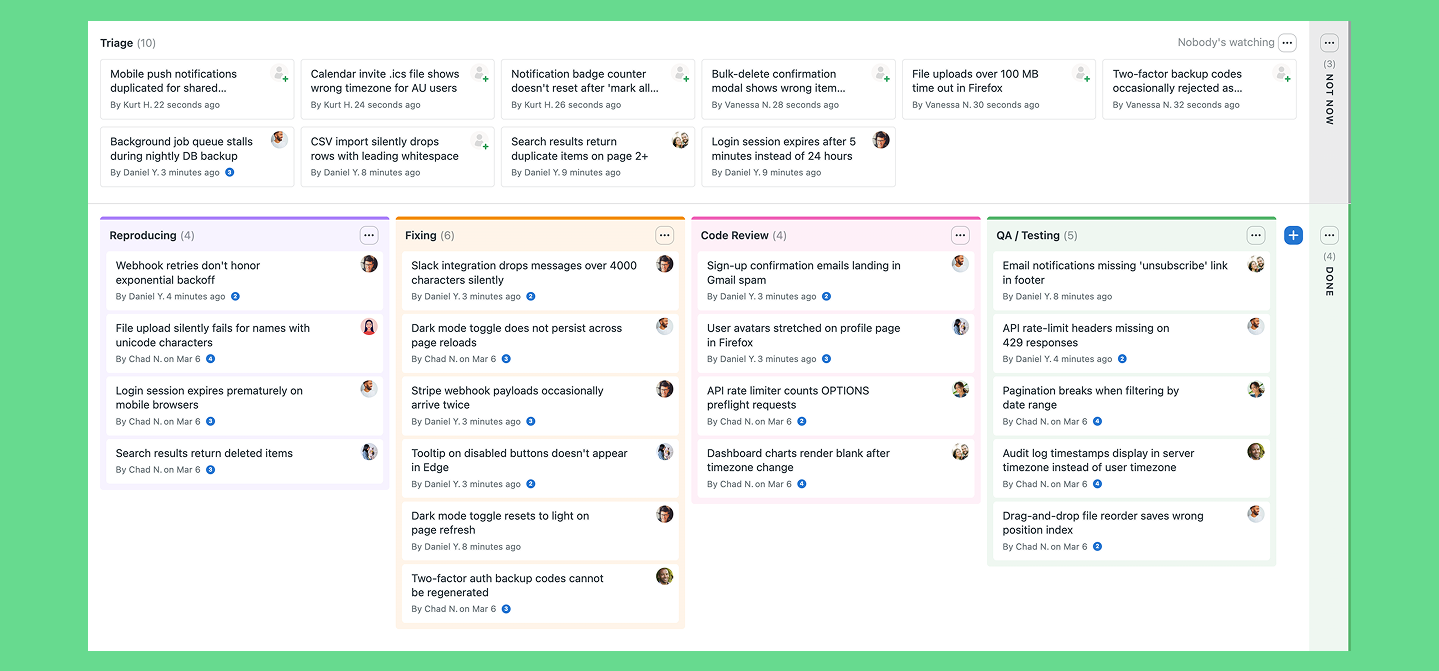
Basecamp has stayed defiantly simple for two decades. It skips the Gantt charts and the sprawling custom fields that most tools on this list treat as table stakes. For the right team, that restraint is the entire value proposition.
Standout features
- Flat, predictable pricing includes a Pro Unlimited plan at one flat monthly rate for unlimited users, which gets cheaper per seat the bigger a team grows.
- Client-facing message boards let external stakeholders participate directly in a project without needing to learn the rest of the tool.
- Account owners can export a full HTML copy of any project, a selection, or the entire account at any time, which makes leaving relatively painless if it ever comes to that.
Pros
- Onboarding is close to instant; the setup is minimal.
- The Pro Unlimited plan covers unlimited projects and users at one flat monthly rate, which gets cheaper per seat as a team grows.
- The interface stays clean enough that non-technical clients genuinely enjoy using it, not just tolerate it.
Cons
- There's no native resource management, workload management, or capacity planning.
- Giving an outside client access to just one project isn't possible without a fairly blunt, all-or-nothing permissions model.
- 37signals has stated it hasn't completed its own SOC 2 audit and doesn't offer a HIPAA business associate agreement, which can be a blocker for regulated industries or security-conscious clients.
- It's cloud-only with no self-hosted option, and offline access on mobile mostly means viewing already-synced data, not creating new work.
Pricing: Free plan (1 project, 1GB storage); Plus at $15/user/month; Pro Unlimited at $299/month flat for unlimited projects and users.
Best for: small teams and client-facing agencies that want calm, predictable team collaboration without a learning curve.
What users say:
“greatest strength is also its achilles' heel: simplicity”
— G2 review, Basecamp
Who should skip it: agencies that regularly manage complex projects with real task dependencies, or that need different clients to see different things.
How to choose the best software for project management that works for your case
Every tool above is good at something and weak at something else. What matters is whether the trade-off fits your team's actual workflow. Here's what's worth thinking through with your team before you commit.
- Who's it really for — engineers, or everyone? Ticket-based tools (Jira, Linear) reward technical teams and tend to frustrate everyone else. Board-and-doc tools (Trello, Notion, Basecamp) go vice versa.
- Do you need to loop in people outside the team? Most tools on this list can't give a client or contractor access to just one project without exposing your whole workspace to them. It's the single most common limitation we found across all ten, and it's rarely solved by simply upgrading to a pricier plan.
- Where does resource management sit on the pricing ladder? Of everything we compared across all ten tools, this is the one feature with the widest price swing — free on some platforms, a 127% markup on others, and simply unsupported on a few. Worth checking specifically, because it's an easy line item to miss until the bill arrives.
- Does it hold up on security and reporting once you scale? If large-scale projects or regulated clients are in the picture, check for role-based access controls and data encryption specifically. Most tools on this list only unlock those at their top tier alongside the key performance indicators that let leadership track progress in real time.
- Does “simple” equal “limited”? Basecamp and Trello are simple by design, not because they're missing something — for the right team, that restraint is the whole point.
- Can you see progress without leaving the tool? Whatever your project plan looks like on day one, you should be able to track it inside the platform itself. If you're constantly exporting into spreadsheets just to see where things stand, that's a sign the tool isn't giving you the visibility it should.
Quick decision matrix
| Team profile | Recommended | Not the best match |
| Startup (<10), fast-moving | Linear, Trello, Notion | Jira, Fibery, Airtable |
| Growing (10–50), cross-functional teams | ClickUp, Asana, Fibery | Basecamp, Linear |
| Enterprise (50+), structured | Jira (+Planyway for resource management), Asana, ClickUp | Trello, Miro, Notion |
| Client services / agencies | Basecamp, Trello, Asana, Airtable | Linear, Fibery |
Our final thoughts on finding the best project management tool
Choosing project management software isn't about finding a magic bullet — it's about choosing which trade-offs you can live with. No tool eliminates the administrative work of managing projects, none offers simplicity without giving up flexibility, none easily solves the problem of client access, and none replaces discipline or strategic thinking. The most useful thing software can do is not to break the way of a team that already knows how it wants to work. It won't hand you business excellence on its own — everything else is just optics.


FAQ
The top 5 project management software tools by adoption are Jira, ClickUp, Asana, Trello, and Notion, though the right choice depends on team size and workflow.
A project management system is a management software platform that helps project managers and teams plan, assign, and track project tasks, project timelines, and project progress in one place, supporting data-driven decision-making over gut-feel updates.
Most project managers use Jira for software development teams, while Asana and ClickUp are more common among marketing and cross-functional teams.
The simplest project management software on this list is Trello, followed by Basecamp. Both are fast to set up and easy to onboard new users into.
ClickUp and Jira (extended with Planyway) are the best free alternatives to Microsoft Project — both offer generous free plans with Gantt chart-style timeline view functionality for smaller teams.
The best free project management tool depends on what you actually need. The best free project management tool depends on what you actually need — no single free project management software package fits every team the same way. ClickUp's free plan is the most generous on this list — unlimited projects and users. Trello's free plan is the better fit if you just want a clean, fast kanban board with room to grow (10 boards, unlimited cards). Linear and Fibery both offer solid free plans for small teams (up to 10 members), while Basecamp's free plan is the most limited on this list, capped at a single project.