Top 10 Must-Have Jira Plugins to Elevate Your Project Management

Jira is a powerful project management system, arguably one of the best ones on the market. However, it does come with its fair share of limitations, especially if we’re talking about its standard tiers. Most of the time, Jira teams end up relying on plugins to fill in the gaps. The functionality of those plugins sometimes overlaps so much that it becomes hard to choose the right one.
Below, our team has broken down one of the most popular project management Jira plugins that have received high marks from users on the Atlassian marketplace and multiple review platforms.
The methodology behind our selection
To choose the must-have Jira project management add-ons, we didn’t rely on a single factor like popularity alone. We based our roundup on a combination of signals, including:
- User ratings and reviews — We have filtered plugins that have received high ratings across a significant number of reviews on Atlassian Marketplace, G2, Capterra, and other review sites.
- The number of installs on Atlassian Marketplace — The more downloads the tool has, the more validated it is by the PM community.
- Update frequency and vendor activity — We made sure to include plugins that get regularly updated by the vendor, which means they’re compatible with the latest Jira versions and are consistently improved.
- Ecosystem fit and integration with Jira workflows — Our team has shortlisted plugins that naturally extend Jira and seamlessly integrate with it.
- User experience and adoption curve — We looked at how intuitive each plugin is relative to the complexity of the problem it solves. Some tools are designed for advanced use cases and naturally come with a steeper learning curve — and that’s expected.
- Feature relevance to common use cases — We gave a shoutout to plugins that cover real, repeatable needs of teams, instead of highly specific edge cases.
10 best Jira plugins for project management in 2026
Jira plugins (also called add-ons or apps) are extensions that enhance the core functionality of Jira. They are built to fill gaps in Jira’s native capabilities and let teams customize the platform based on their specific workflows, processes, and needs. In simple terms, plugins help you do more with Jira without modifying the core system. The best Jira project management plugin is the one that covers your needs and your use case, without overcomplicating your setup.
ScriptRunner for Jira: Automation extender
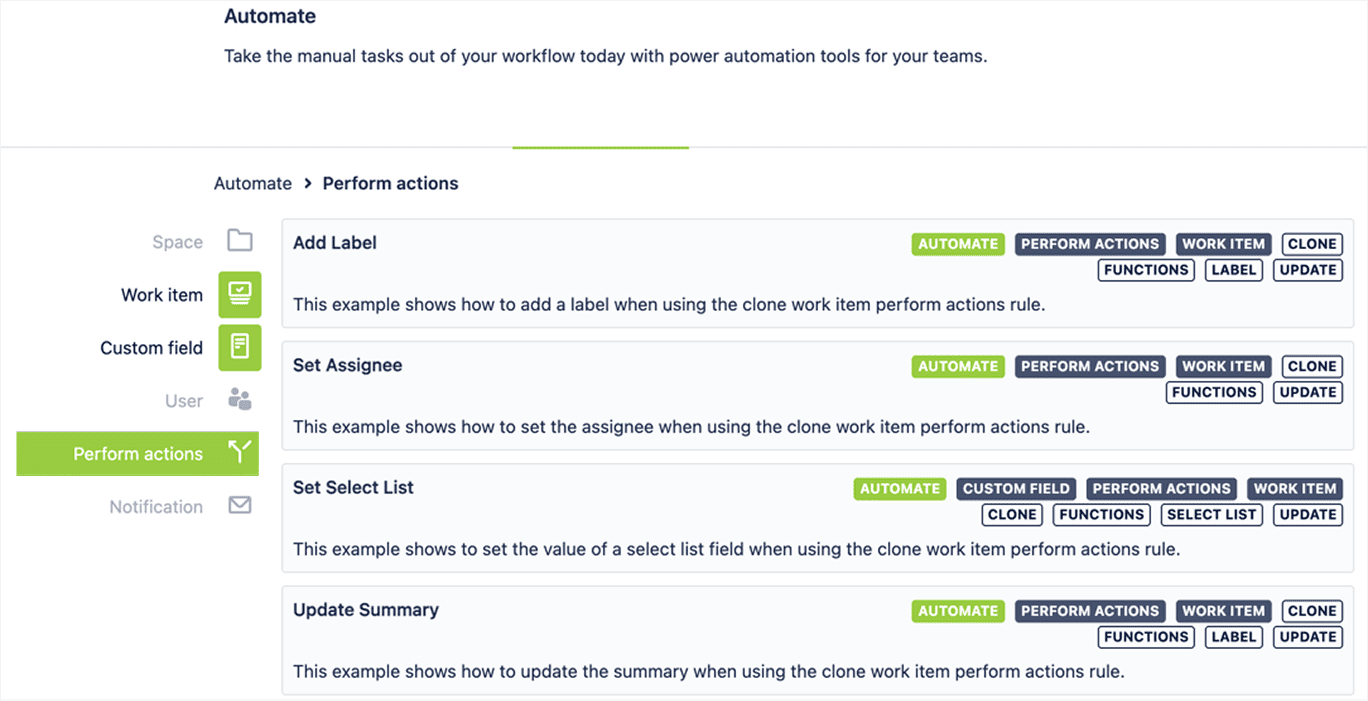
If there’s anyone happy about Atlassian’s new automation limits, it’s ScriptRunner. Essentially, ScriptRunner enables admins and advanced users to programmatically control Jira behavior via Groovy scripts. The tool allows almost infinite customization opportunities for workflows, JQL functions, automation rules, and more.
Here’s what teams typically use ScriptRunner for:
- Advanced workflow automation — triggering actions on specific transitions, enforcing layered business rules, or running multi-step processes across technical teams and systems.
- Custom JQL functions — writing more flexible queries to find, group, or report on issues.
- Workflow customization — adding custom validators, conditions, and post-functions.
- UI and behavior extensions — adding custom logic to screens, fields, forms, or issue behavior.
- Bulk operations and data manipulation — updating large numbers of issues at once, cleaning up project data, applying changes in bulk, or handling migrations more efficiently.
- Smart code editor — using a code editor with smart features (autocomplete, hints, Javadoc lookups). Deeper integration with external systems is also one of the plugin's superpowers. With it, teams can exchange project data with CRMs, ERPs, internal platforms, or other tools.
Pros:
- The automation capabilities are mind-blowing, especially Behaviors.
- The app reduces manual work by automating routine and complex tasks.
- ScriptRunner unlocks features Jira doesn’t offer natively and tailors to your exact needs.
- Large community, lots of ready‑made script examples, and training resources.
Cons:
- ScriptRunner tends to be on the pricier side compared with many other Jira apps.
- Groovy scripting is not beginner-friendly, and teams often need developers or experienced admins.
- People without a coding background often find the interface and features complex and overwhelming to use at first.
Pricing: Free for teams of up to 10 users. As your team grows, pricing starts at $2.62 per user per month.
Hosting options: Cloud | Data Center
Planyway: Cross-project resource management, roadmaps, and time tracking
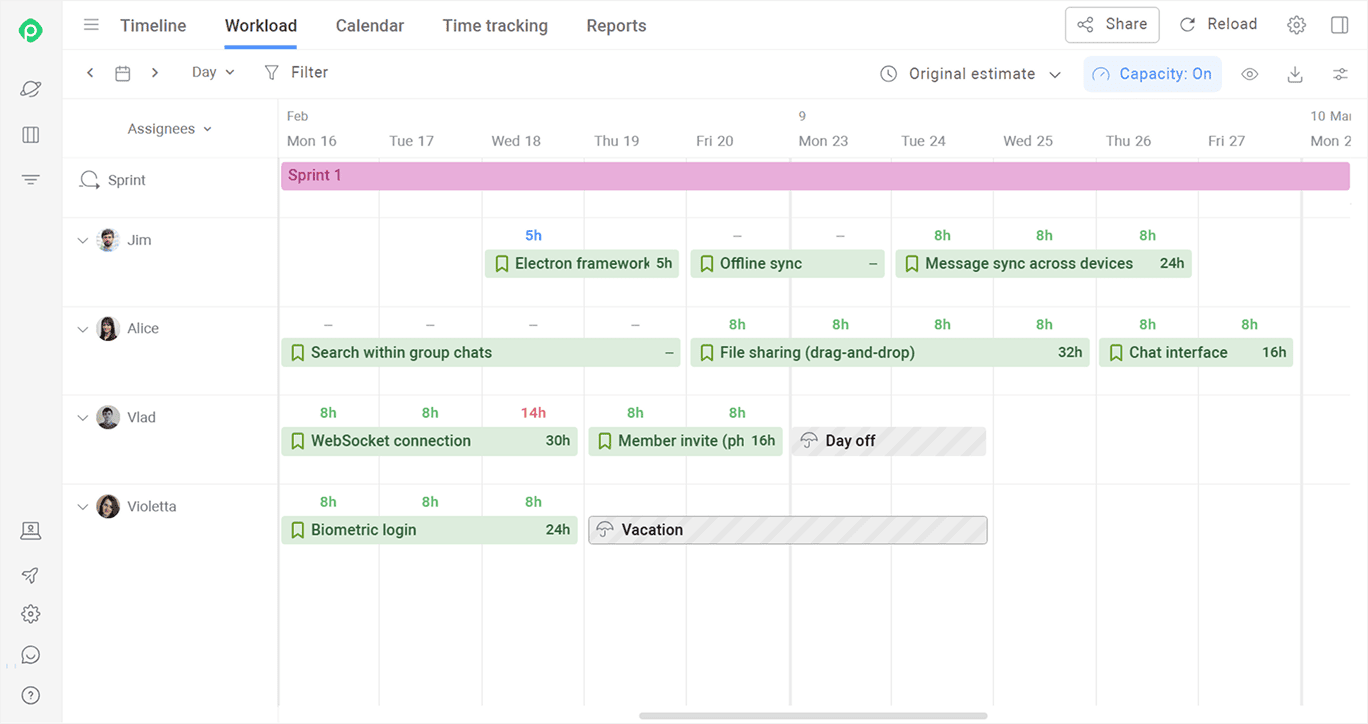
Planyway is a Jira project management add-on that combines resource management, project planning, and time tracking (including cross-project and cross-team visibility) in a single visual workspace. The plugin helps teams go from a big-picture project plan to a detailed, real-time resource schedule of who is doing what. This makes it easier to balance workloads as you go and make sure you deliver on time and hit deadlines.
Here’s why teams choose to use Planyway:
- Project timeline across spaces and teams. Planyway can visualize Jira data on one timeline with milestones, releases, and dependencies, grouped by space, epic, component, user, or team.
- Individual capacity planning. Planyway helps assign tasks, spot overloaded team members, balance work across people, and optimize capacity — something Jira alone doesn’t do at all.
- Project portfolio management. Multiple Jira spaces and boards sync up on one portfolio timeline to visualize the full picture of all activities.
- Easy-to-share roadmap. The roadmap is fully customizable and easy to share. After you set up the right view, you can share it via a link or export it as a PDF for stakeholders who do not use Jira.
- Time tracking tied to planning and reporting. The app includes time logging, timesheets, estimate-vs-actual comparison, and exportable reports, which make it more of a full project planning and tracking layer for Jira.
Pros:
- Roadmaps, resource planning, and time tracking all happen in one app rather than juggling multiple project management plugins, which is also budget-friendly.
- Many users note Planyway's simple drag‑and‑drop interface that lets teams quickly reschedule critical tasks and adjust plans without frustration.
- The ability to sync different estimates, dates, and project milestones with different Jira fields makes it very flexible to support the right workflow.
Cons:
- Built‑in reporting is focused only on time tracking. If you want deeper insights, you have to export data or use Jira's detailed reports outside of Planyway.
- WBS is not supported, while it’s usually expected for Gantt-like apps, especially for project portfolio management.
- Large enterprises with heavily program‑level delivery might find that the tool is missing features to support their big “initiative” structures.
Pricing: The app is free for teams of fewer than 10 users. For bigger teams, the pricing starts at $3.
Hosting options: Cloud | Data Center
Jira Misc Custom Fields: real-time custom field calculations
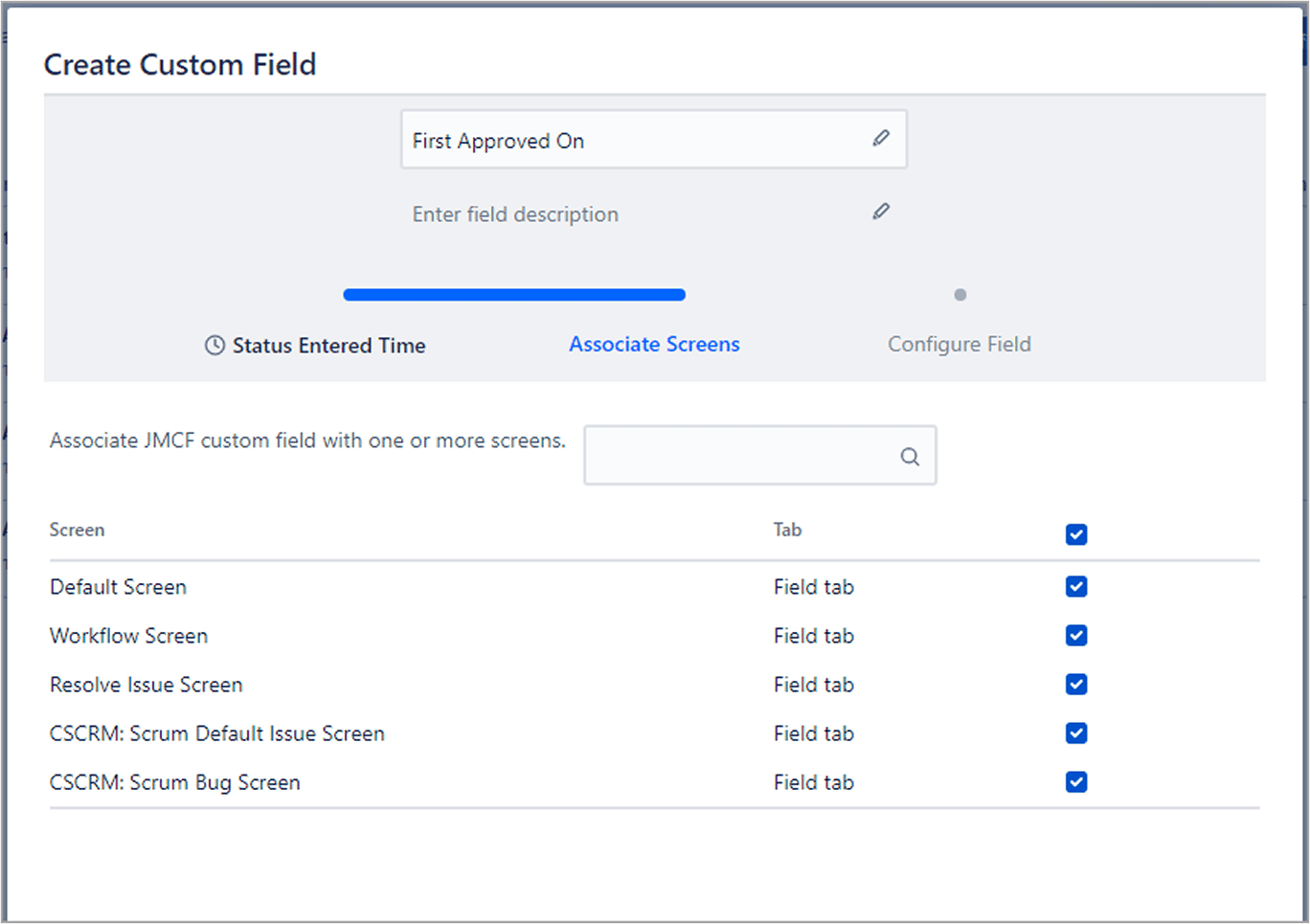
Native Jira custom fields are mostly static. JMCF is a dedicated Jira plugin for custom fields that brings a set of advanced, calculated, and dynamic custom fields to the instance, allowing teams to derive values automatically from existing issue data instead of filling everything in by hand.
The highlights of JMCF are:
- Access to hidden Jira data. It lets you expose things Jira doesn’t show natively, like last transition date, who made a change, parent status, and time in status.
- Custom calculated fields for reporting & JQL. You can create fields that compute values (durations, counts, statuses) and then use them in filters, dashboards, and reports.
- No-code for common cases + scripting for advanced cases. The app is a no-code solution for many scenarios, and also supports scripted field types for more sophisticated logic.
- Auto-updating fields without manual input. Fields are calculated dynamically, so project data stays up to date without user interaction or manual updates.
Pros:
- JMCF solves many “we need a custom field for this” requests without development.
- Strong fit for complex enterprise reporting needs.
- The plugin keeps more analysis inside Jira instead of exporting data to Excel or BI tools.
Cons:
- JMCF fields are read-only and don’t behave like normal writable fields.
- Advanced scenarios, especially scripting, require an understanding of Jira internals and logic.
Pricing: Free for teams of up to 10 users. For bigger teams, the pricing starts at $0.91 per user monthly.
Hosting options: Cloud | Data Center
JXL for Jira: Spreadsheet calculation directly in Jira
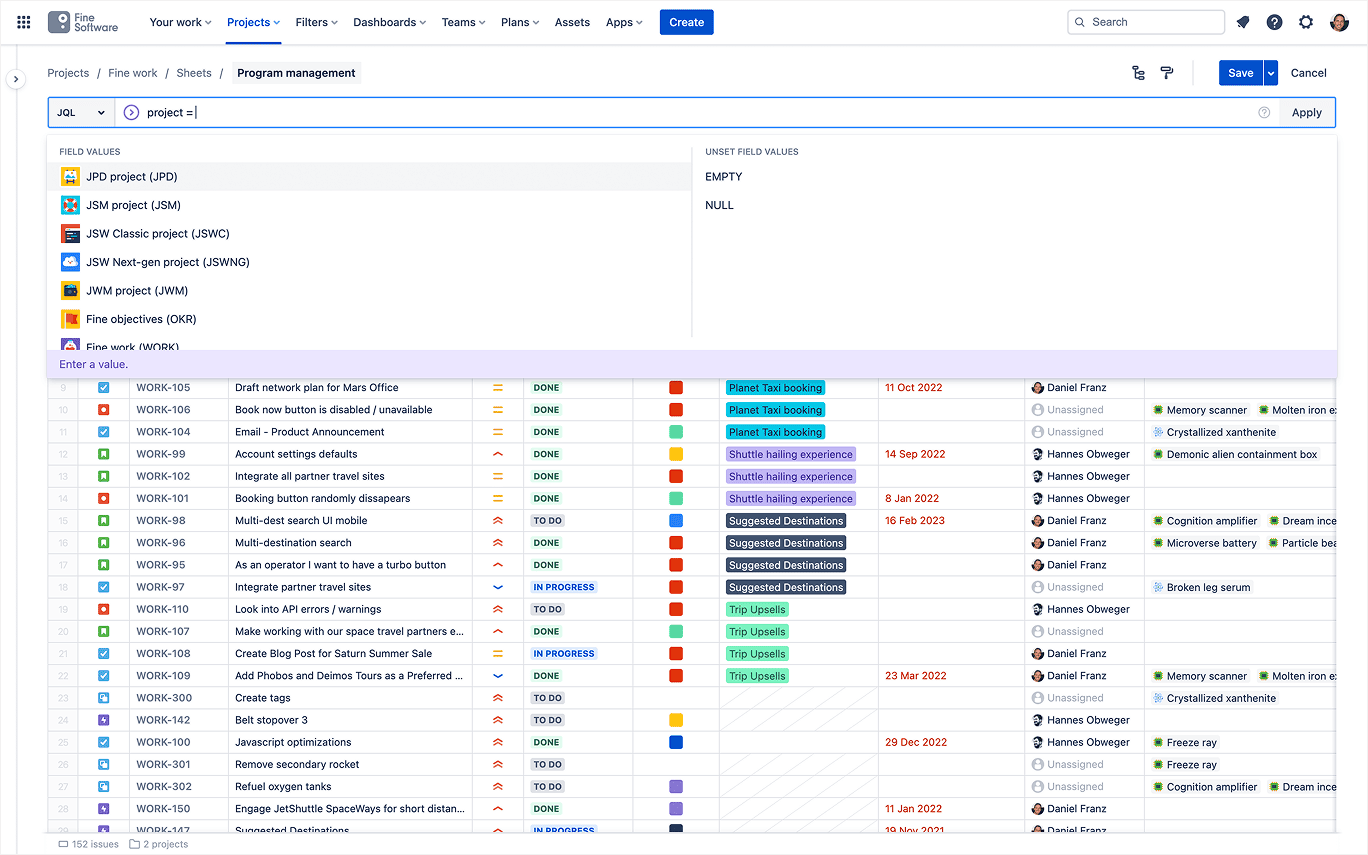
If Jira’s standard issue views don’t float your boat, you might want to check out JXL for Jira, which switches on a familiar spreadsheet view for working with JQL-filtered issues. Many users appreciate that JXL makes it much faster to update many issues at once and manage data the way they want.
This Jira project management plugin supports hierarchy views, conditional formatting, custom columns (e.g., time in status), and fast inline editing that updates back into Jira in real time.
Pros:
- Users can stay in Jira while working in a format that feels much faster and more natural.
- Saved views and reusable sheet setups help work with the same Jira data repeatedly.
- It’s aimed at both technical and non-technical users, which makes it easier to introduce across projects, products, ops, and reporting teams.
Cons:
- Teams may be reluctant to adopt the tool if they’re already using tools like Excel or Google Sheets, since switching means changing habits and rebuilding existing workflows in Jira.
- Users in the Atlassian Community report onboarding and discoverability friction.
Pricing: Free for teams of up to 10. Then starts at $1.88 per user monthly.
Hosting options: Cloud | Data Center
Tempo Timesheets: Enterprise-grade reporting
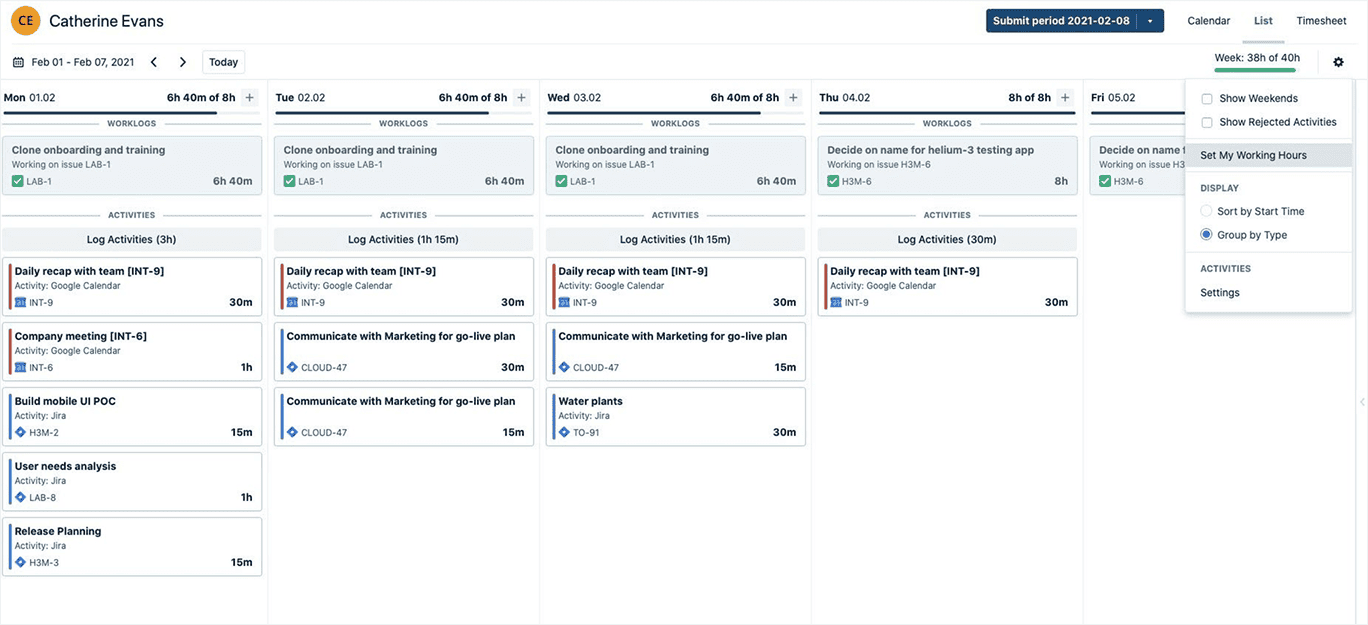
Tempo Timesheets is one of the most popular time tracking plugins for Jira. Besides basic logging, it offers the approval flow where users submit time for a reporting period, and project managers can review and approve it. It’s a great source of reporting, especially if combined with other Templo plugins like Financial Manager and Capacity Planner that support invoicing, budget management, accounting, CAPEX/OPEX tracking, and other use cases.
Pros:
- The app features built-in approval workflows for submitted timesheets.
- Tempo Timesheets adds business structure to Jira worklogs by incorporating Teams and Accounts.
- The plugin turns logged time into detailed reports.
Cons:
- Users can’t edit time in a submitted period, approvals rely on Tempo Teams, and a timesheet can have only one reviewer.
- You will need to purchase other Tempo apps to use time tracking to its full potential.
- For teams that only want very lightweight personal time logging, the plugin might be overkill.
Pricing: $10 for teams of up to 10. Then, from $5.21 per user monthly.
Hosting options: Cloud | Data Center
BigPicture: PMM heavyweight
BigPicture is a high-level project management add-on that lets users see the big picture (pun intended) across projects, teams, and dependencies. Designed for enterprise and SAFe contexts, the plugin extends Jira with features like:
- Gantt chart layer. A Gantt chart is the core gap in Jira that BigPicture bridges with dependencies, project milestones, baselines, deadlines, and critical path support.
- Portfolio-level resource governance. Rather than focusing on day-to-day team scheduling, BigPicture helps larger organizations manage who is involved where, balance capacity across programs, and control resource allocation in complex delivery environments. .
- Multiple projects in one structured view. It combines complex projects into programs and portfolios to build a clear hierarchy (initiative → epic → task) with drill-down.
- SAFe support. BigPicture supports Scaled Agile (SAFe) setups in its Enterprise edition.
Pros:
- High level of configurability — you can customize views, structures, and project planning logic to track projects.
- It gives program and portfolio managers better visibility into delivery risks by surfacing bottlenecks, delays, and dependency gaps across complex, multi-team initiatives..
- It supports a more structured planning flow from portfolio priorities and program plans down to operational execution, which makes it a stronger fit for enterprise-scale environments.
Cons:
- BigPicture is somewhat finicky and complex, as it comes with a lot of configuration layers, so the initial setup might feel heavy.
- BigPicture doesn’t magically create SAFe issue types or hierarchy; you still need to configure Jira issue types and structures to match your SAFe implementation.
- The depth of configuration makes it less well-suited for smaller teams, not looking for enterprise-grade project management features to manage complex projects.
Pricing: The app is free for teams with fewer than 10 users. As your team scales, pricing starts at $5.21 per user/month.
Hosting options: Cloud | Data Center
Checklists for Jira (Pro): Task breakdown and checklist management
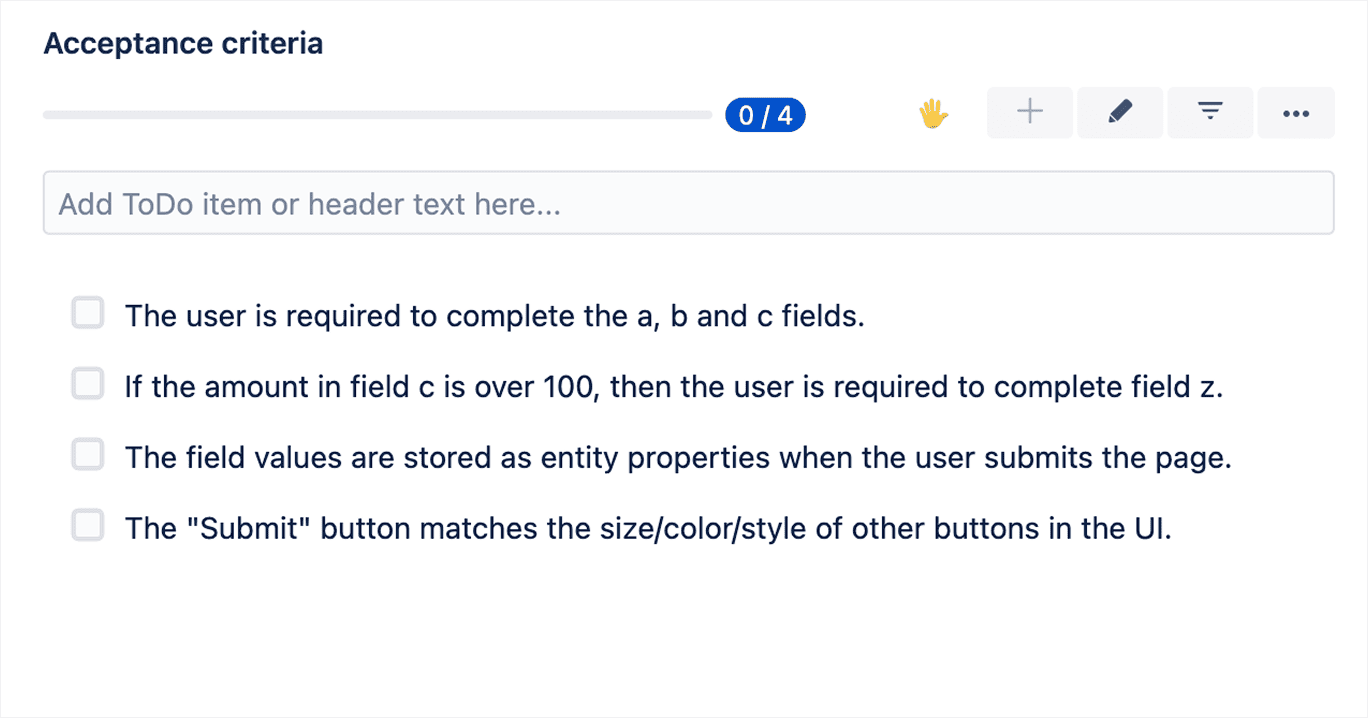
If you need something lighter than sub-tasks but more flexible than plain text, Checklists for Jira might be right up your alley. Checklists for Jira (Pro) turns static to-do text into structured, interactive checklist items inside an issue.
The main capabilities of this Jira project management add-on include:
- Сreating and managing checklists directly within Jira issues.
- Customizing checklist templates to minimize manual work.
- Linking checklists with issue statuses.
- Supporting hierarchical checklist items.
Pros:
- Structured checklists make task tracking much easier and help make sure no step is missed.
- Checklists for Jira gives the flexibility to create custom checklist templates that fit your team's specific needs.
- It enables automatic addition of checklists to issues and enforces checklist completion before transitions.
Cons:
- The free tier of the app has hard limits on how many checklist items you can have per issue and per instance.
- While functional, some users have mentioned that the interface can feel cumbersome or cluttered in large projects.
Pricing:
The app is free for teams of fewer than 10 users. As your team expands, pricing starts at $0.82 per user/month.
Hosting options: Cloud | Atlassian Government Cloud
eazyBI for Jira Reports, Charts, and Dashboards: Advanced analytics
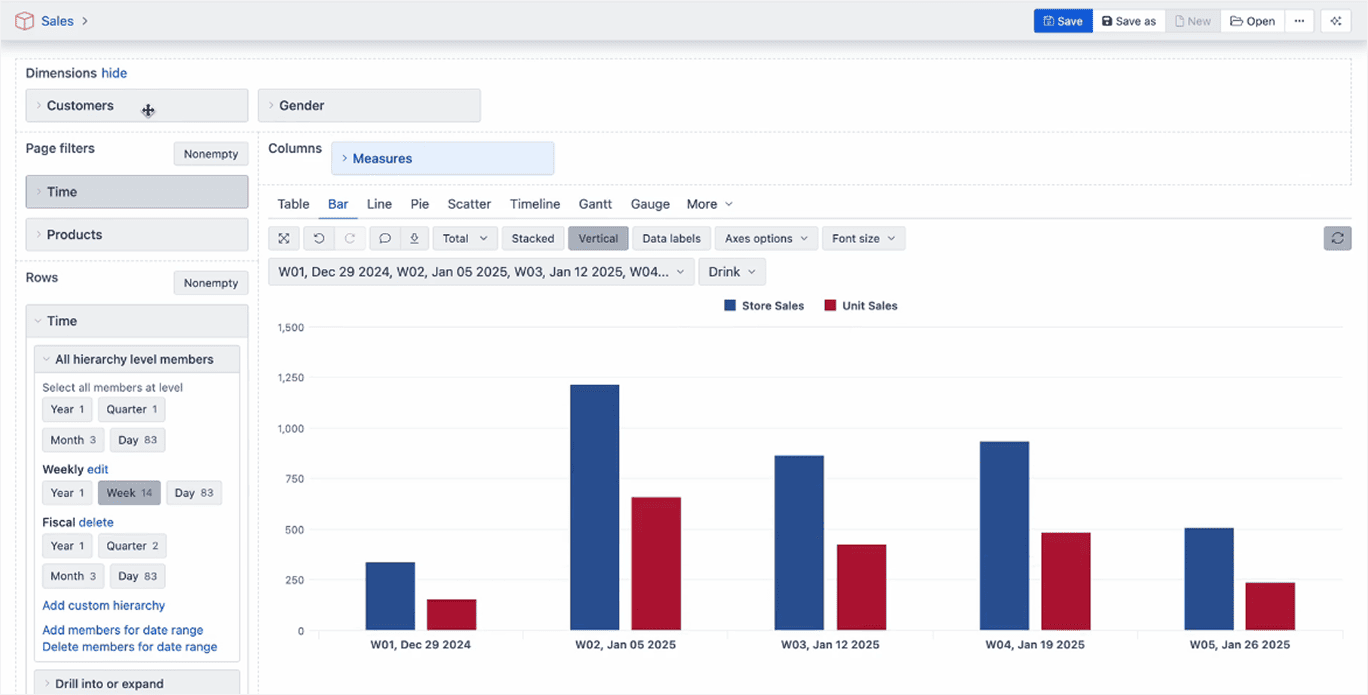
EazyBI is the go-to plugin for when you need full-fledged BI features inside Jira, including multi-source data federation. The plugin allows the creation of nearly any type of report, providing deep data exploration that helps users uncover hidden trends and correlations. One of its standout features is multi-source data federation, which lets users combine data from different tools.
Pros:
- Excellent depth of customizations on all levels — imports, metrics, members, and customizable reports.
- EazyBI integrates with Confluence and external sources (SQL, REST, CSV, etc.).
- The plugin's interactive dashboards offer real-time data monitoring.
Cons:
- The plugin has quite a steep learning curve (however, the support team is fast to address whatever questions and issues users might have).
- Handling large amounts of data can cause slow performance or lag, especially when running complex queries.
- While powerful, EazyBI’s advanced features can be overwhelming for new users without experience in BI tools.
Pricing: $10 for teams of up to 10. For larger teams, pricing starts at $3 per user per month.
Hosting options: Cloud | Data Center | Atlassian Government Cloud
Zephyr: Test case management and QA automation support
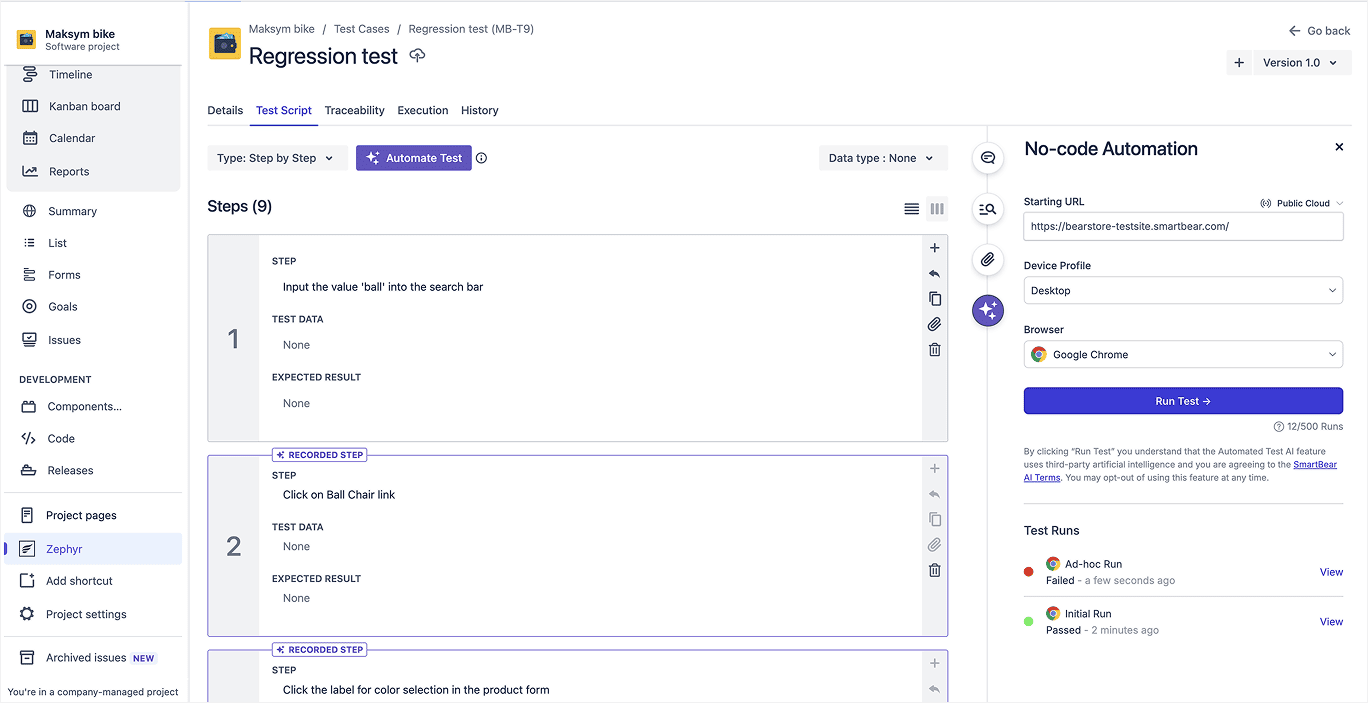
Instead of keeping test cases in Google Sheets or random docs, the Zephyr plugin helps bundle them into Jira. With Zephyr, teams can create test cases like regular issues, group them into test cycles, run, and track results — all in a single interface.
What this Jira add-on actually lets you do:
- Creating and organizing test cases directly alongside user stories
- Grouping tests by release, sprint, or feature
- Seeing pass/fail results in real time
- Linking test cases to stories, requirements, and bugs
- Getting basic visibility into test progress, coverage, and defects
The bottom line is that it helps connect acceptance criteria to the actual testing process, which improves alignment between dev and QA.
Pros:
- The biggest win is seamless integration with Jira. Test cases, bugs, stories, and test plans live in the same ecosystem.
- The app provides all the core features (creating/managing test cases, cycles, plans, and linking executions) without extra tools.
- Zephyr can connect to other tools and dashboards (e.g., reporting apps), and its reporting functionality helps teams share and track progress and visibility across releases.
Cons:
- Test management isn’t fully automated — a lot of linking and setup is manual.
- Zephyr can feel slow and clunky, especially when loading large test sets or creating detailed steps.
- Some users report frustration with support (slow response times) and occasional technical issues such as authentication problems (e.g., login/API key hassles), which disrupt workflow.
Pricing: $10 for teams of up to 10, then $6.81 per user/month for larger teams.
Hosting options: Cloud | Data Center
DeepClone for Jira: Reusing and replicating Jira work
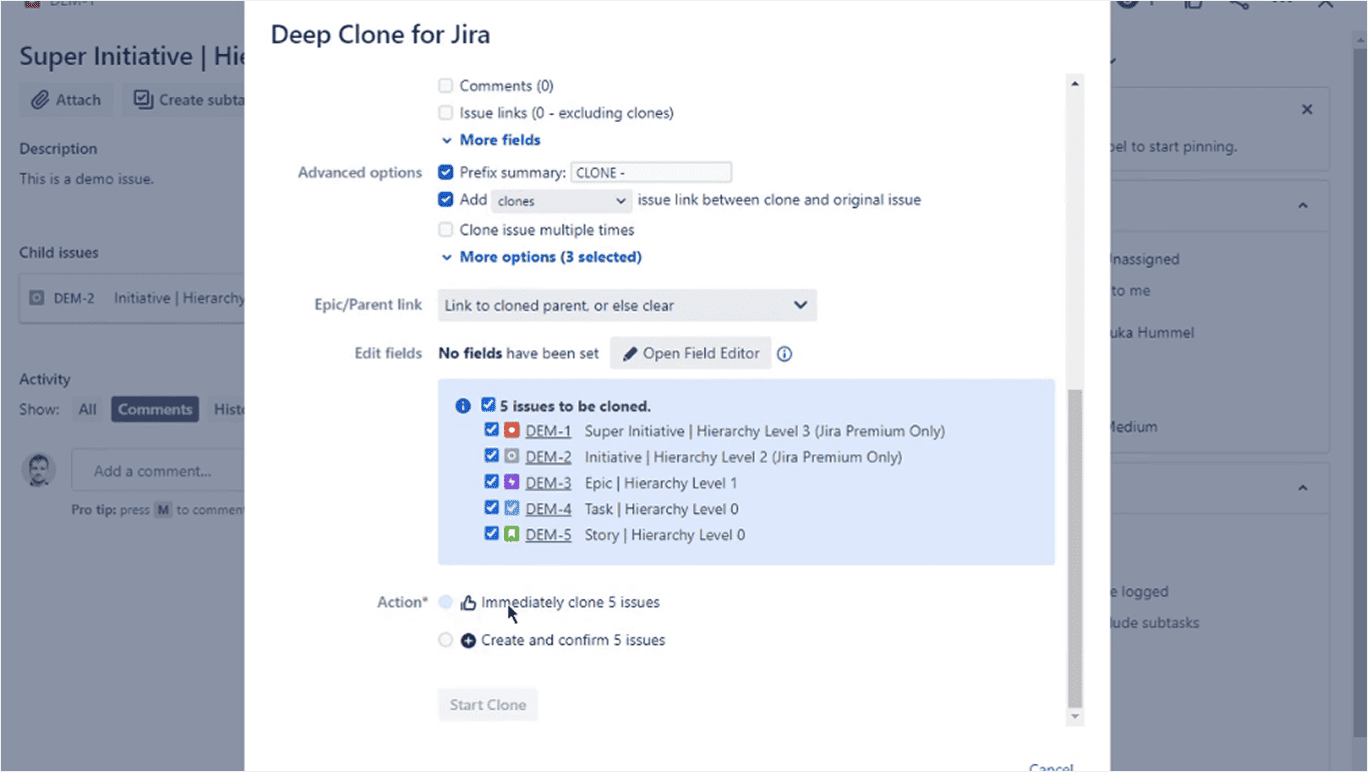
Last but not least, DeepClone for Jira is a plugin you get when you need to do a lot of setup, replicating, or pattern reuse without having to start over each time. This Jira software add-on helps agile teams quickly duplicate issues, epics, or even entire project structures while preserving key relationships like subtasks, links, and configurations.
From a PM perspective, this Jira power-up is especially useful when:
- You’re spinning up similar projects or initiatives with a repeatable structure.
- You need to reuse proven templates for epics, stories, or workflows.
- You want to avoid manually recreating the same hierarchy and dependencies every time.
- You’re working across multiple environments (e.g., staging vs. production) and need consistency.
Instead of rebuilding everything issue by issue, teams can essentially “copy and adapt,” which saves time and reduces setup errors — particularly in larger or more standardized project environments.
Pros:
- The plugin enables bulk copying of epics with all their related children (stories, subtasks, links, comments, components, versions, and other metadata), beating Jira’s native clone.
- A must-have for migrations between spaces or instances, because it can handle large volumes (up to 100K issues) and preserve relationships.
- You can save cloning configurations as presets and even trigger clones via workflow functions.
Cons:
- When cloning between projects or instances, all fields and configurations must exist and match exactly. If they don’t, some data may not clone correctly.
- Without presets configured, the number of settings to choose from can slow down the process and increase the chance of human error during setup.
Pricing: Free for teams of up to 10, then $1.22 per user/month.
Hosting options: Cloud | Data Center | Atlassian Government Cloud
How to install and configure plugins in Jira?
Installing a plugin in Jira usually takes a few steps but make sure you have the admins’s permissions beforehand:
- Go to Apps in the lest sidebar, open Explore more apps, and search for the plugin you want on Atlassian Marketplace.
- Once you find it, click Try it free to start a trial.
- After the app is installed, Jira adds it to your instance automatically.
That said, installation is the easy part. Configuration is where the real struggle usually comes in. Most Jira plugins need at least some setup before they become useful: permissions, field mapping, project-level access, workflows, or views.
A good rule of thumb is to start small. Don’t roll out a plugin across the whole Jira instance on day one. Instead, test it in one project or with one team, configure the core use case, and make sure people understand how it fits into their existing workflow. It will help you avoid the common problem where a plugin gets installed with high hopes, but then sits unused because the setup was too broad, too complex, or disconnected from what the team actually needed.
Before you commit, it’s worth checking the following:
- How often the vendor updates the app
- What permissions it requires
- Whether it overlaps with tools you already use
The best setup is usually not the most advanced one. It’s the one your team can adopt quickly and use consistently without turning Jira into a patchwork of half-configured features.
The best Jira plugin is the one that works for you
The best Jira plugin isn't necessarily the most popular or feature-packed. It's the one that can match your workflows, fills the gaps you face, and makes your job easier, not harder. Choose Jira project management add-ons that improve your process without overcomplicating it, and you'll see Jira working for you, rather than against you.


FAQ
The choice of a Jira software app totally depends on your needs, but popular ones among project managers include Zephyr and Xray for test management and reporting, Tempo Timesheets for time tracking, and Planyway for roadmaps and resource management.
There are multiple apps on Atlassian Marketplace that enrich Jira capabilities and integrate with the ecosystem natively. The choice depends on your unique needs. If your team finds that the Jira platform lacks hands-on resource management synced with overall plans, you can check out Planyway. If you’re running a vast range of projects in a large enterprise, then BigPicture and Structure would be better choices.
When choosing a Jira plugin, start by identifying your specific needs and the problems you're aiming to solve. Next, explore the available plugins on the Atlassian Marketplace. Create a shortlist and evaluate each based on how well it meets your requirements. To get a clearer overview, consider using a comparison model, possibly with an LLM to help analyze your options. Don't forget to check user reviews and overall ratings, because these often provide valuable insights into a plugin’s performance and reliability.
While there are several plugins for project managers that cover these needs independently, Planyway for Jira brings all of these features together under one roof. The Gantt chart view in Planyway is based on the timeline view. So if you're looking for a simplified view that focuses on overall progress and team performance rather than a deep hierarchical structure, Planyway offers a streamlined approach that works well for high-level project tracking.
The Planyway for Jira plugin effectively addresses all these requirements for project managers. Designed with a focus on visualization, it offers multiple timeline views to help you track projects, grouped by users, teams, epics, spaces, and components. The timeline pulls data from various sources, including spaces, boards, and JQL filters. Additionally, the plugin provides robust resource allocation and planning functionality, featuring workload balancing, individual capacity tracking, and integration of vacations and holidays — everything to streamline team collaboration.