How to create an epic in Jira: hands-on guide

Most guides treat creating a Jira Epic as a two-click job, and for plenty of teams it is one.
For others, the Create button doesn't even have Epic as an option, because the project was set up from a Business or Project Management template, and that template ships without the Epic issue type. If you don't know this going in, it's easy to assume you broke something and burn an hour chasing the wrong fix, when the actual fix takes about thirty seconds in Project Settings.
Even once an Epic exists, there are still a few forks in the road ahead: which field links it to its stories, why it vanishes from a Board Settings view, and which report actually tracks it. This guide walks through all four ways to create Epics in Jira, what to check before you start, and the failure points that come up after — with a short demo included for anyone who'd rather watch the steps than read them.
TL;DR
- An Epic is the top level of Jira's default issue types — it groups related stories and tasks under one broader goal, and can span multiple sprints. There's no single way to create an Epic. The global create button, the Epic panel, the Timeline tab, and a bulk CSV import all work, but each behaves differently depending on the project.
- An Epic disappearing from the Board or Backlog isn't one bug with one fix. It can be missing children, a changed project key, a hidden status field, or a Jira bug. Each case needs a different check.
- Jira has no native view for Epics that span multiple projects at once. If you want that cross-project view, native Jira doesn't give it to you. At least four paid apps in the Atlassian Marketplace exist for exactly this.
What is an Epic in Jira?
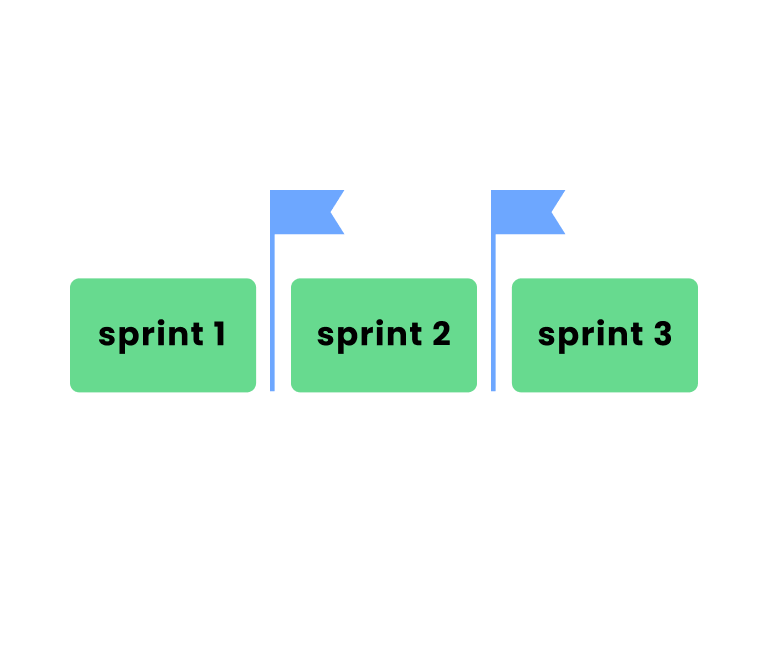
An Epic is Jira's top-level issue type. The work itself lives in the stories and tasks underneath it. You'd use an Epic for a feature or a large body of work that won't fit in one sprint, then split it into pieces a development team can actually finish in a sprint.
A story describes something from the user's perspective: what someone needs to be able to do and why. A task is narrower — it's one piece of work, and the person picking it up just needs to know what to do.
➡️ Learn more about the difference between Jira Epic vs Story vs Task
Before you create an Epic: check your project type
Jira projects come in two flavors, and they don't share an issue type scheme by default: team managed projects and company managed projects. A team-managed project built from the Business or Project Management template ships with only Task and subtasks — Epic isn't in the list, and there's no dropdown item hiding it somewhere else.
To fix this, go to Project Settings, open Issue types, and add Epic with the +Add issue type button. It takes about thirty seconds, and it's a one-time setup per project, you won’t have to repeat it every time.
Software-template Jira projects don't have this problem. Epic ships in by default, since that template assumes a development team working in sprints from the start. If you're not sure which template your project used, this is the first thing worth checking before anything else in this guide.
If Create won't let you make an Epic even though the issue type exists, permissions are the likely culprit. Create Issues can be scoped per issue type, which means the right to create a Story doesn't carry over to Epics. Someone with project admin rights has to grant it.
Four ways to create an Epic
There isn't one correct way to create an Epic. Which method makes sense for you depends on where you already are in Jira when the need comes up.
Global Create button
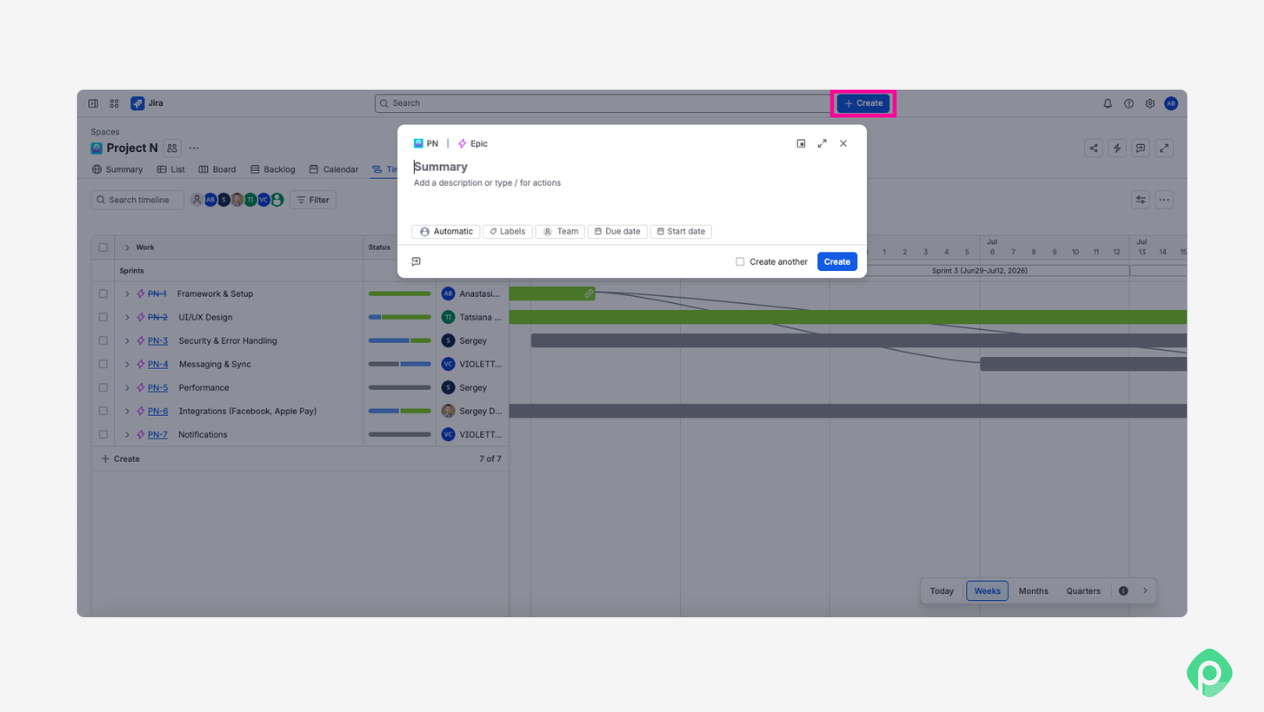
The fastest route is to click Create in the global navigation bar and select Epic from the issue type dropdown. Then fill in the fields and hit Create again. One thing worth knowing if you've used Jira before 2023: there used to be two separate required fields here, Epic Name and Summary. Atlassian merged them, so in current Jira you'll only see Summary. If an older guide tells you to fill in an “Epic Name” field, that field no longer exists.
Epic panel in Backlog
Open your Backlog view and turn on the Epic panel from the filter toggle. From there, you can add an Epic directly in the panel and drag existing stories onto it to link them right away. This one is useful when you're building out a first Epic for a project already mid-flight, with stories that already exist.
Timeline tab
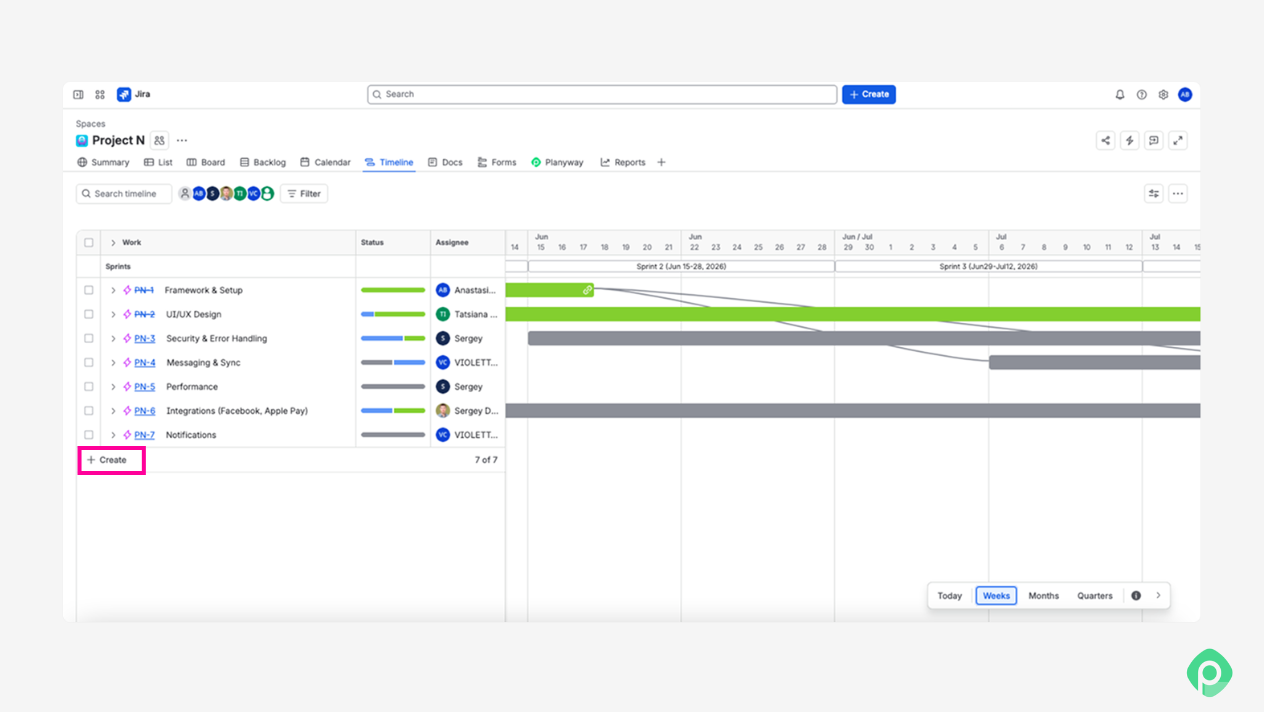
Open the Timeline tab and click + Create Epic. This is the one method that gives you a start date and duration on creation, so it's the natural choice when you're planning ahead rather than reacting to work that's already piling up.
Bulk CSV import
For creating several Epics at once, Jira supports importing from a CSV through External System Import. It's the least forgiving of the four: project key and issue key are easy to mix up in the mapping screen, custom fields don't always show up as options, and the Epic Link column is known to not carry over on import (a bug that's been open on Atlassian's tracker for years). If you're bulk-importing, plan to check and manually re-link Epics afterward rather than trusting the import to do it.
Linking work to an Epic: parent field vs Epic link
Once an Epic exists, how you attach work to it depends on which kind of project you're in.
In team-managed projects, the connection lives in the Parent field. Open any story or task, use the three-dot menu, and select Add parent to link it up. There's no separate “Epic Link” concept here at all; Parent is the only mechanism. An item can only have one parent, and you can't link a Story to an Epic that lives in a project of the other type. Re-parenting won't bridge that. If you need the link, the Story has to be moved or recreated.
In company-managed projects, the field is named Epic Link instead, and it lives on the story or task's edit screen. The name changes between project types, and the field doesn't always appear until you know which screen to open.
Why your Epic isn't showing on the Board or Backlog
If an Epic doesn't show up where you expect it can be because of one of four unrelated causes, and each needs its own check.
No child issues on the board
If none of the Epic's stories or tasks are on the board yet, the Epic itself has nothing to display alongside. Add or move at least one child issue onto the board, and the Epic will appear with it.
The project key changed
Renaming a project's key after Epics already exist can leave the Epic pointing at the old key internally, so it stops showing up on the board or Backlog tied to the new one. This is one of the harder causes to spot, since nothing about the Epic itself looks broken.
Epic Status is set to Done
There's a hidden field, Epic Status, mostly relevant on Data Center instances, that's separate from the visible workflow status. If it's set to Done, the Epic gets filtered out of the Epic panel even though the issue is still open everywhere else.
A board or Backlog bug
Occasionally this isn't project-specific at all — it's a known issue with Jira's Enhanced Board and Backlog rendering, unrelated to anything in your setup. If the first three checks come back clean, this is worth ruling in.
The Kanban backlog isn't enabled
On a Kanban board, the Epic panel depends on the Kanban backlog being turned on in View settings. If it's off, Epics won't show up in the panel even though everything else about the setup is correct. This is specific to Kanban and doesn't affect Scrum boards.
Custom Epics and why they misbehave
Renaming the Epic issue type or adding a custom type at the Epic level of your custom hierarchy feels like a cosmetic change. It isn't — Jira's tooling assumes the built-in name and type underneath, and a lot of that assumption doesn't survive the rename.
The first thing this breaks is JQL filters. Any saved filter or dashboard built around ‘issuetype = Epic’ stops matching after the type is renamed, since the filter was checking a name. Filters return fewer results than they should, and this fact is very easy to miss until someone notices a report looks wrong.
The second thing is the Epic panel and Timeline itself. A custom issue type placed at the Epic level of the hierarchy isn't automatically treated as an Epic by these views — they were built to recognize the standard type, not any type sitting in that hierarchy position. So a custom “Initiative” or “Theme” type, even if it functions like an Epic in every other way, can simply not show up where Epics are supposed to appear.
None of this means custom hierarchies don't work in Jira. It means the built-in Epic name and type carry more hidden dependencies than they look like they should, and renaming or replacing it is a bigger decision than it first appears.
The same thing happens to filters built around Epic Link once a project has moved to Parent — a saved filter referencing the old field quietly stops matching, and needs to be rewritten to check Parent instead.
How to visualize and manage Epics across multiple projects
Jira's basic Timeline works within one project. Jira Plans can pull work from multiple boards and projects into a single plan, but that's a Premium feature, and it comes with its own separate structure to maintain.
When the goal is simpler than that — just seeing Epics across projects together, regrouping them, adjusting dates, checking whether the people behind them actually have capacity — most teams need something more flexible.
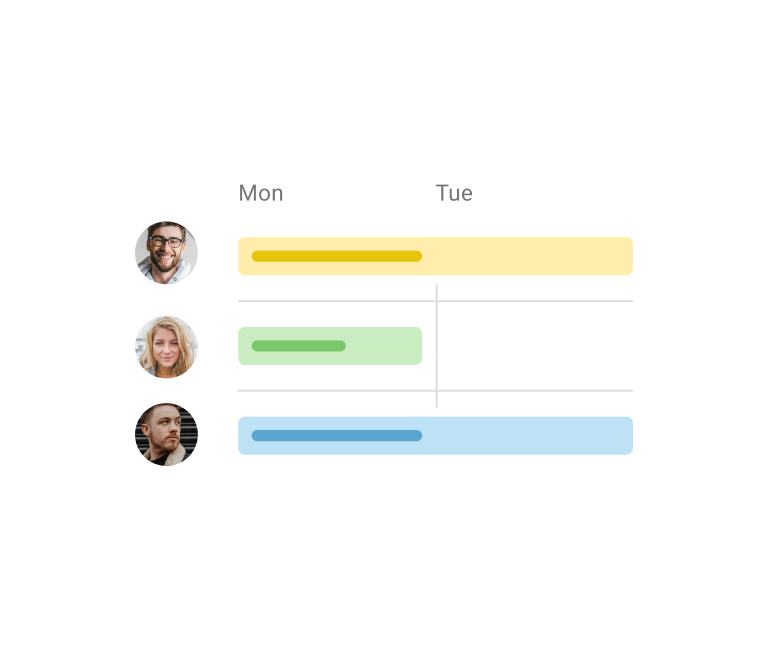
With Planyway for Jira, you can bring work from multiple Jira spaces into one view and group it by Epic. See the work behind each Epic, adjust dates, and manage related items across projects in one place.
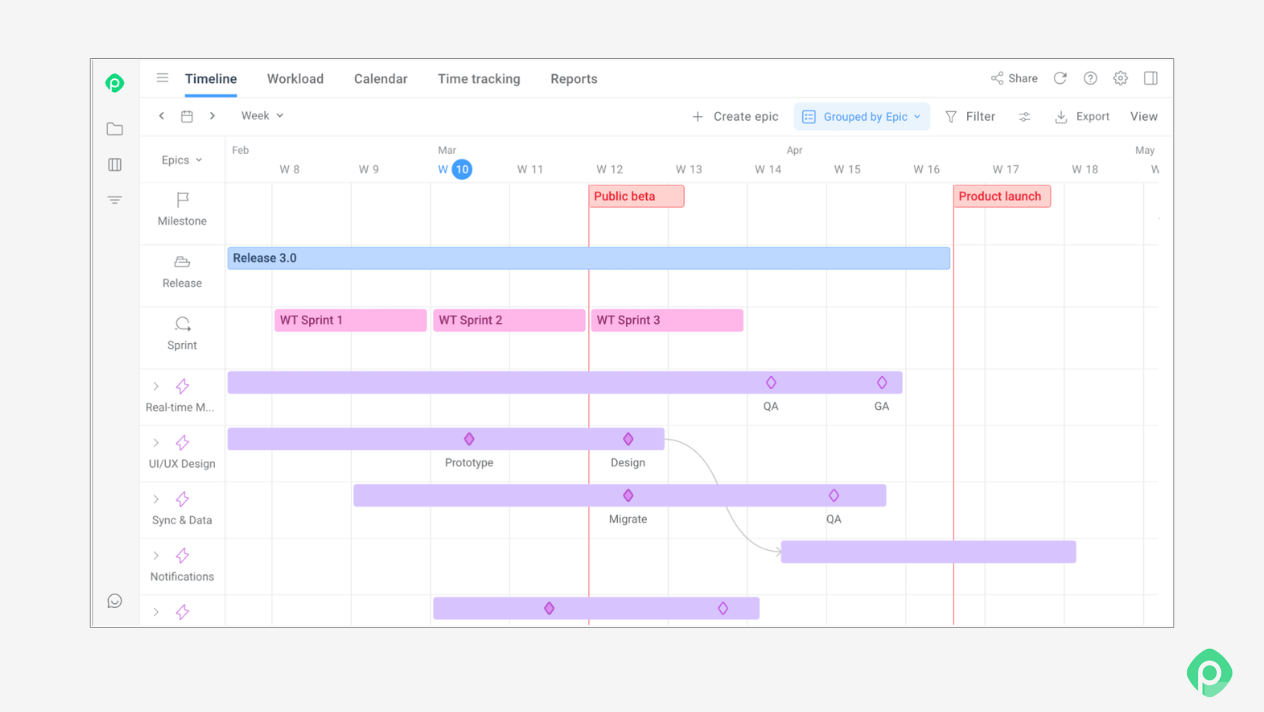
Here's what the workflow looks like in practice:
- Create and structure Epics in Jira using the methods covered above. Jira stays the source of truth.
- Open the Planyway timeline, pull in the two or three projects feeding your release, and group by Epic.
- Drag Epic bars to align them against a release milestone. Dates sync back to Jira as you go.
- Switch to the workload view for the same period. If an Epic lands on a week where its owner is at capacity, move it now rather than in the retro.
- Export to PDF for the steering review, and share the link with anyone who wants to check progress mid-month.
The whole loop takes about twenty minutes, and it replaces the recurring meeting where four people read their Epic lists aloud.
Tracking Epics: the two native reports
Jira ships two reports built specifically to track progress on an Epic, and they cover different workflows rather than overlapping.
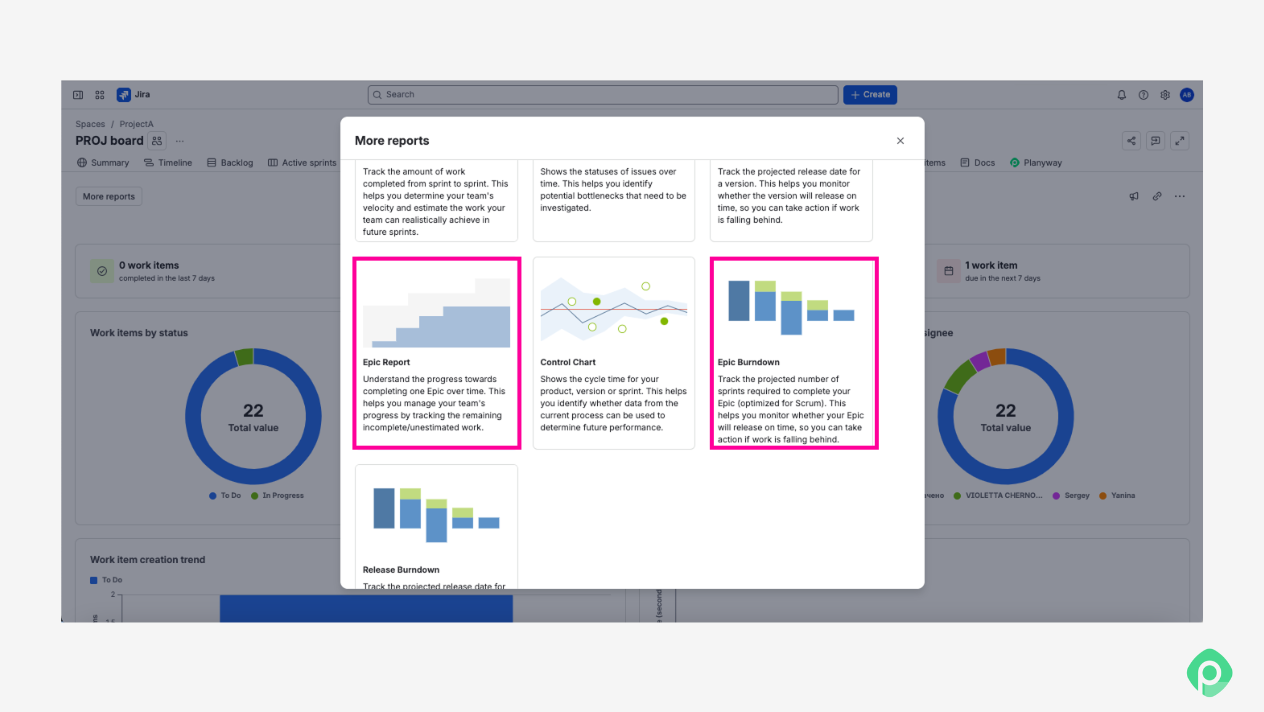
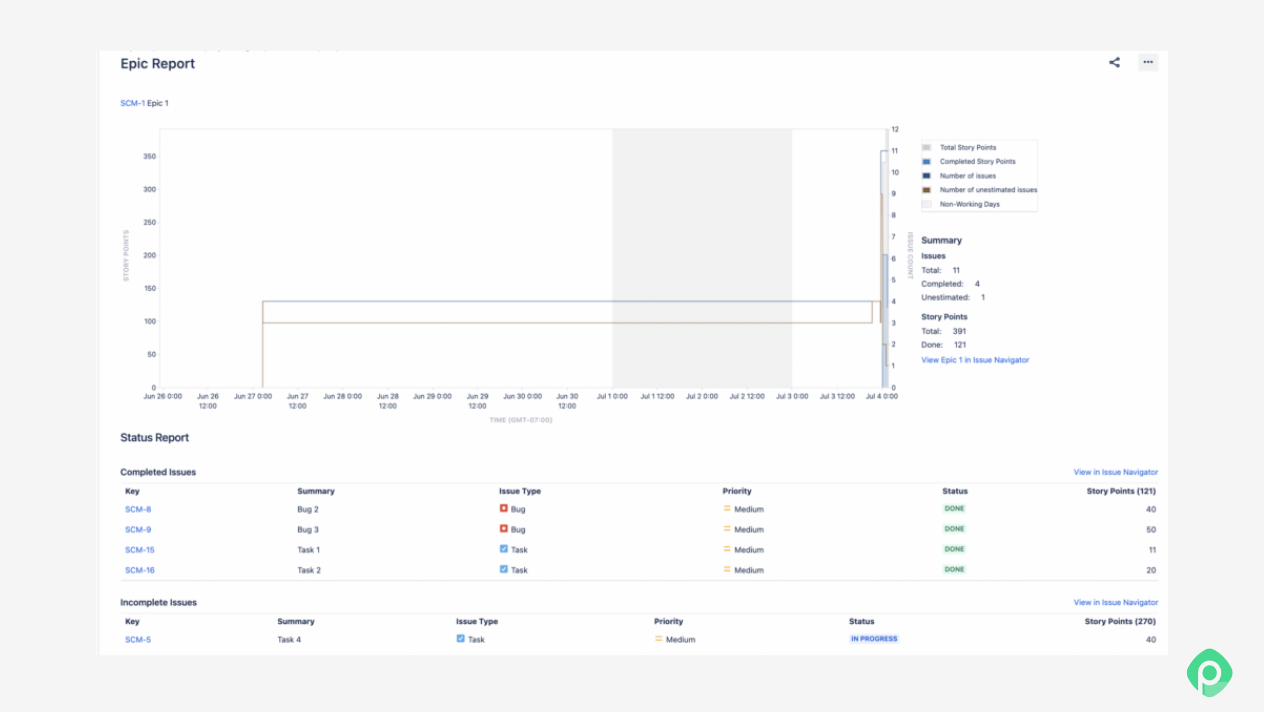
Epic Report works for both Kanban and Scrum. It shows all the work under an Epic — done, in progress, and not started — as one running list, without needing active sprint data to make sense of it. This is the one to reach for when your team doesn't work in fixed sprints, or when you just want the bigger picture of an Epic's state at a glance.
Epic Burndown chart is sprint-specific. It plots remaining work against time across several sprints, showing whether an Epic is on track to close or slipping as scope gets added mid-sprint. Because it depends on sprint boundaries, it only makes sense for Scrum teams. A Kanban board has no sprints for it to burn down against.
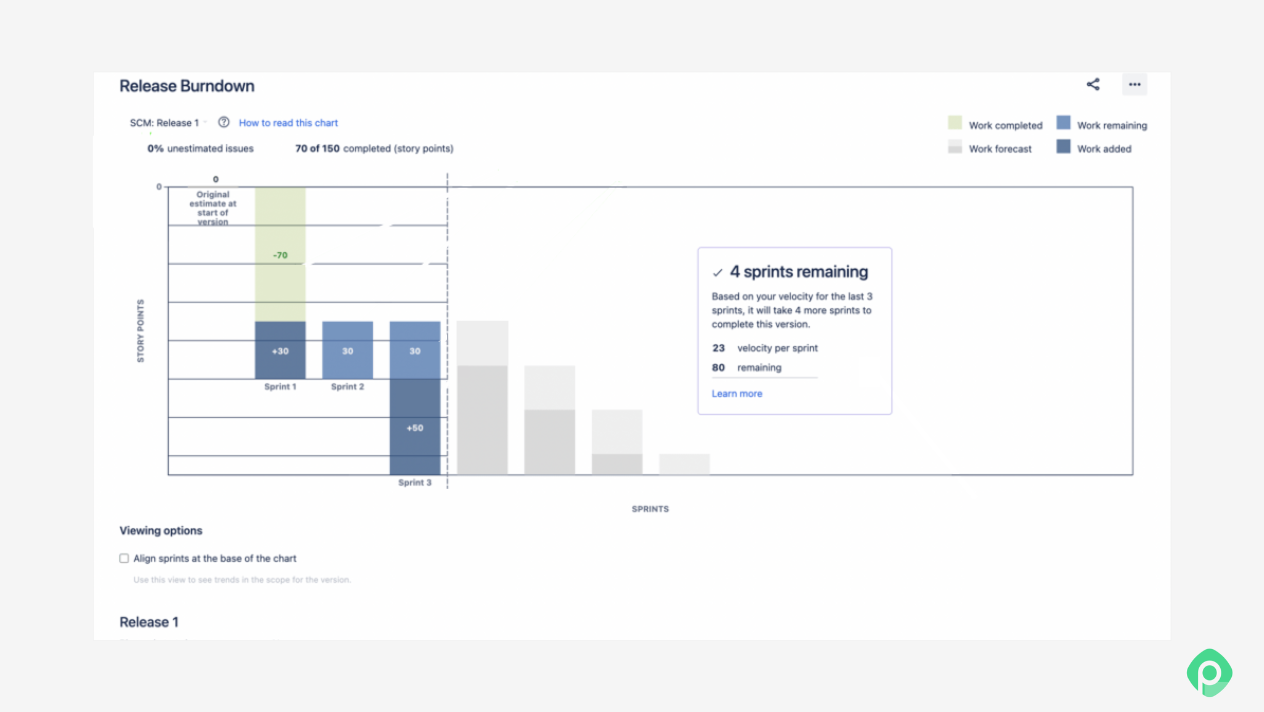
The key differences come down to this: Epic Report answers “what's left, right now,” while Epic Burndown answers “are we going to finish in time?” Large Epics that span multiple sprints usually benefit from checking both.
Both reports are built into Jira Cloud and Data Center, available from Epic itself without any setup.
Best practices for working with Jira Epics
A handful of habits keep Epics useful instead of turning into another junk drawer of related work with no structure.
Write Epics around outcomes
An Epic titled “Q3 Redesign” tells nobody what's actually being solved. Frame it around what the end user gets out of it, and pulling user requirements out of it later gets a lot easier.
Break Epics into smaller stories before they get big
Agile teams that let an Epic accumulate multiple stories without splitting them into actionable tasks end up with a backlog nobody can prioritize. Creating stories as you go, rather than batching it later, keeps each one scoped enough to actually finish.
Check the issue type scheme before assuming Epic is missing
If a new Epic won't show up as an option, it's worth a quick check of the project's issue type scheme rather than assuming something's broken — section 4 covers the fix.
Use Parent or Epic Link consistently
Mixing the Epic Link field with the Parent field across different projects makes it harder to trace which individual tasks belong where. Pick whichever matches your project type and stick with it.
Review the Timeline before adding to an existing Epic
Before you add stories to an existing issue, glance at the Timeline view — select Timeline from the sidebar — to check the Epic isn't already overloaded or past its planned window.
Don't rely on memory for what Atlassian's own tools do
Between Report, Burndown, Timeline, and the Backlog panel, it's easy to forget which Atlassian tools show what. Bookmarking a short step-by-step guide like this one for your team saves re-discovering the same answers every few months.
Wrapping up
A missing issue type, a field with two different names depending on project type, a board that goes quiet for one of four unrelated reasons can make Epics frustrating. But once you know where to look, none of it takes long to fix. The one gap Jira genuinely doesn't cover on its own is managing Epics across more than one project. Planyway for Jira can help you with that.


FAQ
There is no way to convert a Story into an Epic, or an Epic into a Story directly. Jira doesn't support changing an issue's type across the Epic boundary the way you can between Story and Task. In practice, that means creating a new Epic and moving the relevant work under it manually.
An Epic groups related work under one goal. Underneath it, Stories describe what an end user needs to be able to do, while Tasks break that down into single things someone can finish.
Yes, an empty Epic is valid in Jira and won't throw an error. It just won't show up in views like the Epic panel that depend on child issues being present.
There's no fixed number, and Jira won't enforce one. The more useful check is whether each Epic still maps to a single, describable outcome — once one Epic starts covering unrelated goals, it's usually a sign to split it rather than a sign you've hit some limit.
Deleting an Epic doesn't delete its child issues. They stay in the project, unlinked from any parent, and you'll still need to deal with them.