Jira components: how and when to use them

Jira gives you a lot of ways to slice up work: labels, custom fields, epics — you name it. Components are one of the oldest and least understood options. Used well, your component list becomes a map of the project — anyone can look at it and see how the work is divided and who owns what. Used badly, it's yet another dropdown nobody fills in.
Here's what components actually are, when they're the right tool, when they aren't, and how to set them up so they stay useful a year from now.
What is a Jira component?
A Jira component is a project-scoped custom field with three extras that ordinary fields don't have. They are only available in company managed projects, and are scoped to the space they’re created in.
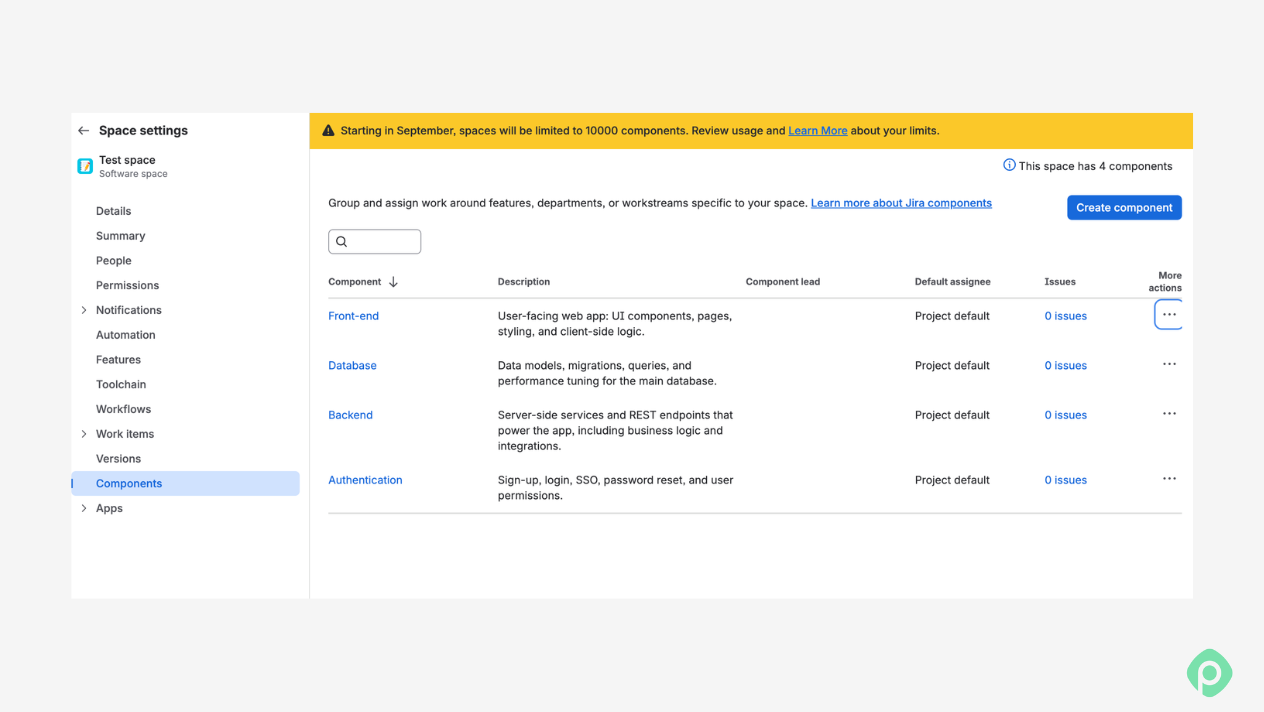
There are three things a project manager needs to remember about Jira components:
- The values belong to one project only. Multiple components you create in one project don't leak into another. Every project gets its own list, tailored to its own structure.
- A project admin manages them. You don't need to file a ticket with a system administrator to add, rename, or retire a value. That independence is the reason components often beat a custom field for team-level categorization.
- Each component can carry a lead and a default assignee. You can name the person responsible for an area, and you can have new work in that area auto-assigned.
A single work item can carry more than one component, which matters more than it sounds: real work rarely respects boundaries, and a story that touches both the API and the database can say so.
When should you opt for Jira components?
Sometimes it can be challenging to understand whether you need a component or a label would do. To save you the brainstorming time, reach for components when at least one of these is true:
- The work requires different people, skills, or tools. If a bug in one area goes to a completely different person than a bug in another, that division is worth making visible at the moment the work item is created.
- You want to answer "how much of this is X?" Components turn vague impressions into numbers. Which part of the system generates the most bugs? Where is scope quietly growing? Which area should get the next two engineers? You can't answer any of that from a backlog that's one undifferentiated list.
- Ownership is fuzzy. Naming a component lead makes the go-to person explicit. When throughput in an area drops, or bugs pile up, everyone knows who to talk to.
Certain kinds of work need special handling. Security review, tech debt, anything touching personal data. Tagging these as components lets you build filters, automation, and reporting around them instead of relying on people remembering.
Here are some examples across team types:
| Team | Component list |
| Software (by architecture) | UI, API, Database, Auth, Payments |
| Software (by specialty) | Frontend, Backend, Infrastructure, Mobile, QA |
| Platform / IT | Networking, Systems, Hardware, Software |
| Marketing | Website, Content, Paid acquisition, Lifecycle email, Events |
| Operations | Vendor management, Facilities, Procurement, Compliance |
How to add components, step by step
- Confirm your permissions. You need project (space) admin rights, or global Jira admin. If you can't see project settings, you can't create components — ask whoever administers your instance.
Open your project and go to Components. In Jira Cloud, the components page lives under project settings, and in many projects it also appears directly in the left sidebar.
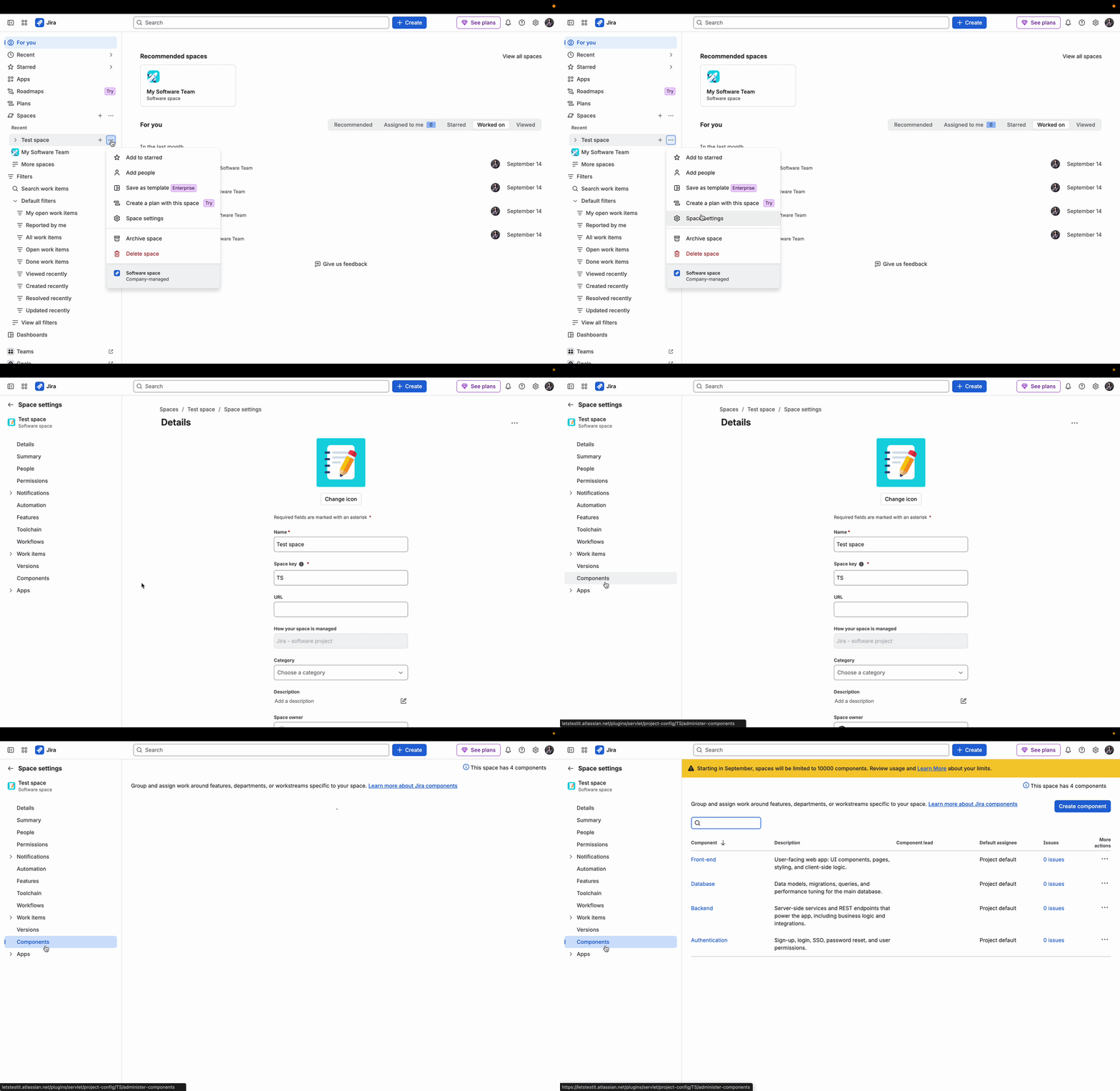
Select Create component and name it. The name is required, and it's the field that matters most. Write for the people who will be creating work items, not for yourself. If a name only makes sense to you, it'll be picked wrong or skipped.
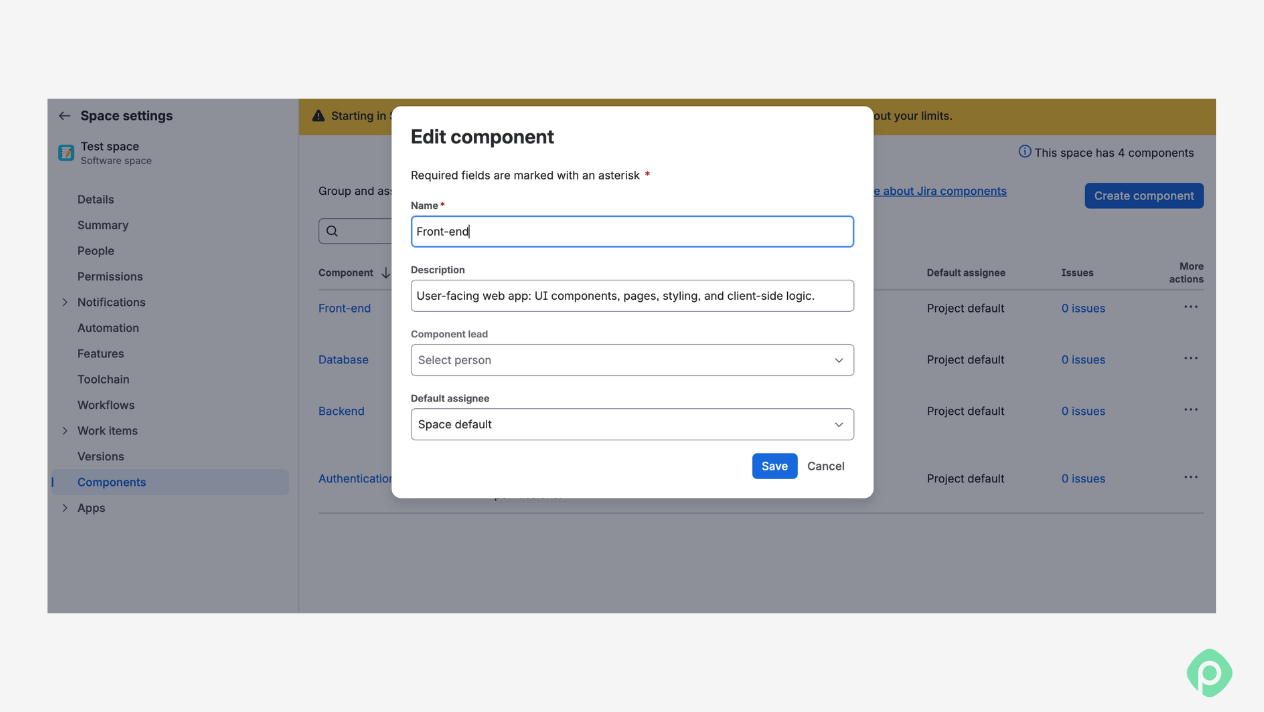
- Add component descriptions. Optional, but do it. The description surfaces as a tooltip when someone hovers over the component, so it acts as a built-in instruction for what belongs here.
- Set a component lead. Usually the subject-matter expert or component owner. It doesn’t mean you assign them work — you’re just highlighting the responsibilities.
- Decide on the default assignee field. More on how to decide if you even need one below.
- Save. The Component field is now available on work items in that project, and people can start selecting it.
If you want to group issues around pieces of your software architecture, switch your space to Compass components, which are catalogued in Compass, a developer experience platform.
Planning work by component
Components are great at telling you what a work item is about. What they won't tell you is when it's happening, or how it fits with everything going on in other areas. Filter your backlog by component, and you get a list. Useful, but it's not a schedule.
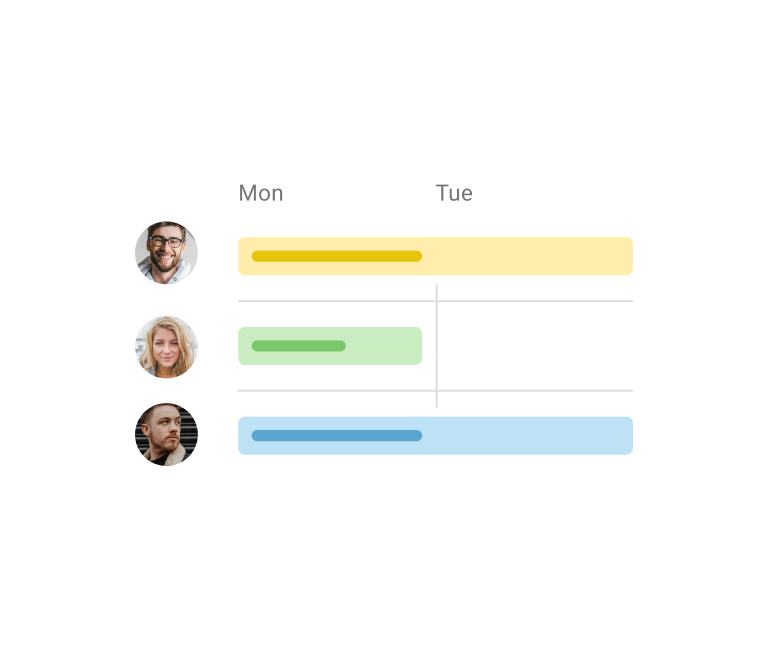
If you want to actually see the timing, Planyway for Jira can help. It sits on top of your existing Jira data and gives you a visual timeline, which you can group by component — and each area gets its own lane, with your milestones and releases right across the top. So you can quickly spot which parts of the project are packed, which are quiet, and where something is about to bump into a deadline, all next to the rest of your Jira work and dependencies.
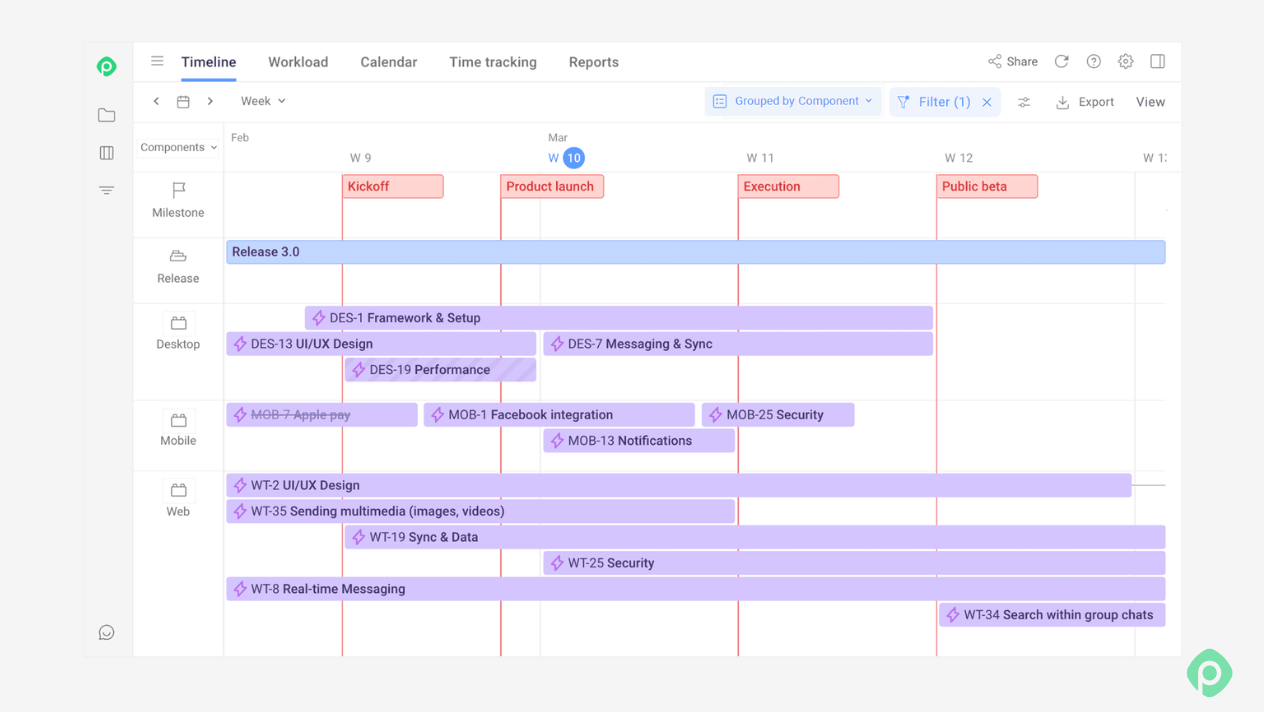
You can also group work by labels, projects, teams, or assignees when components aren't the dimension you want to plan around.
How to decide if you need a project default assignee
Most of the component form is fill-in-the-blank. This field isn't, so don't click past it.
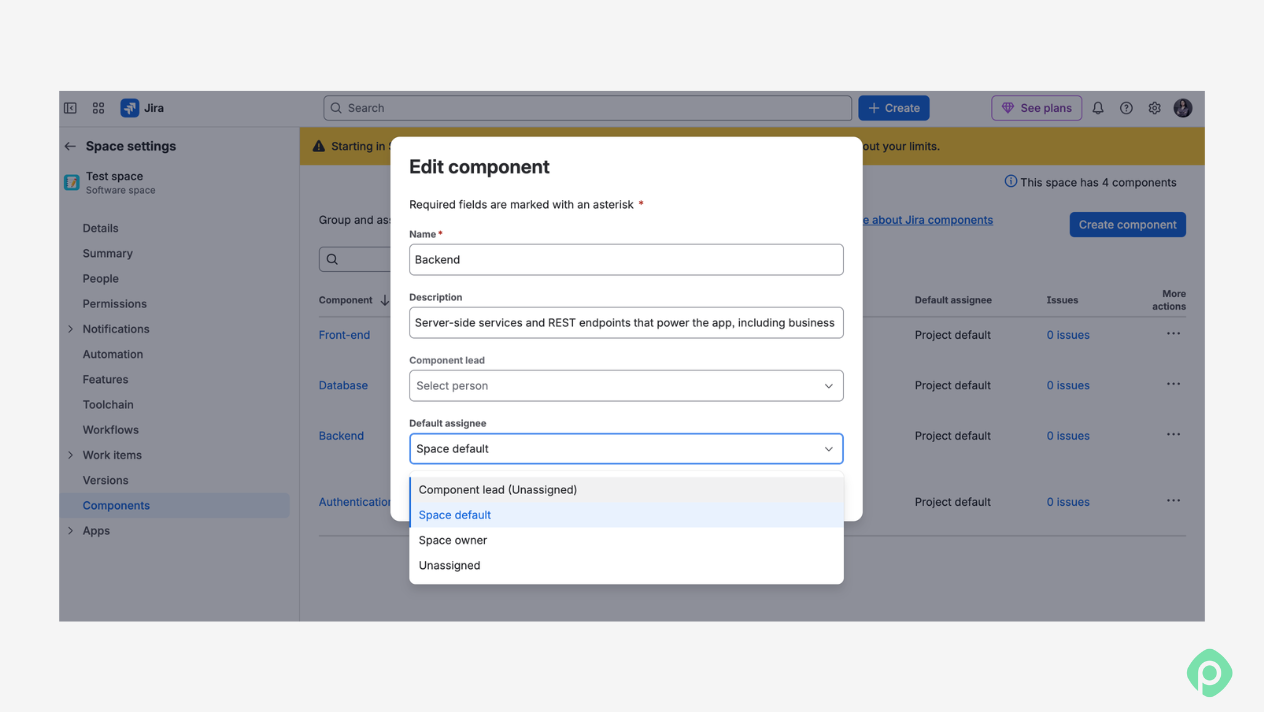
- Why set it. If every "backend" ticket ends up with the same person anyway, it’s okay if Jira assigns it. Nothing sits unassigned, and nobody spends time routing work that was never in question.
- Why not set it. Auto-assignment decides for the team. Your expert opens Jira to ten items they never agreed to take, so there’s a risk that "automatically assigned to" stops meaning "someone committed to this." Plenty of experienced admins leave the field empty for exactly this reason.
Two mechanics to know before you choose:
- A component's default assignee wins over the project's own default assignee.
- If a work item is created with two components that have different default assignees, only one of them applies, and it may not be the one you'd expect.
You can set a default assignee when the area is narrow, busy, and has one obvious owner. Leave it unassigned when the area is shared, and someone has to decide who picks the work up.
Extra project management features Jira components provide
Understanding the concept and setting components can be the boring half, but once it’s done, many additional possibilities for project management open up. Here are just several of them.
- Filtering. component = "Backend" gets you every item in that area. component = "Backend" AND type = Bug gets you the fire to put out. Save either as a filter, and it becomes a permanent view.
- Boards. Use components as quick filters or swimlanes so a shared board can be read one area at a time.
- Automation. Trigger on the component field: route new items to a channel, set priority, notify the component lead, apply an SLA.
- Reporting and prioritization. Component breakdowns tell you where bugs cluster, which area is absorbing the most stories, and — when you're deciding what to build for an MVP or a demo — which parts of the system to focus a limited team on.
When not to use Jira components and what to do instead
Components are useful, but every value in that dropdown is a small tax on whoever creates a work item. It's worth knowing where other tools fit better.
Here are the Jira tools that, in certain situations, work better than too many components:
- Labels — global, free-form Jira items anyone can create on the spot
That flexibility is the point and also the problem: nothing stops one person typing Project_A and another Project-A, and labels created elsewhere in your Jira show up in the picker. Use labels for ad-hoc, cross-project, personal grouping. Use components when you need a controlled, consistent list with no typos.
Labels can also add fidelity to the components. For instance, if you have a “discovery” component, your labels could be “JTBD”, “user interviews”, “market research” or whatever else.
- Custom fields — the right answer when you need bespoke terminology shared across many projects, or a field type components can't be (dates, numbers, cascading selects).
Keep in mind that you need a system admin to create and maintain them, and a sprawl of custom fields degrades Jira's performance.
- Separate board, or a separate Jira project — if the division comes with a genuinely different process or different permissions
Components segment work inside one process; they don't give you different workflows.
- Epics or parent work items — if what you're grouping is a time-bound deliverable rather than a standing area of the product
There’s an important distinction, though. Components are permanent-ish areas that can outlive any single piece of work, while epics are supposed to come to an end.
Keeping the component list healthy
The balance between a useful Jira feature and yet another forgotten dropdown list is a fine line. Below are several pro tips that’ll keep Jira components useful throughout the entire project.
- Keep it short. If the dropdown needs scrolling, people stop choosing carefully and start choosing the first plausible option.
- Slice on one dimension. Mixing architecture ("API"), team names ("Team Falcon"), and process tags ("Needs security review") in the same list turns it into a junk drawer. Pick one dimension for components and handle the rest with labels or a custom field.
- Review it on a schedule. Keeping the list valid and relevant is the project admin's job, not something that maintains itself.
- Edit freely, delete carefully. Renaming a component or changing its lead is routine. Deleting removes it from every work item that carries it, so be sure before you do it.
- Watch for "Other." If a catch-all component starts collecting a lot of work, your list doesn't match how the team actually thinks.
Putting it all together
Jira components help teams bring structure to their work by making ownership, product areas, and recurring responsibilities easier to manage. It is helpful for consistent categorization, clearer accountability, or generating reports on where your team’s time and effort go.
Sometimes, however, they aren’t the right solution for everything. Labels work better for flexible, ad-hoc grouping, while epics and parent work items are more suitable for tracking time-bound deliverables. Choosing the right Jira feature helps keep even the most complex projects organized without adding unnecessary clutter.
Once your components are set up, the next step is seeing how all that work plays out over time. Planyway puts your Jira components on a visual timeline, so you can track progress area by area and catch problems before they turn into missed deadlines.


FAQ
Jira components help you organize work within a project by product area, specialty, or other permanent category. They can make ownership clearer by letting you assign a component lead or default assignee. They also make it easier to filter, automate, report on, and understand work by area.
Components represent relatively permanent areas of a project, such as UI, API, or Payments. Epics group work around a specific deliverable or initiative with a defined scope and lifecycle. In short, components describe where or what area the work belongs to, while epics describe what larger piece of work it contributes to.
Components are project-scoped and controlled by project admins, so they give you a consistent list of categories. Labels are more flexible and can be created freely, which makes them better for ad-hoc, temporary, or cross-project grouping. You can also use labels alongside components when you need more specific tags.
You need project admin rights (or Jira admin access) to create a component. Open your project settings, go to Components, and select Create component. Give it a clear name, optionally add a description and component lead, choose a default assignee if needed, and save it.
Keep your component list short and use it to represent one consistent dimension, such as product areas or technical specialties. Give components clear names and descriptions, and add a lead when ownership needs to be explicit. Review the list regularly and use labels, custom fields, or epics for information that doesn't belong in your component structure.