Jira time tracking: how to do it easier and why teams still need it

There's one thing worth mentioning when we talk about Jira time tracking: time tracking itself (at least in tech-related niches) has been on the decline for decades, largely thanks to the rise of Agile. Historically, teams tracked time alongside hour-based estimates, and when Agile project management gained momentum, rigid estimates gradually gave way to more flexible ways of planning and measuring work.
So while Jira still supports time tracking as a native feature, its role in modern project management has become a little less straightforward. With that said, there are still good reasons to track time spent on tasks in Jira, and even better reasons to find a more convenient way to do it.
TL;DR:
- As a concept, time tracking in Jira still makes sense in modern project management. It can help teams compare estimates with actuals, monitor project costs, forecast delivery, and make more informed resource allocation decisions.
- Jira makes time tracking easy, but basic. You can set time estimates, log work, and see how much time remains on an issue — but that's about where native functionality starts to run out.
- The real problem is what happens after you log the time. Jira offers limited ways to aggregate, analyze, and export time-tracking data across projects and team members. To this end, teams often turn to Jira time tracking apps such as Planyway, which add timesheets, timers, customizable reports, workload visibility, and resource planning without taking time tracking out of Jira.
What is time tracking in Jira?
Time tracking in Jira boils down to logging work hours against tasks. On a higher level, time tracking can be understood as a process of keeping statistics of time spent to complete a task or while performing an activity.
How is time tracking natively done in Jira?
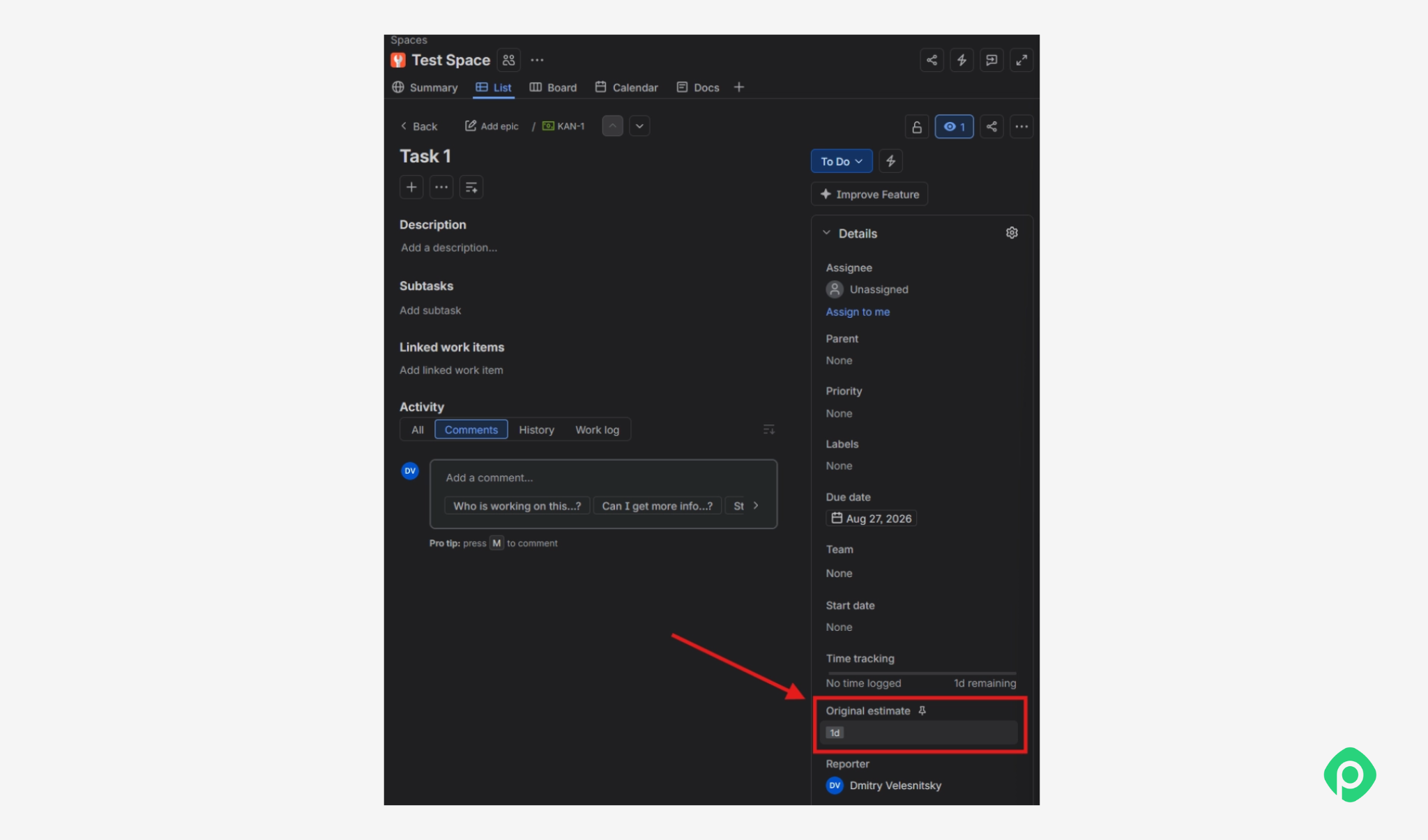
Native Jira functionality is very straightforward and hasn't changed much over the years. When your Jira is freshly set up, the “Time Tracking” and “Original Estimate” fields do not show up on the work item's Details tab by default. To enable time tracking in Jira, you should first go to the Space settings ⇒ Feature and drag them into the main area.
Step 1: Estimate a task
The process is pretty straightforward. First, estimate how long the work should take by entering an “Original Estimate.”
Step 2: Log the work once done
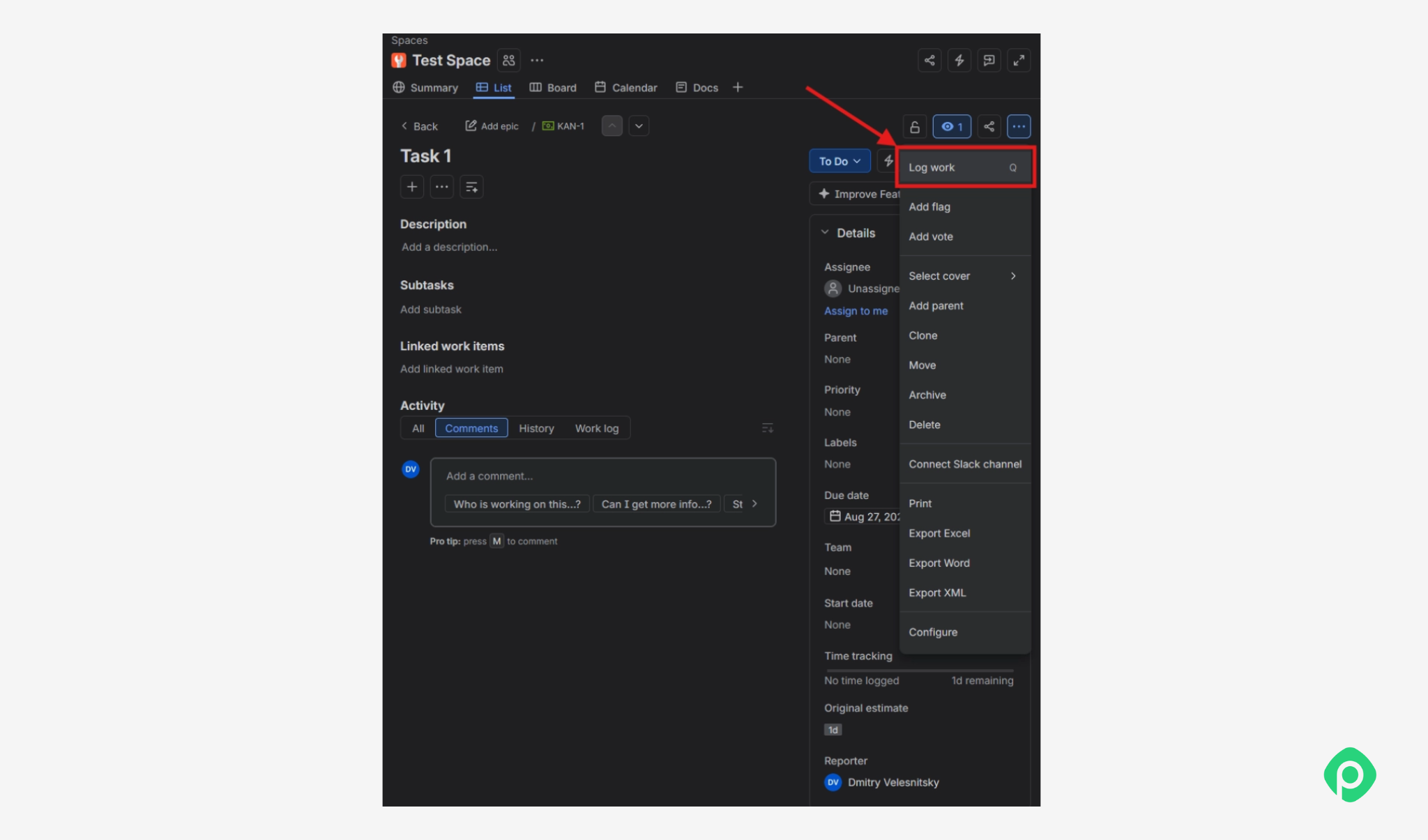
Once you start working on the task, use “Log work” to record the time you’ve spent. You can log your time as you go or add it after the work is done.
Step 3: Enter the time spent
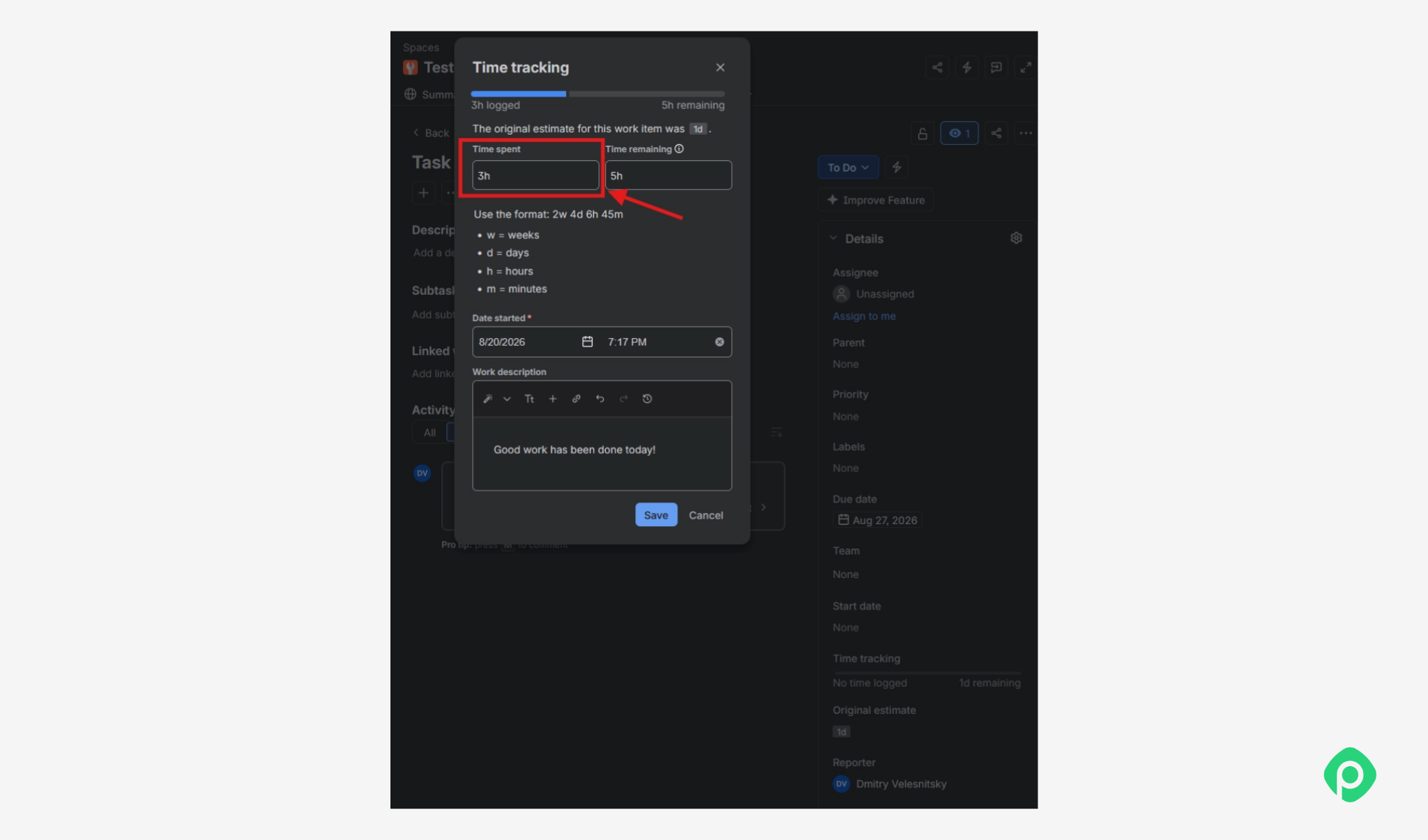
In the “Time spent” field, enter how much time you actually worked on the task. Jira then adds this to the work logged against the issue and updates the remaining time estimate.
Step 4: Check your remaining time
Jira uses the original estimate and logged work to update the “Time tracking” field. Here, you can see how much of the estimated time has been used and how much remains.
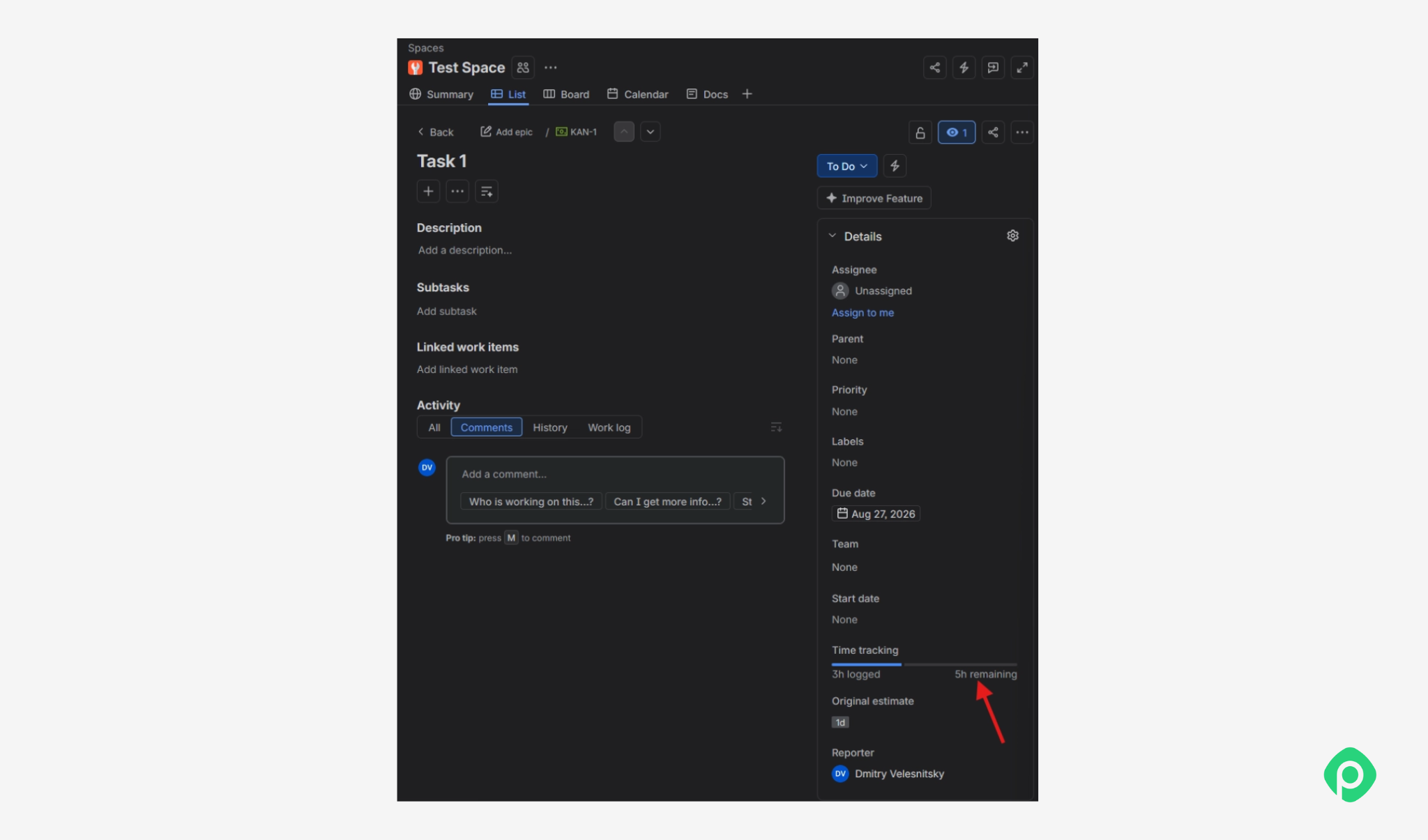
Once time is logged, Jira doesn't offer a built-in way to pull it into a Jira time tracking report — there's no native export to CSV/Excel and no way to aggregate worklogs across issues or people. If you need advanced time tracking functionality or basically anything beyond the basic numbers on an individual issue, you have to either DIY it or get a dedicated Jira time tracking app.
So, this covers the basics of tracking in Jira. As you can see, there's not much to Jira native tracking, which we'll elaborate on a bit later.
Why Jira time tracking still exists (and isn't going anywhere)
It would be fair to ask why software development teams keep using Jira for time tracking despite its challenges, which we’ll explore in detail later. As it turns out, there are several good reasons to stick with the tool.
Jira is already there
For a lot of teams, the simplest reason wins: Jira is already their system of record, so logging time tracking data there avoids adding another tool, another login, and another thing for the team to context-switch into. That's not a small cost: tool sprawl has a real adoption tax, and every extra system is one more place work can get out of sync with reality.
Additionally, large corporations often face significant switching costs from their commitment to the Atlassian ecosystem. They may already have Jira integrated with SSO, permissions, marketplace app vendor approvals, and sometimes finance or invoicing workflows built around Jira worklogs. Keeping time tracking within that ecosystem avoids the security reviews, integrations, and implementation work that a standalone tool would require.
That said, "it's already there" only gets you so far. It explains why teams start logging time in Jira, but it doesn’t mean Jira’s native time-tracking capabilities are enough once teams need to analyze, report on, or act on that data. That gap is exactly what the rest of this article has been about.
Converting story points to hours
Most Jira teams estimate in story points, not hours - that's the whole premise of relative estimation Agile popularized. But points don't mean anything to a client, a finance department, or an executive asking "how much did this cost us." Sooner or later, someone needs to translate planning-friendly points into hours anyone outside the team can actually use for budgeting or reporting. Time tracking is how that translation gets grounded in something real, rather than a rough velocity-based guess.
Furthermore, because Jira already structures work as subtask → task → epic → initiative, logged time can roll up through that same hierarchy for free - an epic's "actual" cost is just the sum of its children's worklogs. That’s specific to Jira’s data model in a way that a generic statement like “time tracking helps with budgeting” isn’t.
Managing contractors
When work involves people outside your core team, such as contractors, freelancers, and agency partners, the accountability math changes. You're not just estimating collaboratively with people who share your context and incentives; you're paying for hours delivered by people who may only see a slice of the project.
Logging time against the same Jira issues contractors are already assigned to keeps that accountability tied to the actual work, instead of running a parallel invoice-and-timesheet process alongside it. For teams billing clients based on hours, those worklogs can also provide a practical record for customer invoices, provided the relevant billing rates and approval processes are handled separately.
The challenges of Jira time tracking
Jira has both automatic (calculating lead time by subtracting the times for status changes) and manual time reporting. And there are quite a few areas where the experience can leave project managers and their teams wanting more. Let's go over the most common limitations:
Limited use of “time in status” data
As for the automatic time tracking in Jira, you cannot do much with the “time in status” metric. Yes, you can see the Lead time on the Control Chart report. But while the latter is considered one of the most useful reports by many, it is still very limited in the data and insights it gives you. It provides some useful insight into delivery performance, but not enough to build a more complete forecast or understand the bigger picture. So if you are a data-driven decision maker looking for a reliable forecast, Jira’s native time tracking doesn’t give you much to work with.
Status-change data is difficult to work with
In Jira, you cannot really do anything with status changes. Jira records status changes in each issue’s history, including who made the change and when, but you can’t change it, can’t use it as a field, can’t use it in the report, and can’t even export it to build your own reports in Excel. As a result, potentially useful information often remains locked inside individual issue histories.
Manual logging can feel cumbersome
Worklogs are added after the work has been done, which can make time tracking feel like an extra administrative task. Jira also doesn't provide a built-in timer, and the overall experience offers limited visibility into logged time. For teams looking for a more efficient workflow, this can make consistent time tracking harder to maintain.
Limited time-reporting options
Jira time reporting has been trimmed to only a few widgets on Jira Dashboards, but they offer limited ways to analyze time across projects or people. There’s no cross-project view, no per-user breakdown, no aggregation — and all of this has to be done manually.
This is where teams often need customizable reports rather than isolated worklog data: they need to filter and compare time by project, epic, user, or period to understand resource use and project progress.
How Planyway fills the gaps of native Jira time tracking
If Jira's automatic tracking can't give you the answers you need - since "time in status" data is locked away and unreportable - time tracking through Planyway for Jira gives you a practical way around that. Instead of trying to extract insight from status-change history Jira won't expose, you get equivalent visibility from time your team logs directly.
The process is very simple. Each of your employees can start the day by planning their work for the day (or even the week and beyond) in calendar view and then adjust it at the end of the day according to how the day went (or they can do it through a Timesheet if they prefer).
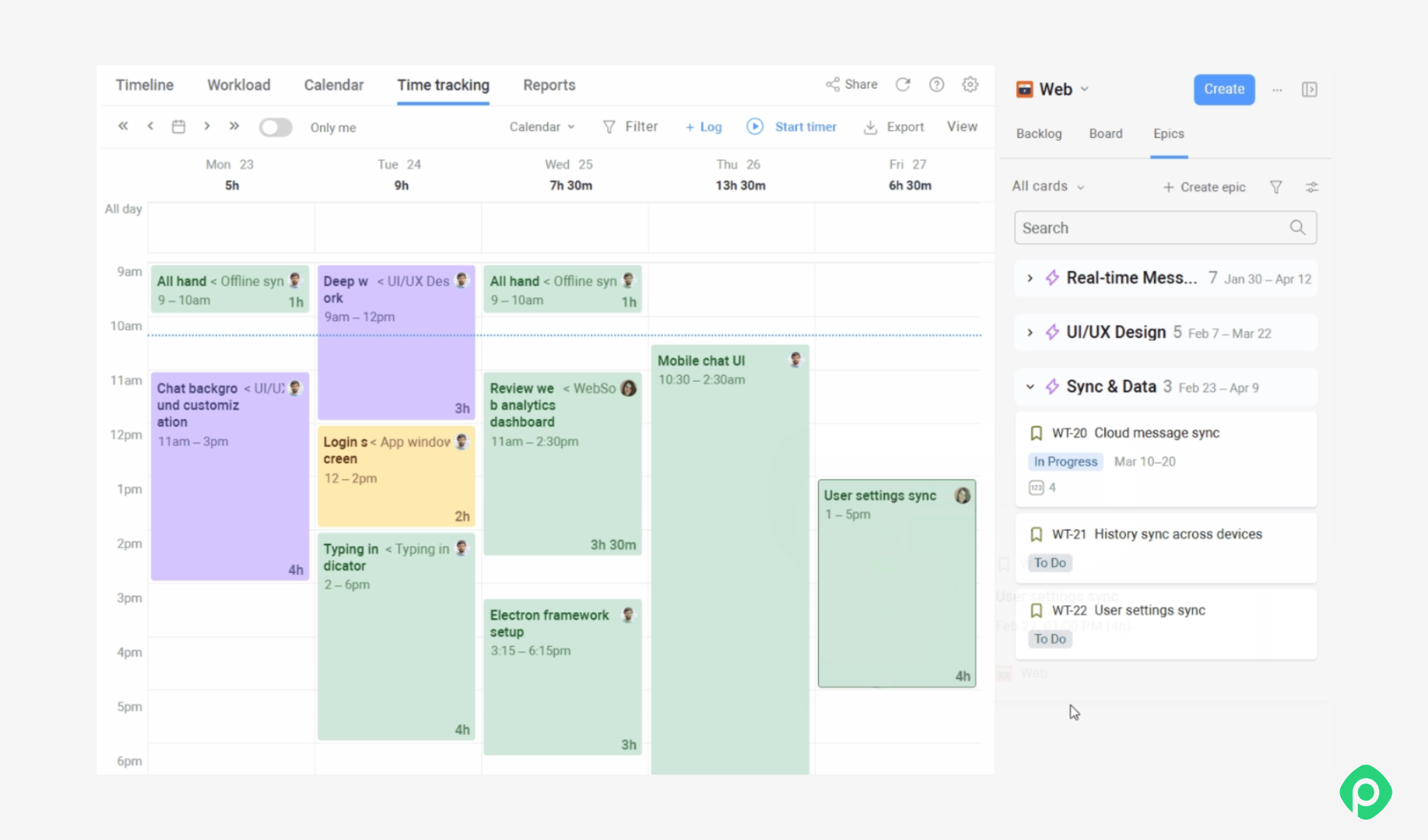
And if they want to be super precise with the time spent, they can use the timer functionality.
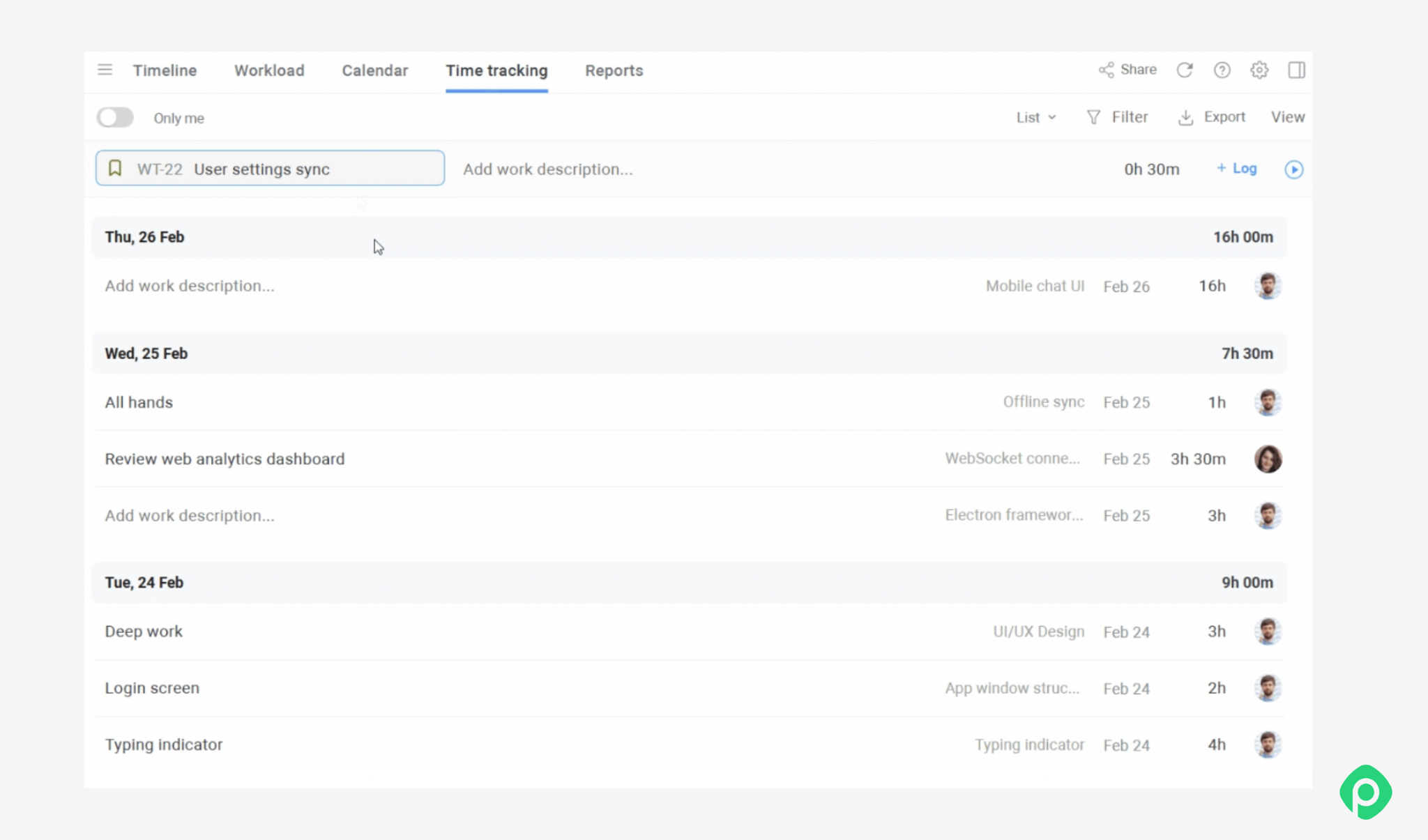
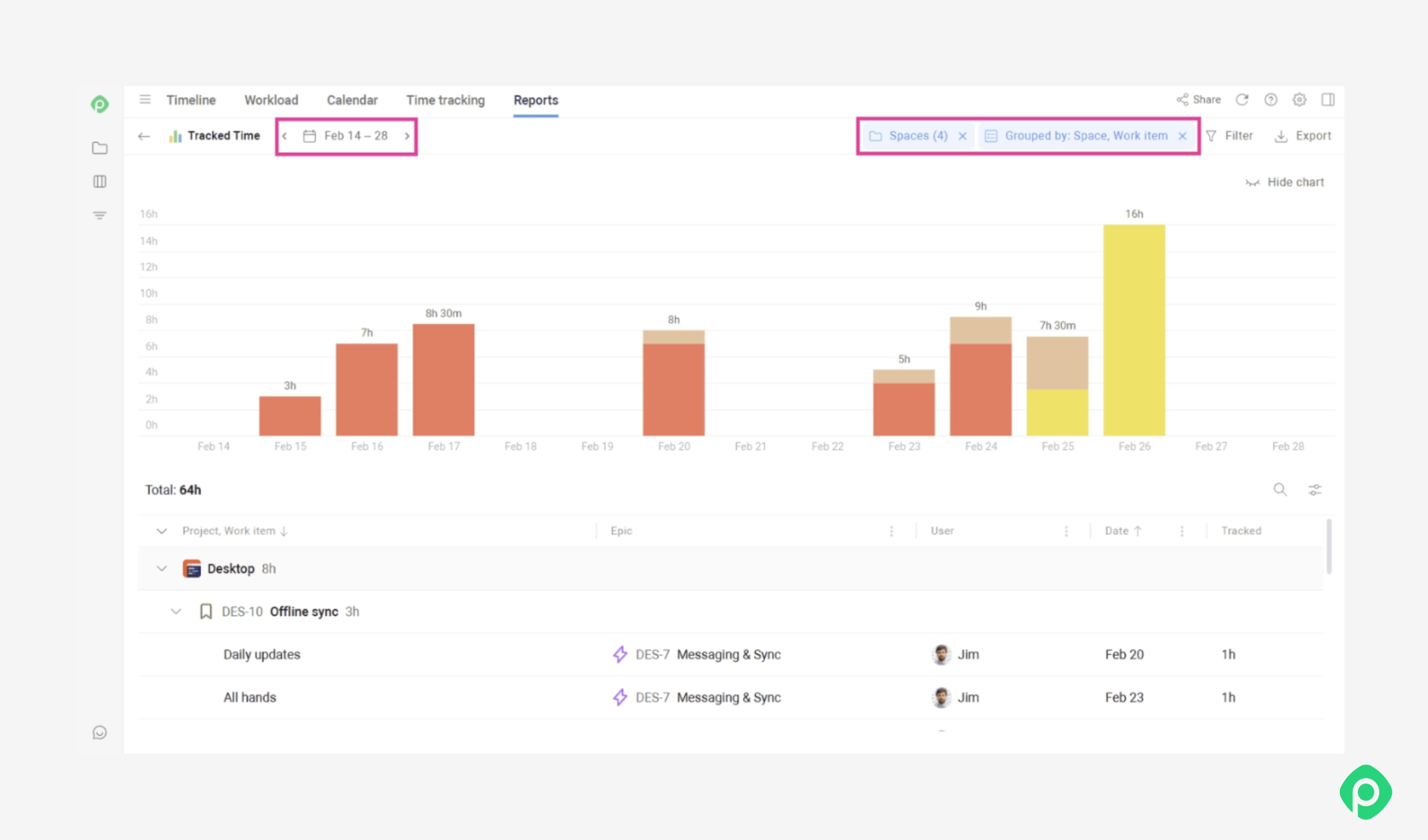
The tracked data is then neatly aggregated into the Time Tracking report.
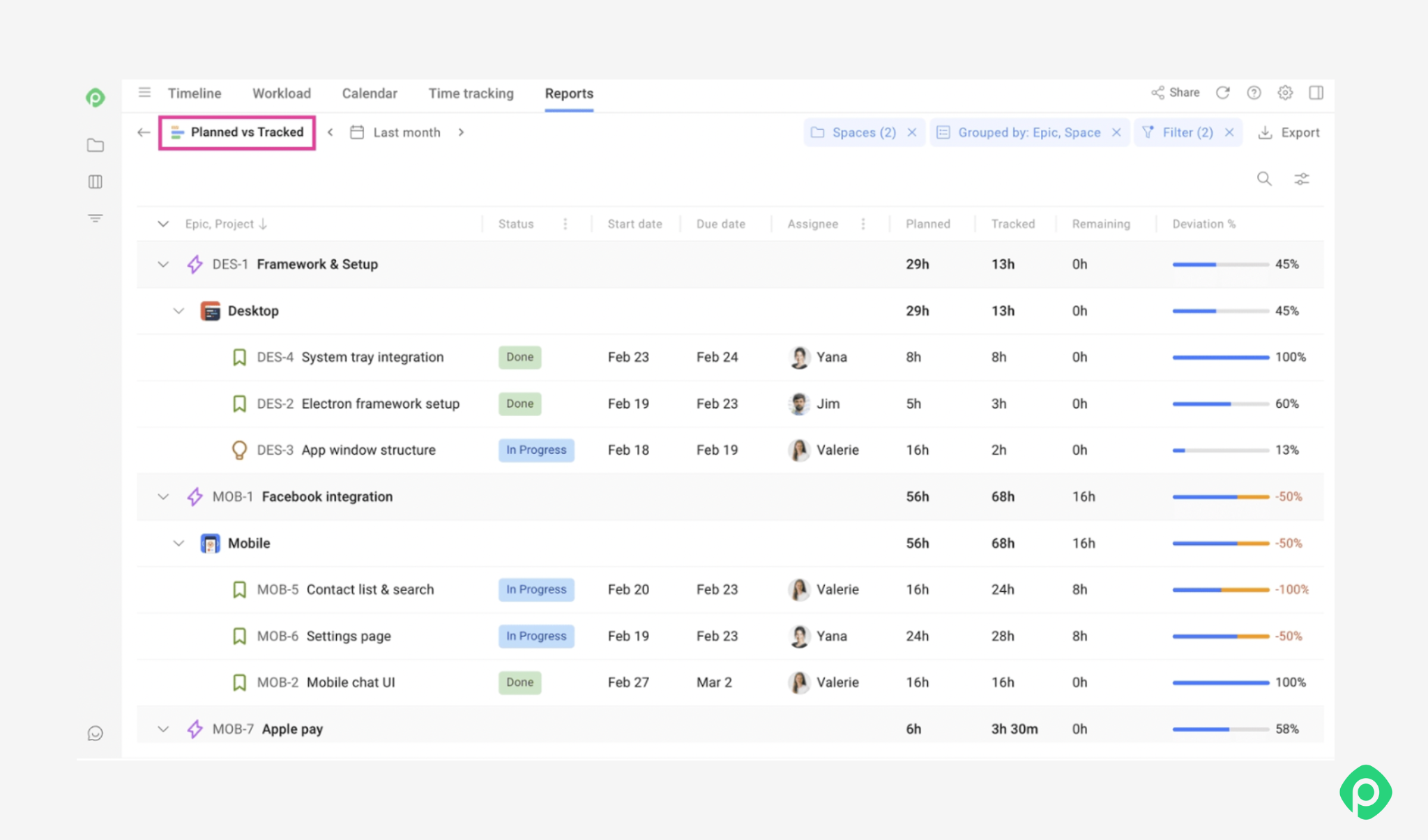
And if you want to check whether you are actually keeping with the estimates, use the Planned vs Tracked report.
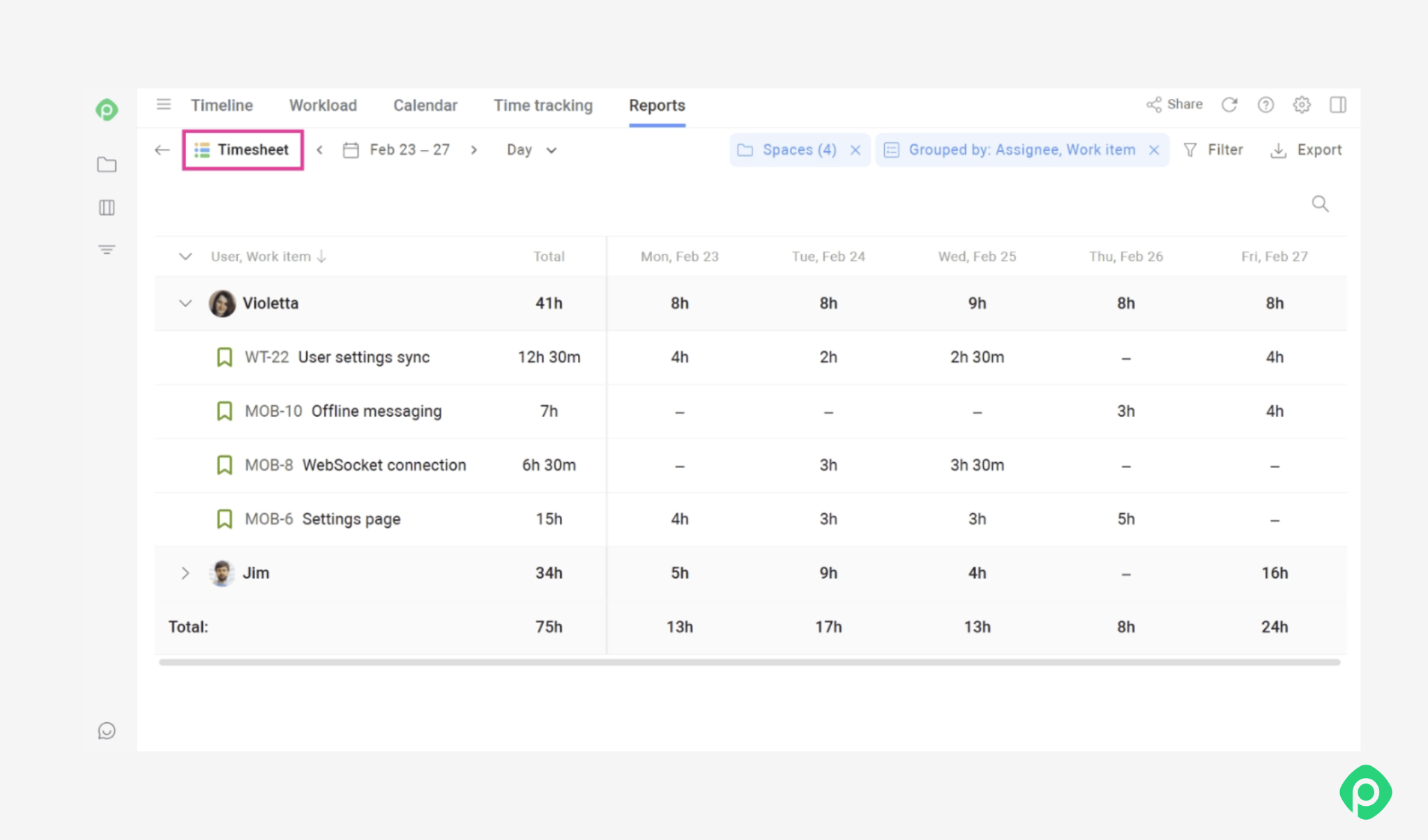
And to see who's over capacity and who has room for more, use the Timesheet, broken down daily, weekly, or however granular you need.
And because Planyway also bundles a set of other features, such as workload management, capacity planning, and visual project planning, the time tracking data doesn’t have to live in isolation. You can use it alongside planned work and team capacity to understand not just where time went, but whether the team had enough capacity to deliver the work in the first place.
The bottom line
Time tracking in Jira isn't dead. It’s often been closely associated with something that was more common in the pre-Agile world: rigid, hour-based estimation. Once you separate the two, the case for tracking time holds up fine on its own, whether that's forecasting a burn rate, checking who's actually at capacity, or just reflecting on your own workday. The problem was never the concept. It was that Jira makes it easy enough to log time, but once you want to actually do something with that data — build reports, export it, or see team capacity — things get a lot less straightforward.
That's really the gap Planyway exists to close. Not by reinventing time tracking, but by making the parts of it that were always tedious - logging, reporting, checking who has room for more work - actually fast and visible. If any of the pain points in this article sounded familiar, that's usually the first thing worth fixing before deciding time tracking itself isn't for your team.


FAQ
Go to Space settings → Features and enable the Time Tracking and Original Estimate fields for your work items — they're off by default on a fresh Jira setup. From there, you can log time manually against any Jira issue using the "Log work" action. Depending on your setup, you may also need to configure time tracking permissions to control who can log and edit worklogs. This gives you a basic foundation for Jira project time tracking and tracking actual time spent on work.
To disable Jira task time tracking, go to your Jira space settings and turn off the Time Tracking feature if your project configuration allows it. Keep in mind that disabling the feature doesn't necessarily remove existing data or worklogs that have already been recorded.
That depends on what you need beyond basic time logging. Native Jira handles basic time entry, but teams looking for more efficient resource allocation, reporting, planning, and capacity management may need additional functionality. Jira time tracking plugins such as Planyway can add reporting, a timer, workload visibility, and other features on top of Jira's native time tracking feature.
Native Jira doesn't currently offer a built-in time tracking report - you'd need to pull the data manually or use an add-on. Planyway's Time Tracking Report gives you a cross-project, cross-team-member view, filterable by project, epic, user, and date, with export to Excel or CSV.
Not a native one - Jira tracks logged time per issue, but there's no built-in daily/weekly timesheet view. Planyway adds a Timesheet report that breaks down logged hours by team member and time period, useful for spotting overtime or unused capacity.
Jira supports manual time logging against issues, but it has no built-in timer - you log hours after the fact rather than tracking them live. Planyway adds a start/stop timer that automatically creates a worklog entry when you stop it, making accurate time tracking part of the existing Jira workflow.
The right plugin depends on whether you need reporting, a timer, capacity/utilization views, or all three - Planyway covers all three on top of Jira's native time tracking fields, without requiring you to change how your team already works in Jira. As a time tracking provider for Jira, it can also help teams turn historical time data into more accurate delivery estimates and better resource allocation.