Best timeline software for project management in 2026

A timeline usually looks perfect on the day it is built. Then the work moves, the chart stays where it was until someone hastily rebuilds it by hand before the status meeting. We build a timeline tool for Jira and have watched this happen on plenty of teams, so we compared 10 tools for project management and project planning to help you pick one that keeps up. Every tool answers the same six questions, with prices and free plan limits.
Key takeaways
- A timeline is a schedule that updates itself. Tasks appear as bars on a calendar, linked by dependencies and milestones.
- The price that matters is the tier where the features you need are included. In most tools, the timeline or Gantt view comes with an entry-level paid plan. Dependencies, workload, and portfolio views often require a tier or two higher.
- If tasks already live in Jira, a timeline on top avoids a migration. Otherwise, the type of work narrows the options quickly. One test is to move a date on a task with dependents and watch what shifts. Another is to share the view with someone who doesn't have a seat and see if they can read it without a walkthrough.
What is timeline software for project management?
Timeline software places project tasks on a calendar. That gives you a visual representation of the project steps by showing how the work unfolds over time. Timelines are standard in project management software today. Most include one. Interactive timelines go further: the dates can be updated along with everything linked to it — by simply dragging a bar.
A typical tool combines:
- tasks with start and end dates, drawn as bars
- task dependencies that link related tasks, so a late design review pushes the build that follows it
- milestones for launches, releases, and approvals
- grouping by team, person, or epic, so one screen can hold multiple projects
- a way to share the plan with people who don’t work in the tool
Software teams map releases across sprints while their agile boards keep handling the daily work. Marketing teams line up campaigns, creative agencies schedule client deliverables, and remote teams use a shared timeline as the thing everyone can point at, since nobody can walk over to a whiteboard. Project managers who plan projects across several teams get one more benefit: the same timeline can show broader objectives, like a quarterly launch, next to the individual tasks that feed it, so a status update doesn’t need its own slide.
10 best timeline software for project management: quick comparison
Ten tools sit in the table below, and every one is described with the same five columns, so you can compare them side by side. Start with “Best for” to cross out the tools built for a different kind of team, then check which ones have a free plan and on which tier the timeline view appears. That narrows the field to two or three candidates, and the reviews after the table cover the details.
| Tool | Best for | Free plan | Timeline or Gantt available from | Paid from |
|---|---|---|---|---|
| Jira + Planyway | Teams already running work in Jira | Jira Free for up to 10 users; Planyway has a free trial | Roadmap and Gantt-like timeline across Jira projects, grouped by project, epic, team, person, or component | Planyway is billed per user through the Atlassian Marketplace |
| monday.com | Visual, non-technical teams | Yes: 2 seats, 3 boards, 200 items, no Timeline | Timeline and Gantt on Standard ($12) | $9 (Basic, no Timeline); 3-seat minimum |
| ClickUp | Teams that want one tool for everything | Yes, but Gantt and Timeline are capped at 60 uses | Gantt without a cap on Unlimited ($7); Timeline capped at 100 uses there, no cap on Business ($12) | $7 |
| Asana | Cross-functional teams with lots of handoffs | Yes: up to 2 users, no Timeline | Timeline on Starter | $10.99 |
| Smartsheet | Spreadsheet people | No, free trial only | Gantt on Pro ($9), Timeline view on Business ($19) | $9 |
| Wrike | Complex, cross-department work | Yes, no Gantt | Gantt on Team ($10) | $10 |
| TeamGantt | Gantt-first scheduling with client sharing | Yes: 1 user, 1 project, 40 tasks | Gantt on every plan, critical path on Base | $59 per month, flat, for 5 projects |
| GanttPRO | Dedicated Gantt planning at a low price | No, 14-day trial | Gantt with auto scheduling and baselines on every plan | $7 |
| Lucen Timeline (formerly Office Timeline) | Timelines for slides and exec updates | Yes: 10 milestones or tasks per slide | PowerPoint add-in plus a browser version; dependencies from Plus ($17) | $9 |
| Notion | Light planning next to your docs | Yes | Timeline view on any database with a date range | $10 |
The tools, reviewed
To keep things fair, every review below answers the same six questions:
- Multiple projects: Can you see several projects on one timeline?
- Levels of detail: Can you zoom from the big picture down to individual tasks?
- Dependencies: Can you link tasks and see what’s blocking what?
- Milestones: Can you mark key dates like launches and releases?
- Workload: Can you see who’s overloaded next to the dates?
- Sharing: How do you show the plan to people who don’t use the tool?
1. Jira + Planyway: best for teams that already live in Jira
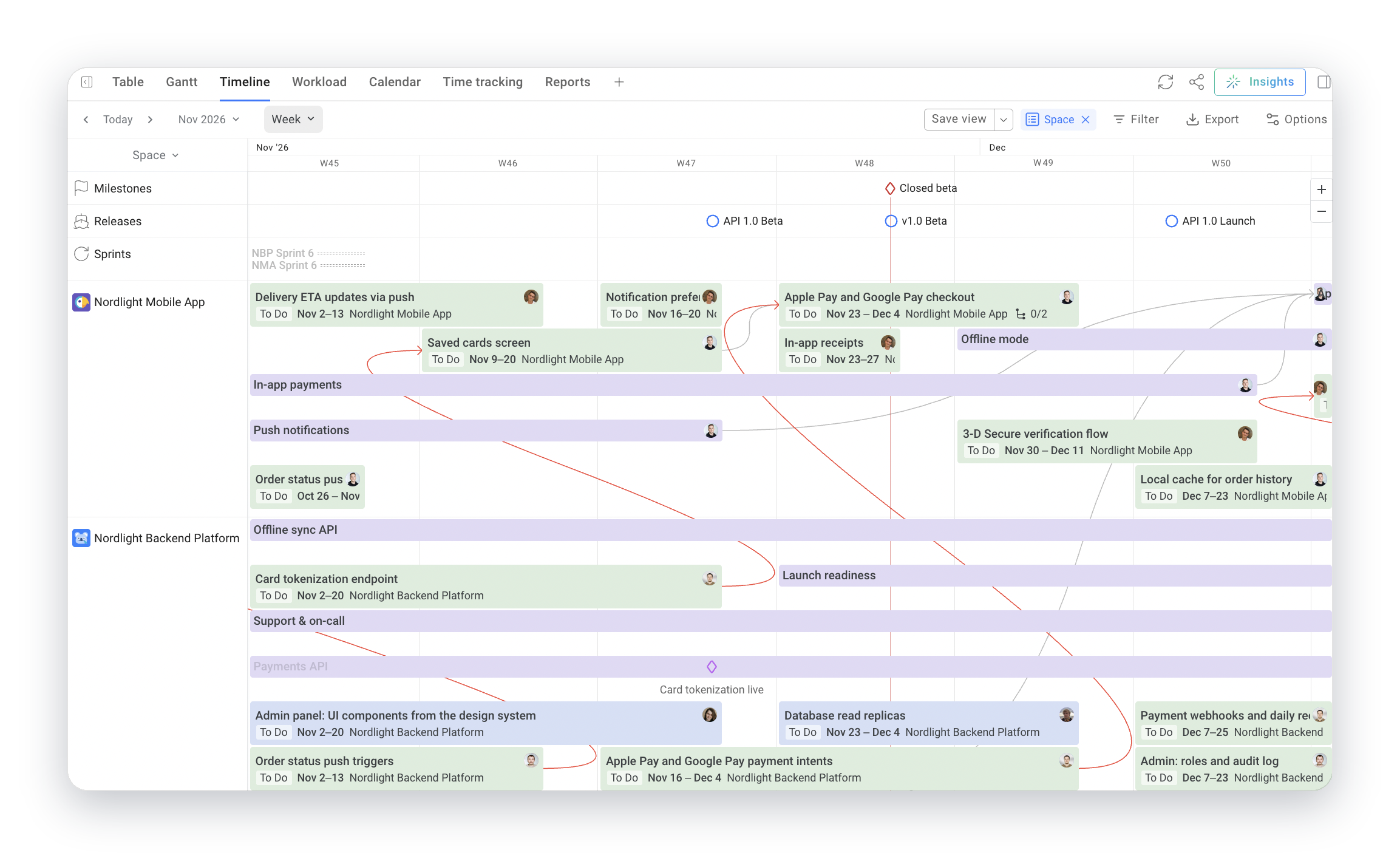
Planyway for Jira was built for software development teams first, and it has since found a home with marketing, design, operations, and many other teams. It adds a timeline on top of the Jira issues you already have, so nothing gets copied or migrated, and the sprints on your agile boards stay where they are. Cross-project planning in Jira’s own Plans needs a Premium plan, while Planyway works on the plan you already have.
- Multiple projects: yes, grouped by space, epic, team, assignee, label, component, sprint, release, or any custom field.
- Levels of detail: from initiatives and epics down to tasks, and from a yearly plan down to a single sprint.
- Auto-shifting dependencies: tasks are linked to each other, and when one moves, the linked tasks shift automatically, so a delay shows its impact right away.
- Milestones: milestones, releases, and sprints can be assigned right on the timeline, and stages can be placed inside an epic.
- Workload: each person gets their own lane. Vacations and public holidays come out of their daily capacity automatically, so you can see who is actually available.
- Sharing: saved roadmaps for stakeholders inside Jira, or the exact view exported to PDF or Excel.
Pros: no migration and no plan upgrade, and it’s lighter than full Gantt tools.
Cons: only useful if you’re on Jira, and an admin has to install it from the Marketplace.
Pricing: Jira is free for up to 10 users. Planyway is billed per user through the Atlassian Marketplace and has a free trial.
2. monday.com: best for visual, non-technical teams
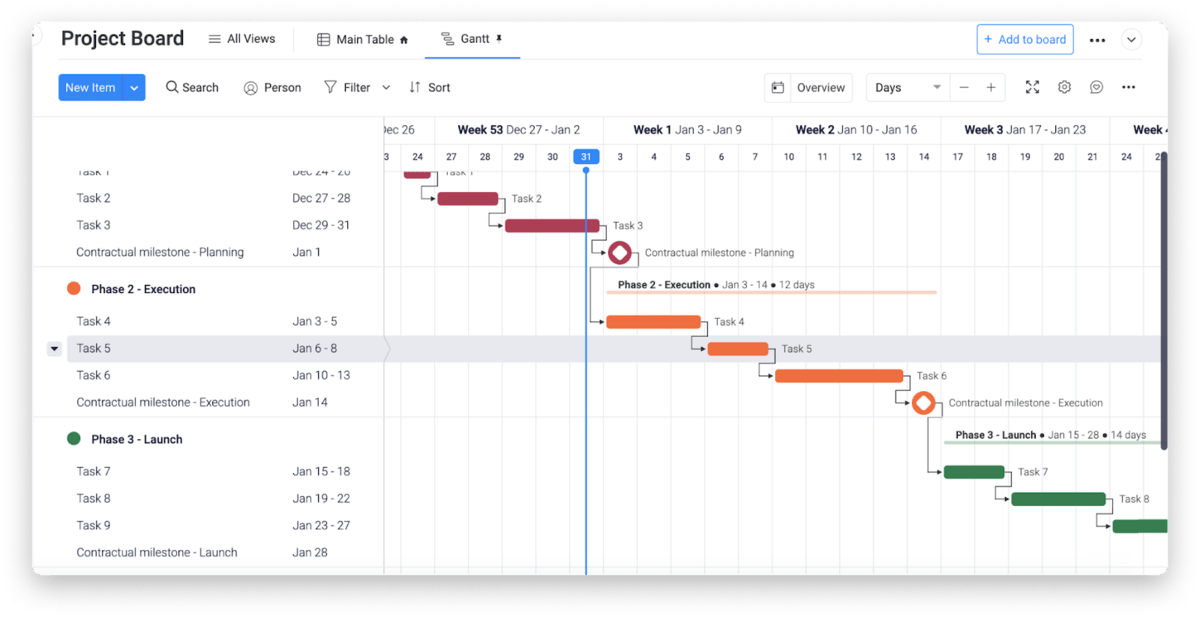
Monday sells itself as a work platform you assemble yourself. Columns for status, owners, dates, and dependencies get added to the boards you build. Because you configure everything yourself, the first setup can feel like a lot of work for a small team.
- Multiple projects: each project is usually its own board, and Standard and up can combine several boards on a dashboard.
- Levels of detail: items break into subitems, and the Timeline (Standard and up) zooms from days to years.
- Dependencies: a Dependency column links items and shows arrows in the Gantt view on Pro and up.
- Milestones: on Pro and up, a date in the Timeline column can be set as a milestone in the Gantt view.
- Workload: a Workload view or dashboard widget compares assignments with capacity, but only on Pro and Enterprise.
- Sharing: on Standard and up, outside people can join a board as guests; dashboards go out as PDF exports.
Pros: quick for non-technical teams to adopt, and the free plan is enough to try boards with a partner or a freelancer.
Cons: Timeline and Gantt aren’t in the cheapest paid plan, and the 3-seat minimum bothers small teams.
Pricing: Free covers 2 seats, 3 boards, and 200 items. Paid plans start at $9 per seat per month with Basic, billed annually, while Timeline and Gantt arrive with Standard at $12. Pro is $19.
3. ClickUp: best for teams that want one tool for everything
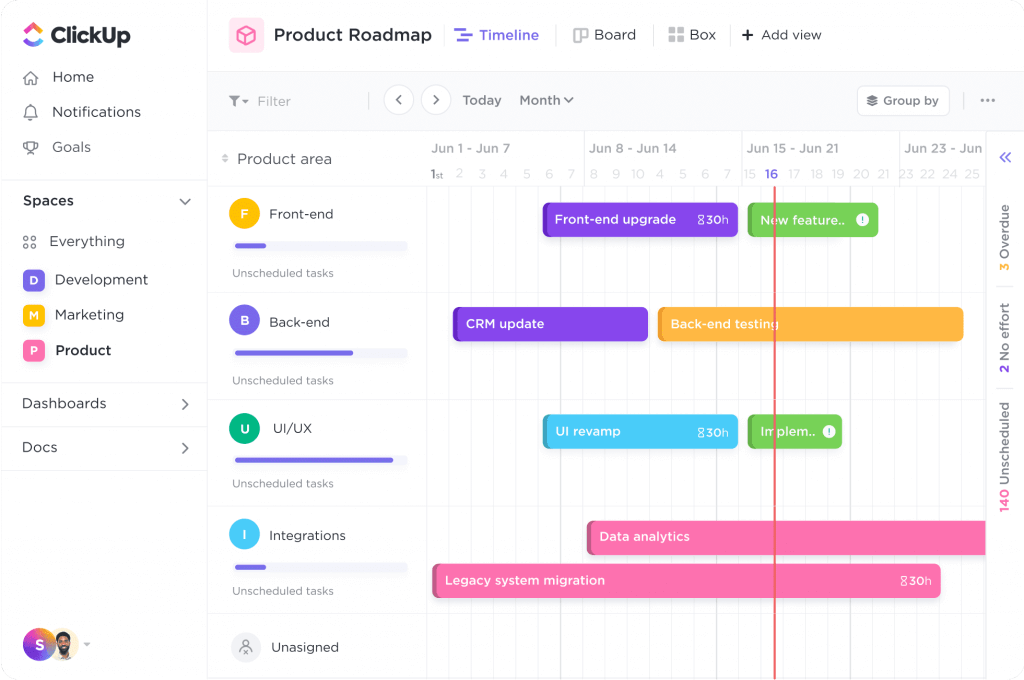
ClickUp keeps tasks, docs, goals, and whiteboards in one workspace, which suits a team tired of juggling different tools. It has two separate views: Gantt for scheduling with dependencies, and Timeline for a higher-level look at who’s doing what and when.
- Multiple projects: Gantt and Timeline can pull tasks from several lists and folders into one view.
- Levels of detail: Gantt nests subtasks under their parents, and both views zoom along the calendar.
- Dependencies: yes, and rescheduling a task can update up to 1,000 dependent tasks at once.
- Milestones: a Milestone task type marks launches and deadlines (20 uses on the free plan).
- Workload: a Workload view shows capacity per person (60 uses on Free, 100 on Unlimited), and time tracking is included on the free plan, capped at 100 uses.
- Sharing: a view can be shared with a link, so stakeholders don’t need a seat.
Pros: wide task management coverage in one product, with custom workflows and automated workflows on top.
Cons: the free plan counts “uses” of Gantt and Timeline, and Unlimited still counts Timeline uses. In Timeline, a use is any action in the view: opening it, editing it, or moving a task. A busy week can eat through 60 quickly. Expect a learning curve too, because the settings go deep.
Pricing: the Free Forever plan has unlimited users, with Gantt and Timeline capped at 60 uses each. Unlimited is $7 per user ($10 monthly), with no cap on Gantt and 100 uses of Timeline. Business is $12 ($19 monthly), with no caps on Gantt, Timeline, or Workload, and Gantt baselines (10 per location).
4. Asana: best for cross-functional teams with lots of handoffs
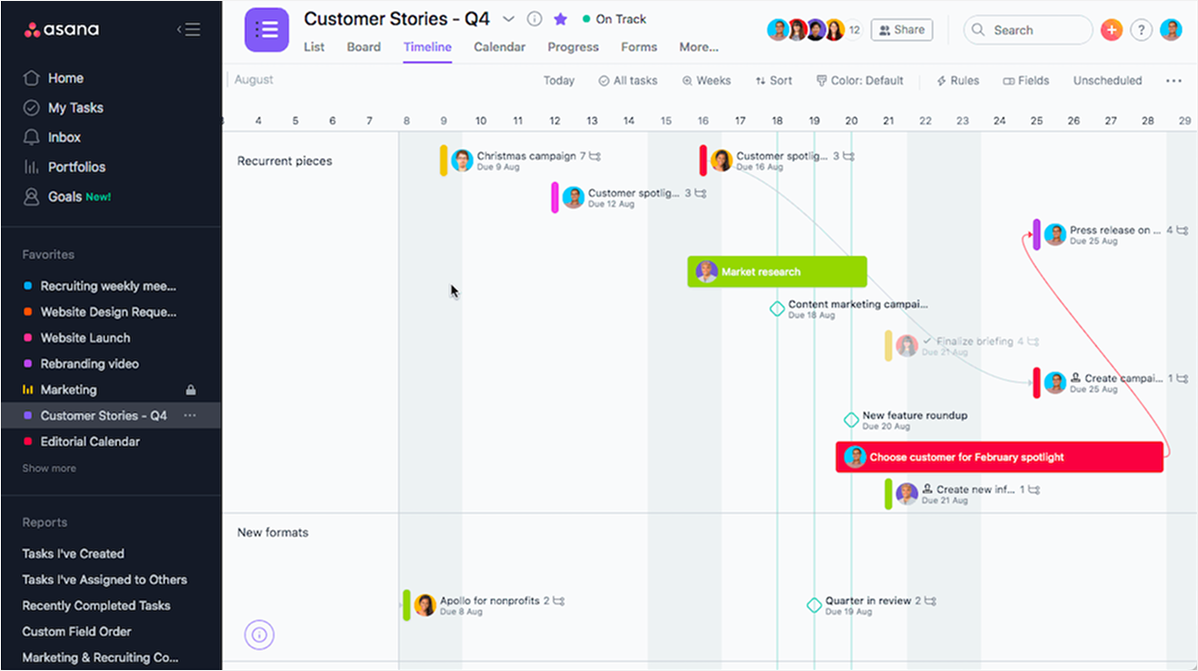
Asana is a work management tool built around tasks, owners, and due dates. Its Timeline view sits on top of a project’s tasks, so each task shows as a bar on the schedule. Design, marketing, and operations teams that pass work between people tend to like how clearly every task has an owner.
- Multiple projects: Timeline works within a project, and Portfolios on Advanced roll several projects up into one status view.
- Levels of detail: The Timeline can show one level of subtasks under each parent task.
- Dependencies: set by dragging a connector from one task to another.
- Milestones: a milestone task type marks key dates.
- Workload: the Workload tab in Portfolios on Advanced shows effort against team capacity.
- Sharing: anyone with access to the project can see its timeline, and public projects can be shared by link.
Pros: clear task ownership and an easy way to assign tasks across teams, with rules from Starter up that cover simple workflow automation.
Cons: Timeline starts on the first paid plan, workload sits higher up, and the free plan stops at two users.
Pricing: Personal is free for up to 2 users and has no Timeline. Starter is $10.99 per user ($13.49 monthly), and Advanced is $24.99 ($30.49 monthly).
5. Smartsheet: best for spreadsheet people
Smartsheet looks like a spreadsheet and behaves like a project tool. Rows are tasks, columns hold owners and dates, and the same data can be shown as a grid, a Gantt chart, or a Timeline view. People who already live in Excel or Google Sheets pick it up faster than most.
- Multiple projects: one sheet per project, and reports that combine several sheets need Business.
- Levels of detail: parent and child rows collapse and expand.
- Dependencies: predecessors set on rows drive the Gantt view.
- Milestones: a task with zero duration shows as a milestone diamond.
- Workload: Business adds Workload tracking, and Resource Management is a paid add-on.
- Sharing: sheets and dashboards are shared by email, and free guests need Business.
Pros: familiar to spreadsheet users, and Gantt comes with the lowest paid plan.
Cons: no free plan, only a 30-day trial, and the Timeline view requires Business. Advanced features are limited on Pro, which allows 250 automations a month and one source sheet per report.
Pricing: Pro is $9 per member billed yearly ($12 monthly) for 1 to 10 members, with Gantt. Business is $19 ($24 monthly), needs 3 or more members, and adds Timeline view.
6. Wrike: best for complex, cross-department work
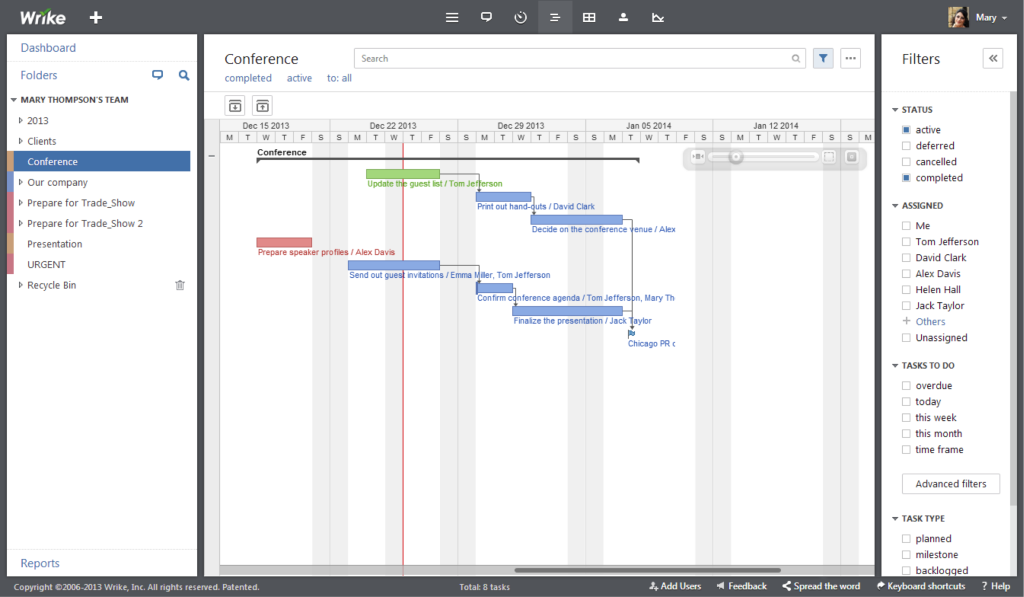
Wrike is work management software for teams where requests arrive from other departments and need to be routed, approved, and scheduled. That fits agencies, IT, and operations, where complex workflows are part of the everyday routine.
- Multiple projects: folders and projects sit in a hierarchy, and a Gantt chart can show several together.
- Levels of detail: tasks and subtasks, with the Gantt zooming across the calendar.
- Dependencies: drawn between tasks on the Gantt chart, which makes it easier to track dependencies across departments.
- Milestones: a milestone task type marks key dates.
- Workload: a workload view compares planned work with capacity on higher plans.
- Sharing: collaborators can be invited, and dashboards give stakeholders a read-only summary.
Pros: handles requests and approvals, and the Gantt is interactive.
Cons: the free plan has no Gantt, and the Team plan stops at 15 users, so growing companies reach Business quickly.
Pricing: Free has no Gantt. Team is $10 per user for 2 to 15 users, with interactive Gantt charts. Business is $25 for 5 to 200 users. Wrike bills these prices annually.
7. TeamGantt: best for Gantt-first scheduling with client sharing
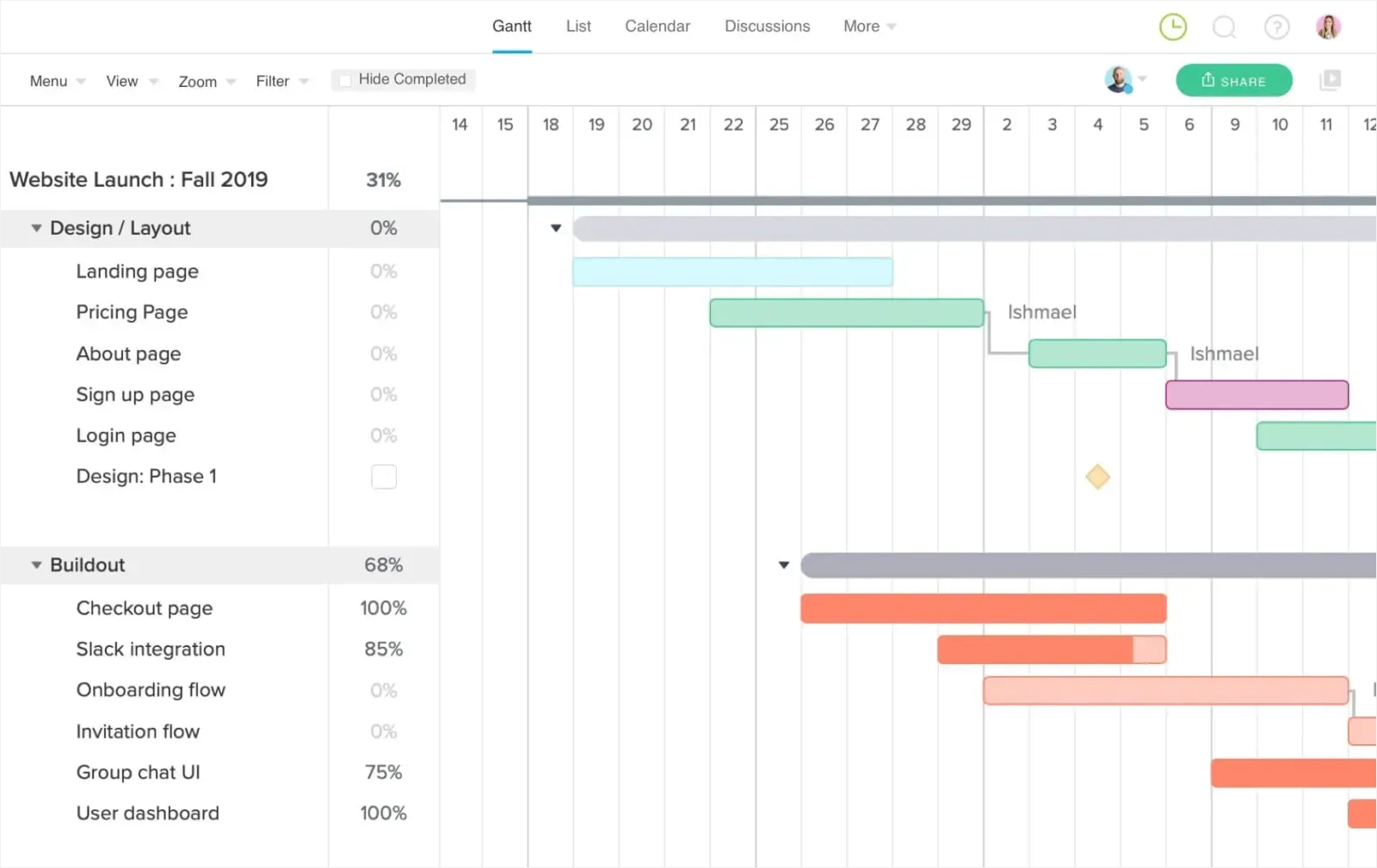
TeamGantt is a tool built specifically for Gantt scheduling. A plan looks like the Gantt charts most people picture, with drag-and-drop bars, and paid plans include view-only links for people who only need to look.
- Multiple projects: Portfolio view on Business lists every project, with filters for project status and health data.
- Levels of detail: task groups and subgroups, which can all be collapsed to show the entire project at group level.
- Dependencies: four dependency types with lead and lag times, and advanced dependencies on Business.
- Milestones: key dates are marked as diamonds, and milestone tracking is simple: a milestone is either done or not, and Business can lock them.
- Workload: on Business, the Workloads report shows demand across the account, by tasks or hours.
- Sharing: view-only links go to clients and subcontractors, and Builder Edition adds a client portal.
Pros: a clear overview of the plan for clients, and flat pricing that doesn’t grow with every viewer.
Cons: pricing follows project count, so an agency with many small projects moves up tiers quickly, and Base caps tasks at 150 per project.
Pricing: the free plan has 1 user, 1 project, and 40 tasks, with basic Gantt features. Base is $59 per month, flat, for 5 projects, 1 manager, and 10 collaborators, with critical path scheduling. Business starts at $120 per month for 5 projects, with unlimited managers and collaborators. Paid plans include a 14-day trial, and annual billing takes 20% off.
8. GanttPRO: best for dedicated Gantt planning at a low price
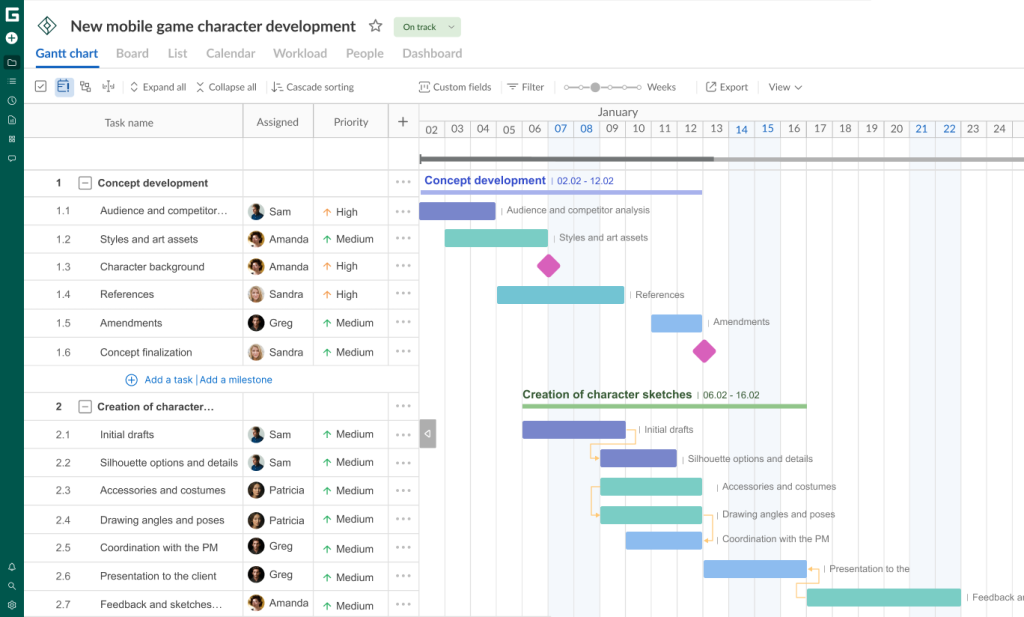
GanttPRO focuses on Gantt scheduling and charges per user, which keeps the entry point low. Every plan includes auto scheduling, baselines, and critical path, so the scheduling logic that makes a Gantt useful doesn’t cost extra.
- Multiple projects: a portfolio view stacks projects together (Business and up).
- Levels of detail: summary tasks, tasks, and subtasks, with zoom from hours to years.
- Dependencies: yes, with auto scheduling that moves dependent tasks when dates change.
- Milestones: a milestone is a zero-duration task that marks launches, approvals, and other key events.
- Workload: a workload view shows how much each person has scheduled (Business and up).
- Sharing: owners and admins can share plans by link or export them to PDF, PNG, XML, or Excel.
Pros: the per-user price is among the lowest in this list, and baselines are included.
Cons: no free plan, and it’s a Gantt tool first, so it fits less well if your team wants docs and goals in the same place.
Pricing: billed annually, Core is $8 per user for 1 to 15 users. Advanced is $12, Business is $19, and Enterprise is $25. Teams of 20 to 35 users pay $7, $10, $17, and $20. Monthly billing starts at 5 users, at $9, $15, and $24 for the first three plans. The 14-day trial is fully featured and needs no credit card.
9. Lucen Timeline (formerly Office Timeline): best for timelines in slides and executive updates
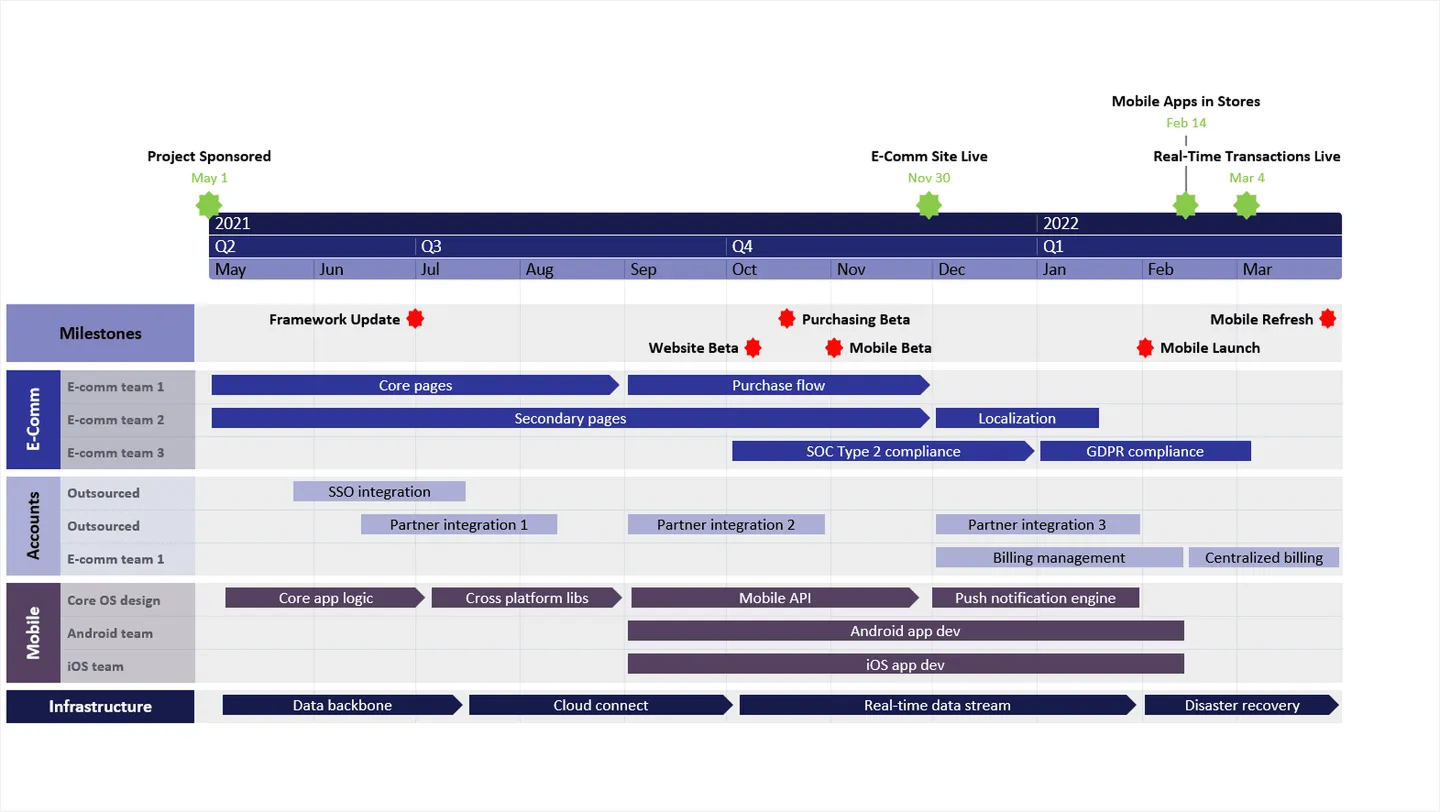
Lucen Timeline, formerly Office Timeline, sits in a different corner of the market. It is made for presenting a plan, and day-to-day task tracking lives elsewhere. It turns a plan into a clean visual timeline slide, as a PowerPoint add-in or in a browser, so you can communicate progress to people who live in decks.
- Multiple projects: one timeline slide per project, and importing several Jira projects at once is on Expert.
- Levels of detail: swimlanes split a slide by team or workstream (2 on Lite, unlimited on Plus).
- Dependencies: shown on Plus and Expert, and on the free plan up to 10 items.
- Milestones: milestones and tasks sit on timeline, roadmap, and Gantt templates.
- Workload: not covered, there is no workload view.
- Sharing: the add-in builds a PowerPoint slide anyone can open, and Timeline Online adds share links, with downloads on Premium.
Pros: fast, good-looking slides, with Excel import on Plus and Jira, Smartsheet, and Microsoft Project import on Expert.
Cons: the slide doesn’t update on its own, and one-click refresh from linked data needs Expert.
Pricing: the PowerPoint add-in has a free plan limited to 10 milestones or tasks per slide. Lite is $9 per user per month, Plus is $17, and Expert is $21, all as annual licenses. Plus adds dependencies and Excel import, and Expert adds planned vs. actual tracking. Timeline Online, the browser version, has its own free plan and a Premium plan at $13 per month, billed annually.
10. Notion: best for light planning next to your docs
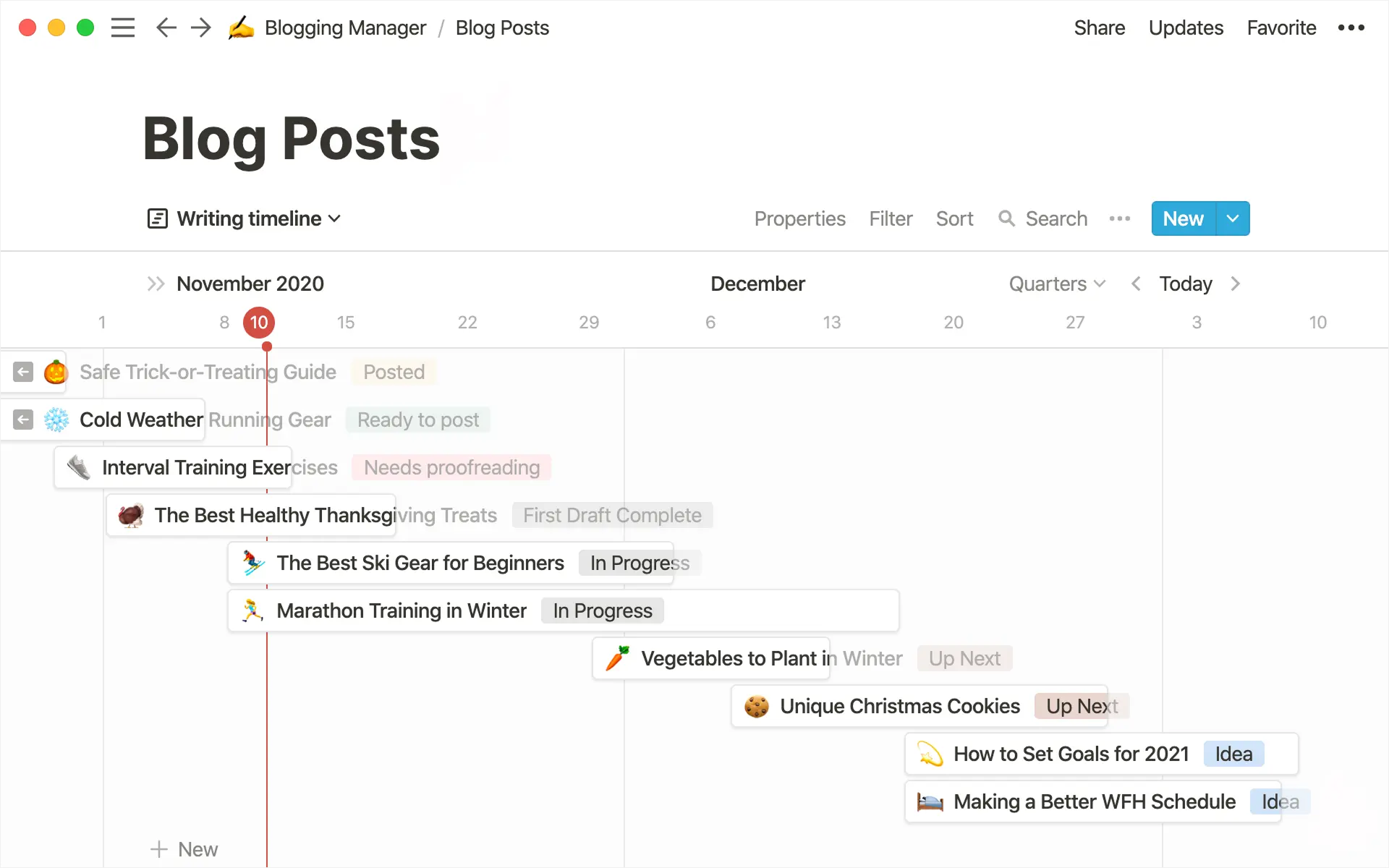
Notion is a workspace for docs, wikis, and databases. Any database with a date range can be shown as a timeline layout, which makes it a decent home for simple projects and a way to organize tasks next to the meeting notes and specs that explain them. Pages also support real-time collaboration, so several people can edit a plan at once.
- Multiple projects: one database can hold tasks from several projects, filtered or grouped by a property.
- Levels of detail: sub-items and grouped views on the same database.
- Dependencies: dependencies between database items, available on the Free plan.
- Milestones: a database property can mark milestones, though there’s no dedicated type.
- Workload: there’s no workload view, so capacity stays a manual check.
- Sharing: pages can be shared with a link, with guests (10 on Free), or published to the web.
Pros: docs and plans live together, and it’s cheap to start.
Cons: Notion documents no workload view, baselines, or critical path, so it runs out of room once a plan has many moving parts.
Pricing: there’s a Free plan. Plus is $10 per member per month billed yearly, or $12 billed monthly.
How to choose the right timeline software for your team
Feature tables look alike until you match them to your situation. These are the key features and questions that tend to decide it.
Where the work lives today. If tasks already sit in Jira, a timeline on top of Jira means no copying and no second login for team members. If they sit nowhere yet, you’re free to pick on features and price, and to keep planning and daily work in the same tool.
How many people need a seat. Team size changes the math more than any feature. monday.com has a 3-seat minimum, Wrike’s Team plan stops at 15 users, and TeamGantt’s Base plan is flat for 1 manager and 10 collaborators. Larger teams also have to decide who gets a paid seat and who only views the plan.
The kind of timeline you need. Gantt charts with critical path and baselines suit complex projects with hard dependencies. A lighter timeline view suits a plan you mostly use to talk to stakeholders. Most teams know which one they need once they picture the next steering meeting.
Who has to read it. Stakeholders who don’t work in the tool need a link, a PDF, or a slide, so check how each tool shares a plan before you commit.
What the working version costs. The headline price often belongs to a plan without the timeline. Make sure you know the real cost of all the features your team needs before opting for a particular tool.
Workflow automation is worth paying for only if someone will set it up. Collaboration features like comments and mentions matter less if your team already talks in Slack or Teams, and if you run other tools next to the timeline, check that the plan can follow them.
Why not just use a spreadsheet?
Plenty of people create project timelines in Excel or Google Sheets, and for simple projects with one owner and a dozen tasks, that’s fine. A conditional-formatting Gantt takes an afternoon, and nobody has to learn anything.
When more than one person edits the plan, the spreadsheet approach breaks down. Due dates are typed by hand, so a slipped task doesn’t move anything behind it, and changing dates for multiple tasks means editing each cell. There are no recurring tasks, no notification when someone gets a task, and no clear answer to who owns what. Stakeholders get a screenshot that’s out of date by the time it lands in their inbox, and the files travel by email or file sharing links in three slightly different versions. Many teams also keep specs in Google Docs and the plan in a sheet, so the link between the two exists only in someone’s head.
The sheet stays useful as a place to sketch the first draft of a plan, before it moves into a tool that updates itself.
Mistakes to avoid
Treating the free plan as the plan
A free plan is a trial that doesn’t expire — it works for learning the interface. Budget for the tier where the timeline works, and load a real plan with real dependencies into two or three trials before you decide.
Putting every task on the timeline
A timeline with 400 bars is hard for anyone to read. Keep milestones and epics at the top level for stakeholders, and let the individual tasks live one zoom level down. That also makes project scope easier to defend when someone asks for one more feature.
Skipping task ownership
A bar with no name on it tends to sit untouched. Each task needs one person who updates it, and each plan needs one person who looks at the whole picture. That’s usually the difference between deadline tracking that works and a chart that quietly drifts toward missed deadlines, and it keeps project progress visible without anyone copying numbers between files.
Ignoring workload
Dates show what’s scheduled and say nothing about whether the same person is booked on three bars next week. Look at workload before you commit to a date, and you’ll meet deadlines more often.
So, which one should you pick?
If your team already runs on Jira, start with Planyway, because it’s the only option here that doesn’t ask you to move anything. If you’re starting from scratch, match the tool to the shape of your work. monday.com and Asana suit teams that care about managing projects visually and passing work between people. ClickUp suits teams that want task management, docs, and plans in one place and are willing to read the usage limits first. Wrike suits requests and approvals across departments, and Smartsheet suits people who think in rows.
When the plan itself is the product, TeamGantt and GanttPRO are the two to compare, with TeamGantt strong on client sharing and GanttPRO on price. Lucen Timeline is perfect for presenting. Notion fits small teams with light plans that sit next to their docs.
Whatever you shortlist, run the two tests from the key takeaways in the trial: move a date and see what follows, then share the view with someone who has no seat. A tool that passes both will help you deliver projects on the dates you promised and deliver work without the Friday rebuild. One that doesn’t will turn into a chart you redo before every meeting.


FAQ
A project timeline is a visual schedule of the work in a project, drawn along a calendar, that shows what happens when and who’s responsible. It usually includes tasks with start and end dates, milestones, and the links between them, so you can track progress against the plan. A good one lets you monitor progress at a glance, with enough detail to explain a delay.
The best program to create a timeline depends on where your tasks already live. For teams in Jira, Planyway builds the timeline from existing issues. For standalone planning, ClickUp, monday.com, Asana, Wrike, TeamGantt, and GanttPRO all draw timelines from scratch, and Lucen Timeline suits slides. A spreadsheet can do for simple projects.
The best way to create a project timeline is to start from the milestones and work backward. List the launch dates or approvals you can’t move, add the tasks that lead to each one with owners and estimates, then link the tasks that depend on each other. Review the result with the people doing the work before you share it, and pick one place where dates get updated.
The difference between Gantt and timeline views is how much scheduling logic sits behind the picture. A Gantt chart is a task-by-task schedule with dependencies, and often critical path and baselines. A timeline is lighter and shows work along a calendar, usually at a higher level. Many tools use the two words loosely, and some, like ClickUp and Smartsheet, offer both as separate views.