Jira timesheet report: why Jira doesn’t have one, and how to do reporting

On the last working day of the month, when the accounting department wants total hours per person by tomorrow morning, many Jira users wish there was a button that turns everybody's work logs into one table. The truth is that Jira's native time tracking records hours on each work item, but has no timesheet report, meaning no view of hours per person per day or week across different projects.
Teams get one in four ways:
- a JQL search plus an export to Microsoft Excel or Google Sheets,
- a script against the Jira API,
- Atlassian Analytics, if the company is on an Enterprise plan,
- or a dedicated time tracking app from the Atlassian Marketplace.
We'll go through what each of them gets right, what can possibly go wrong, and how to set up a process that still holds at month-end, when payroll and invoices depend on it.
What a timesheet report should answer
In all the conversations we've had with project managers and ops leads about this, we can't remember anyone who wanted a timesheet report for the joy of a big table. There's almost always one of four questions sitting under the request, each needing its own slice of data, so it pays to figure out which one is yours before you start exporting things.
| Question | Who usually asks | What the report needs | Where Jira falls short |
|---|---|---|---|
| What did everyone work on this week? | Managers, execs | Team members' time per person and per project for one week, as a saved view | No per-person weekly view, filters rebuilt every time |
| Is the payroll right? | Payroll, the accounting department | Total hours per pay period, employee absences, overtime hours against each contract | Jira doesn't know about contracts, holidays or overtime rules |
| Can we bill this? | Account managers, finance | Billable hours by client and project, time entries with comments | No billable flag on worklogs |
| How is the project going? | Project managers, delivery leads | Planned hours against time logged per task, project costs | The Time Tracking Report covers one fix version and no people |
Honestly, these four questions don’t overlap as much as you’d think. If you’re just doing a weekly check-in, rough numbers and the odd unlogged meeting are usually fine. Payroll is a different story. In a worklog export, someone on a 30-hour contract and someone on a 40-hour contract look identical — it won’t tell you who’s actually due overtime this month. So figure out which question your report really has to answer, and then build it for the case.
What Jira’s native time tracking can do
Before we get into the gaps, let’s look at what you actually get out of the box. Jira’s native time tracking is pretty basic, but it does a few things well.
Log time on a work item
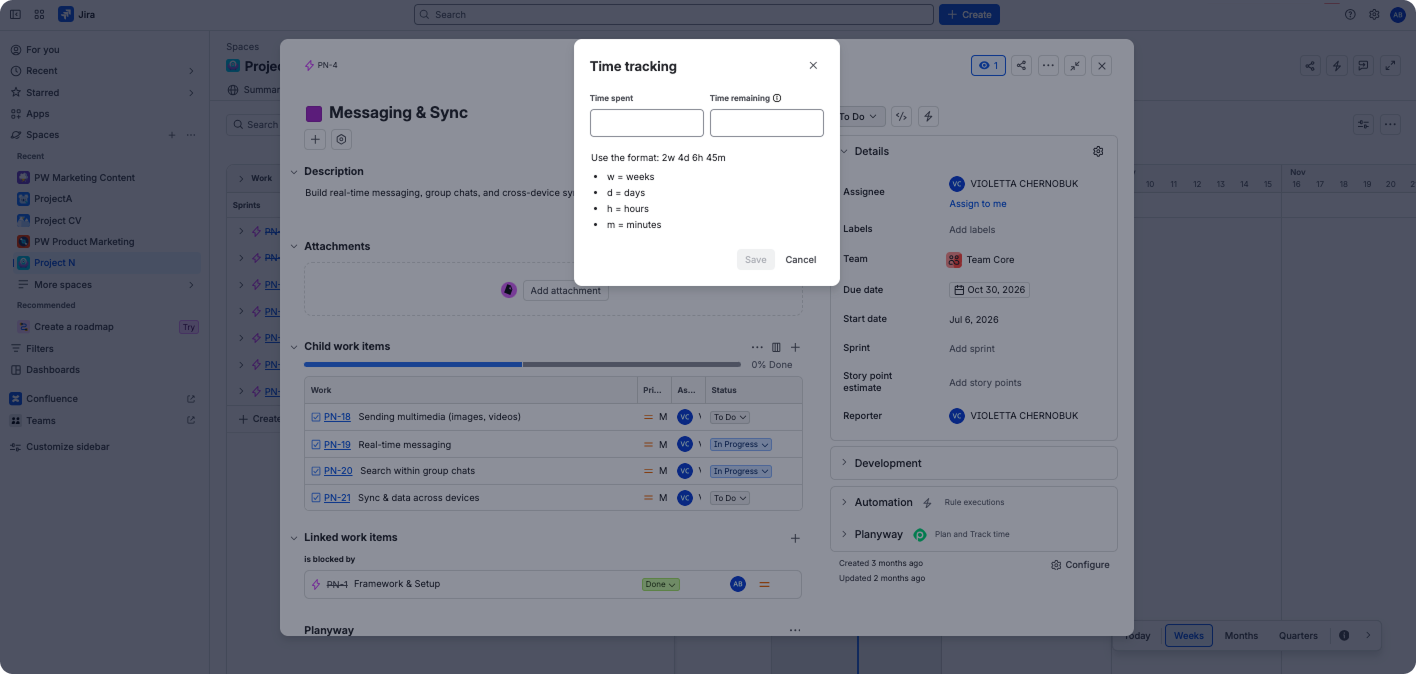
In Jira Cloud, every hour is tied to some work item. Someone opens a task, clicks “Log work,” enters how much time they spent and when, and adds a quick note about what they did if they feel like it. Jira saves that as a worklog and adds it to the item’s “Time spent” total. But to log time at all, people need permission. And under the hood, Jira stores every duration in seconds, which can come back to bite you later when you export.
Convert hours into days and weeks
Jira turns hours into “1d” or “1w” using two global settings: hours per day and days per week. By default, those are 8 and 5.
Pro tip: A worklog that says “2d” can mean 16 hours on one site and 12 on another, where the admin set a 6-hour day. Before any number goes to payroll, ask your Jira admin to check the time tracking settings and agree that everyone enters time in hours.
Compare estimates with logged time for a release
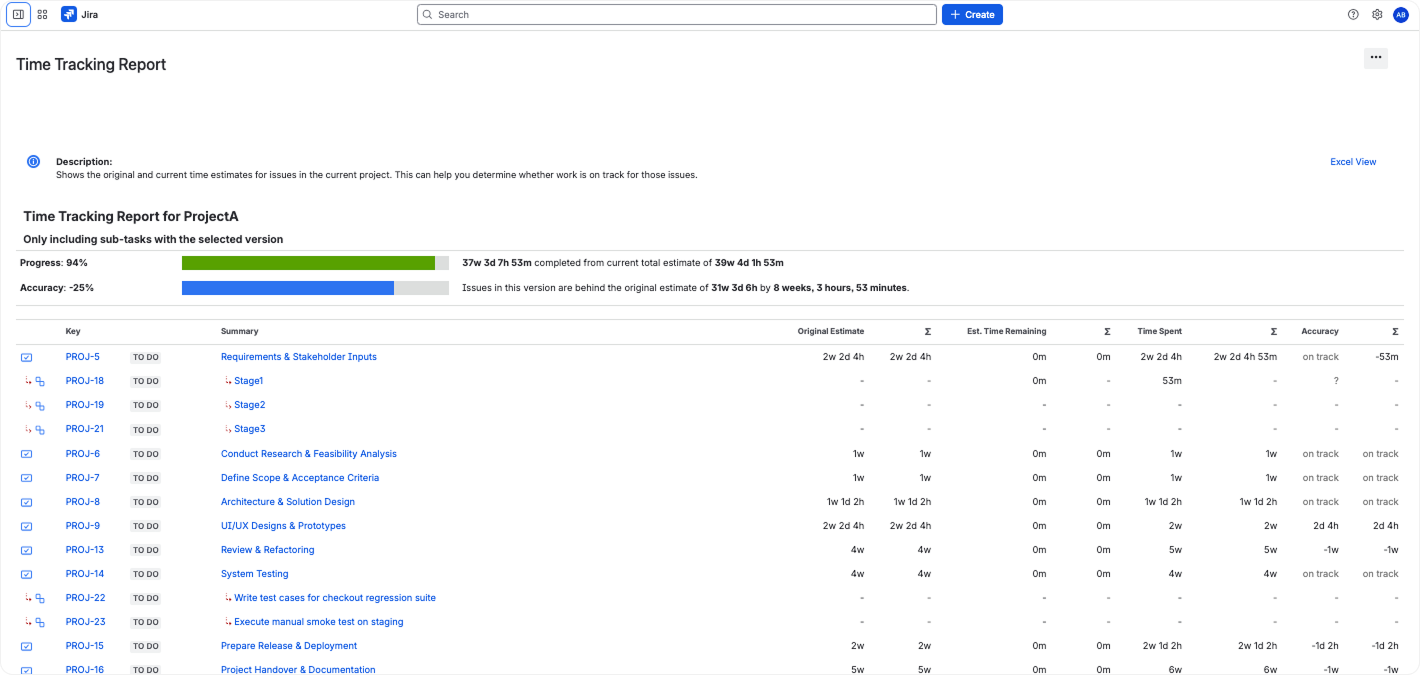
Jira does ship one built-in time report, the Time Tracking Report. It lives in company-managed software projects, takes a single fix version, and compares original estimates with the time spent on the items in that version. It’s handy for seeing how good your estimates were for a release, but it isn’t what accounting asks for.
Note: If the report says no issues are associated with the version, check whether the Fix version field is hidden in your field configuration. Switching the field back to “show” fixes it.
What Jira’s native time tracking can’t do
Now for the flip side. Once you start asking Jira for real timesheet stuff — who worked how many hours, what’s billable, overtime, vacations, something payroll can actually use — you hit a wall pretty fast.
Show who worked how many hours
The name of the native Time tracking report sends a lot of people down the wrong path. It has no breakdown by person and no date range, so “what did Maria log last week?” has no answer there. Team-managed projects don’t get the report at all.
Cover everything else a timesheet needs
Here’s what you’d expect from a timesheet and where Jira Cloud stands on each:
| What you need | Native in Jira Cloud? | Usual workaround |
|---|---|---|
| Hours per person per day or week | No | JQL plus export, an API script, or an app |
| One view across different projects | No | Export and merge, or an app |
| Billable and non-billable split | No | Labels, custom fields, separate projects |
| Overtime against a contract | No | Spreadsheet formulas |
| Vacations, sick days, public holidays | No | A separate absence calendar or app |
| Meetings and internal work | Only if someone creates a work item for them | Standing "Meetings" or "Internal" items |
| Review and lock before payroll | No | A manual check or an app with approvals |
| Worklog-level data for BI | Only on Enterprise plans, through the Issue worklog table in Atlassian Analytics | Worklogs pulled through the REST API into your own BI tool, or an app with worklog export |
That last row is the closest Atlassian has come to a native answer, because the Issue worklog table keeps one record per worklog with its author and time spent. Atlassian Analytics is only available on Enterprise plans, though, so for most teams of 10 to a few hundred people, it's simply not an option.
How to build a Jira timesheet in Microsoft Excel or Google Sheets
If you want a Jira timesheet without installing anything, the spreadsheet route works, and plenty of teams run it for years. It has three traps that produce numbers which look right and aren't, though, so we'll walk through it with the traps marked along the way.
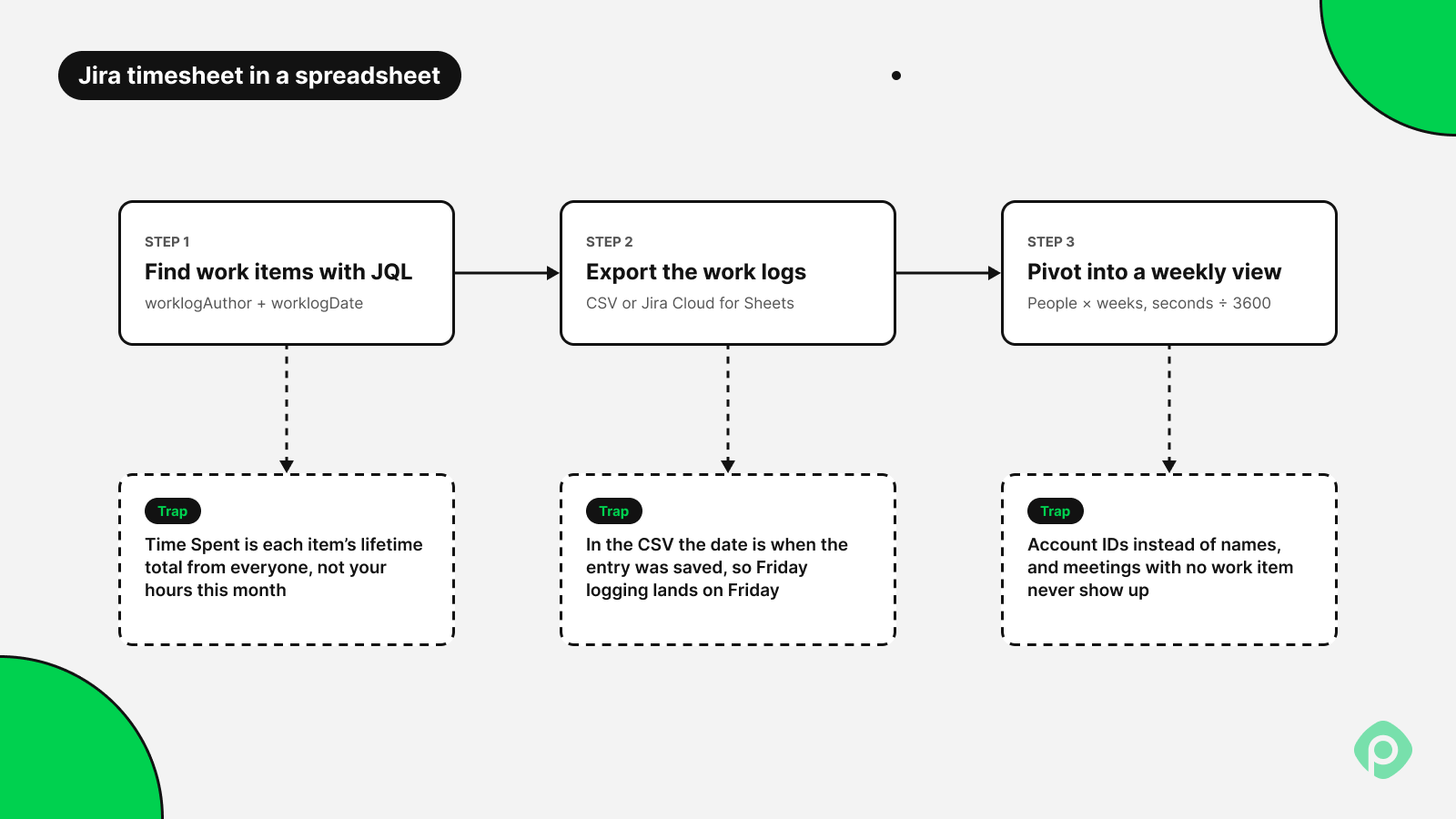
Step 1: Find the issues with JQL
Start in the work item search with a query that finds everything a group of people logged time on in a given month, something like this one for October:
worklogAuthor in membersOf("delivery-team") AND worklogDate >= "2026-10-01" AND worklogDate <= "2026-10-31"
Warning: JQL looks at whole work items, and the worklog conditions only decide which items get on the list. So the Time Spent column you'll be tempted to add is each item's total since the day it was created, from every person who ever touched it. It works the other way too: a task you last logged on in September still turns up in October's list if a teammate logged an hour on it last Tuesday. That's why we treat the result as a shopping list of tasks to pull worklogs from, and never as hours.
Step 2: Export the work logs, and watch the date
Most people's next move is Export ⇒ CSV with all fields. The file does have every worklog in it, squeezed into Log Work columns that hold a comment, a date, somebody's account ID, and a number like 3600, which is Jira's way of saying one hour.
The date column is where things get strange, because it reflects the moment the entry was saved. When half your team does their logging at 4 pm on Friday, the export stacks forty hours onto Friday, while Monday through Thursday look like nobody showed up. To get the day the work actually happened, you need Atlassian's Jira Cloud for Sheets or Excel add-on, which pulls the started date for each worklog. That's one more tool to set up before the spreadsheet route gives you a usable weekly view.
Step 3: Pivot the worklogs into a weekly view
With one row per worklog (author, started date, work item, project, seconds), the pivot table is honestly the quick bit: people down the side, weeks across the top, and the seconds divided by 3600 so finance doesn't have to do it in their heads. Account IDs look like a cat walked across the keyboard, so we recommend keeping a little lookup tab next to the data that turns them into names. Drop the project in as a filter, and save the file as a template. Next month, you paste fresh data, change the date range, and you're done.
Where the spreadsheet route breaks
Building the pivot takes an afternoon, and it's everything around it that wears teams down month after month. Somebody reruns the export, fixes the names that came through as IDs again, pings the three people with empty Wednesdays, and then tries to remember the client call and the two hiring interviews that never had a work item to log against. It gets harder still when absences live in a different system, or part of the team also logs time in another tool. Then two sources have to be merged by hand every month, and nobody is quite sure which one is right.
How to calculate overtime, absences, and billable hours for accurate payroll
Getting hours out of Jira is only half the job. Payroll and invoices both run on things a worklog knows nothing about: what someone’s contract says, who was off on Thursday, which client picks up the bill. Jira holds none of that, unfortunately.
A simple timesheet calculator for overtime
Things get a little trickier when it's time to run payroll. You need to account for each person's regular hours, overtime, and absences, based on their contract. Jira doesn't know any of that.
If building the sheet sounds like a Sunday you'd rather keep, our free templates for weekly, biweekly, and a few others come with the overtime and pay formulas already in them, and they're happy to take hours straight out of a Jira export.
Employee absences, holidays, and compliance
Then there are absences, which Jira simply doesn't see unless somebody logs a week in Lisbon as 40 hours on a task called Vacation. Plenty of companies really run a Google Sheet with vacation days, on-call shifts, and the month's hours that gets emailed to the admin office before salaries go out.
The fix is to pull absences into the same file as the logged hours wherever they live, so the person doing payroll sees one row for Maria and can tell a 32-hour week from 32 hours plus a sick day on Thursday. Many employers also have to keep records of work hours for compliance, which is a good reason to keep the raw worklogs in that file and not just the totals.
Billable vs non-billable hours
If you want to bill clients for time, every time entry needs to answer two things Jira just doesn’t ask: which client was this for, and are they paying for it? A worklog only has a date, how long, and a comment. That’s all.
So people start inventing workarounds. These can include a separate project per client, a label or custom field on the issue, or a rule like “put the client code at the start of every comment”. But all these hacks can only go so far.
Most teams don’t need anything crazy. They just want a weekly report that shows where time wasn’t logged and makes sure clients get charged right. That’s really the whole point: put a billable flag on each time entry. And once you know what an hour costs the company, that same flag also gives you real project costs.
More ways to get a timesheet report: apps on the Atlassian Marketplace
If the table points you toward an app, the first thing worth checking is where the hours end up. An app that writes into native Jira worklogs keeps your estimates working and leaves the data in Jira if you ever switch.
After that, it comes down to the jobs from the top of this article. Look for custom reports that remember their grouping and filters, a billable switch on every entry, and a review step before hours reach payroll. Keep in mind that an intuitive interface matters more than it sounds, since an app people find fiddly only gets opened on Friday afternoon.
There are dozens of apps on the Atlassian Marketplace, and most of them read the same Jira worklogs. The real differences are in what they do with those hours. Some give a comprehensive view of the whole team's week, some offer detailed reports and other reporting features finance keeps asking for, and some add advanced features like approvals and billing rates.
How Planyway builds timesheets from Jira worklogs
Planyway for Jira is a cross-project planning and project management app. It brings roadmaps, resource management, time tracking, and reports into one app, and its time tracking runs on Jira's own worklogs instead of a separate database.
That's why in Planyway, the timesheet is already filled in by the time a manager opens it on Monday, with hours by day and by week, grouped by person, project, or epic. Last week's filters and grouping are still in place, so the weekly report turns into a date change, and the team saves time every single Monday.
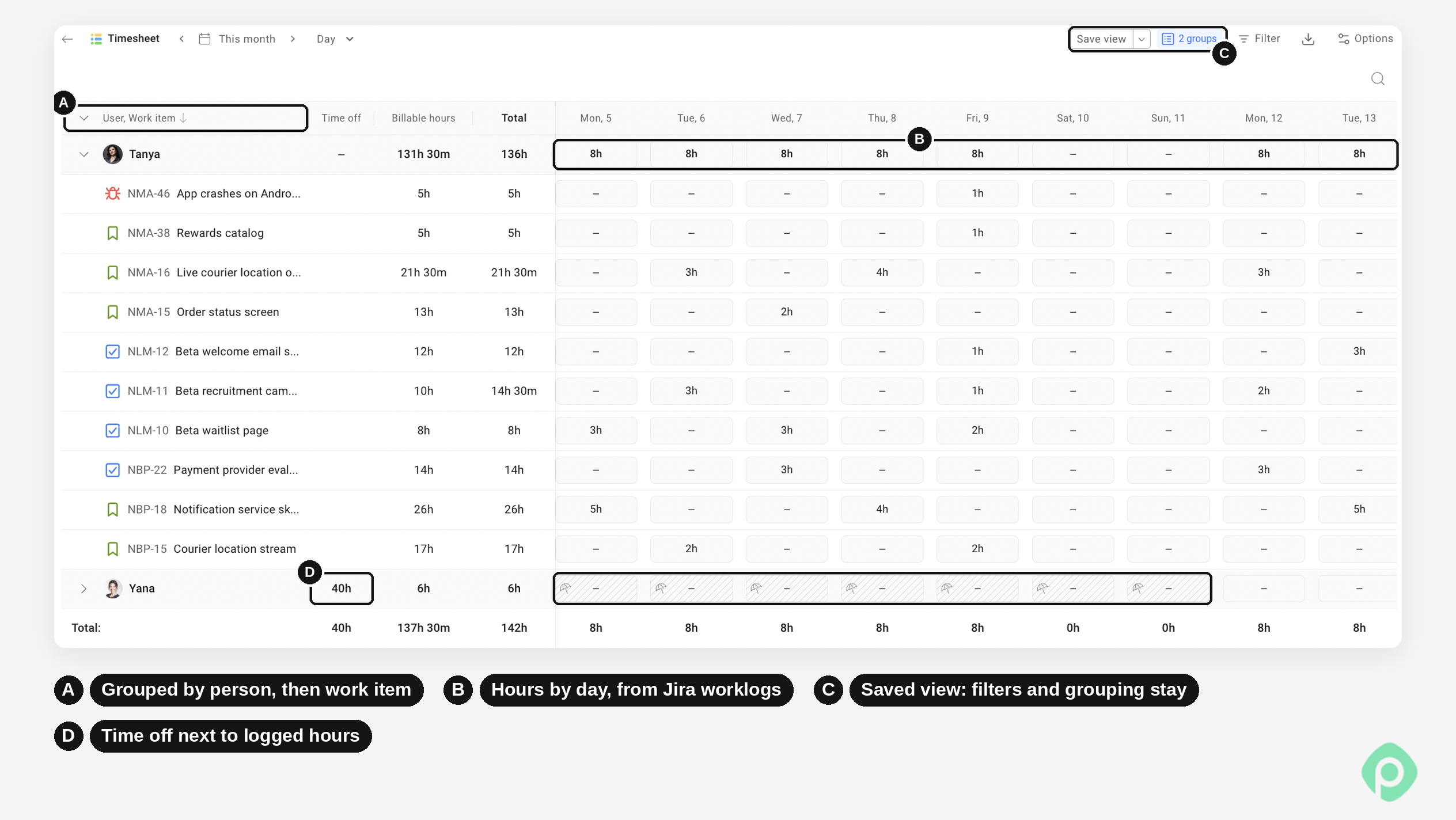
A few more things matter for the jobs we started this article with:
- Time gets logged where people already work. Entries go in from the Jira work item someone already has open, from the Time tracking tab as a list or a calendar, from a personal timesheet, or from a timer they start when they pick up a task. An hour logged in Planyway lands in Jira's worklogs, and an hour logged in Jira shows up in Planyway.
- Plan and reality sit side by side. The planned vs tracked report shows estimates next to logged time, with the gap on specific tasks, so you can track progress without opening each one. Because those hours sit right next to the timeline and workload, an overrun turns up on Wednesday while somebody still has free capacity to take the work.
- Client work stays separate from internal time. Every entry can be marked billable or non-billable, and the reports filter on that flag. So when a client asks why the invoice says 46, the answer is sitting in the entries rather than in a custom field somebody forgot to fill in.
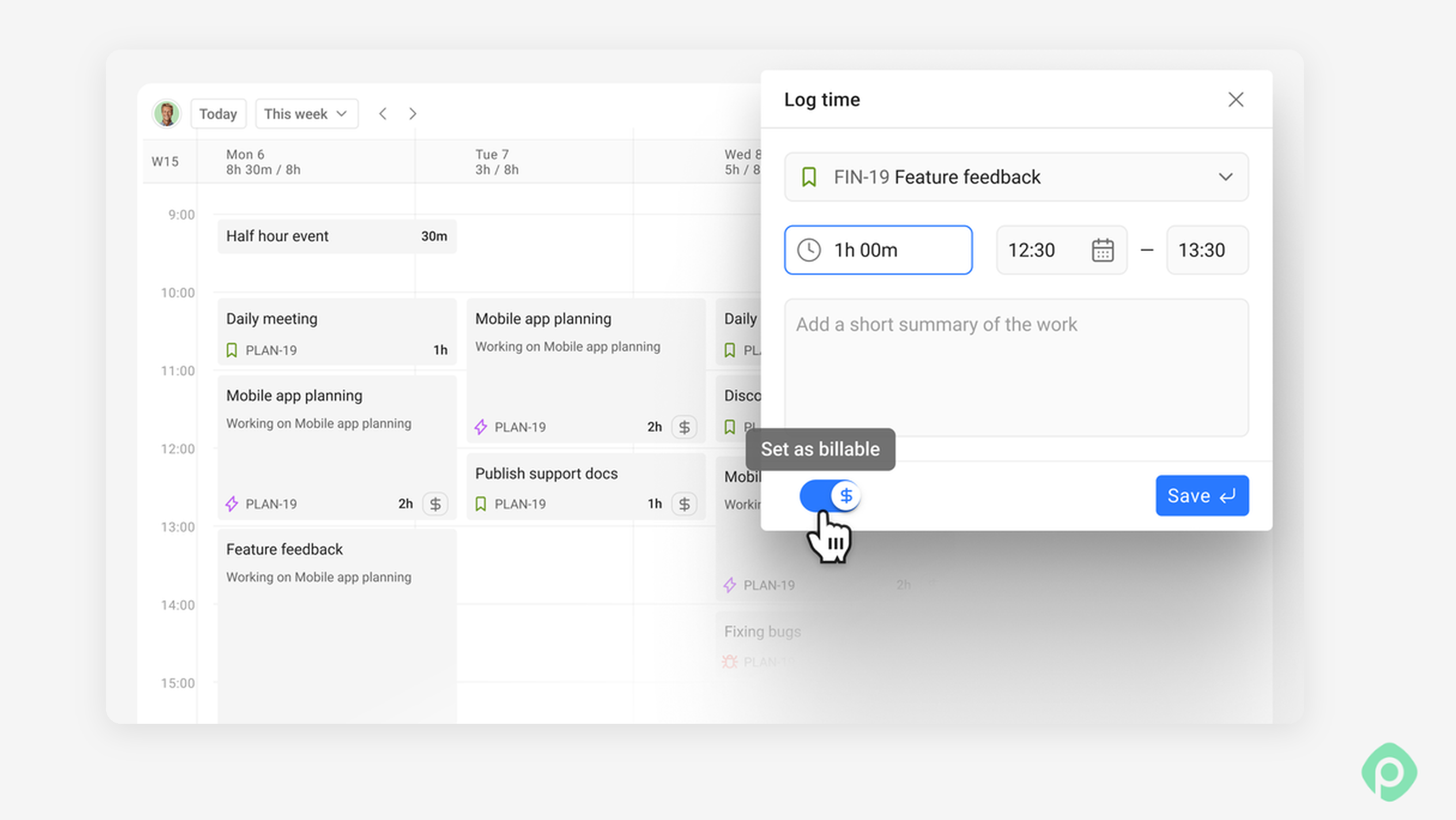
- Managers can review and approve hours before export. There's no need to collect spreadsheets or chase people for their weekly totals. The hours are already pulled from Jira worklogs and organized into timesheets. With timesheet approvals, a manager can review the entries and approve the week before the data goes to payroll or client billing. Once reviewed, the report can be exported to Excel, CSV, or PDF for finance.
Planyway is free for teams of up to 10 users, and there's also a 30-day free trial.
Spreadsheet, script, or time tracking app: how to choose the right method
All of these routes can give you a timesheet report, so the real question is how much effort each one takes once the first month-end has passed. The table below compares them on setup, the point where they break, and the teams they fit best.
| Approach | Setup | Where it breaks | Good fit for |
|---|---|---|---|
| JQL plus CSV export | Minutes | Late entries get the wrong date, Time Spent shows lifetime totals, rebuilt every month | One-off questions about a few tasks |
| Jira Cloud for Sheets or Excel plus a pivot | An hour or two | Manual refresh, names to fix, no absences or approval | Small teams with a monthly report |
| REST API script | A developer's day or more | Someone has to maintain it whenever Jira changes | Teams with in-house engineers and a BI stack |
| Jira dashboards and built-in reports | Minutes | Not a timesheet, little grouping by person | Quick sprint or version checks |
| Atlassian Analytics | Included in Enterprise | Enterprise plans only, needs SQL or chart-building skills | Large companies already on Enterprise |
| Timesheet app from the Atlassian Marketplace | An install plus an afternoon of setup | Priced per user, check that it writes to native worklogs | Teams that report weekly, bill clients or run payroll from Jira |
How to set up a timesheet process your payroll can rely on
Whatever you end up using, a spreadsheet or an app, these are the six things we'd sort out before the first month-end, because they matter more than the tool.
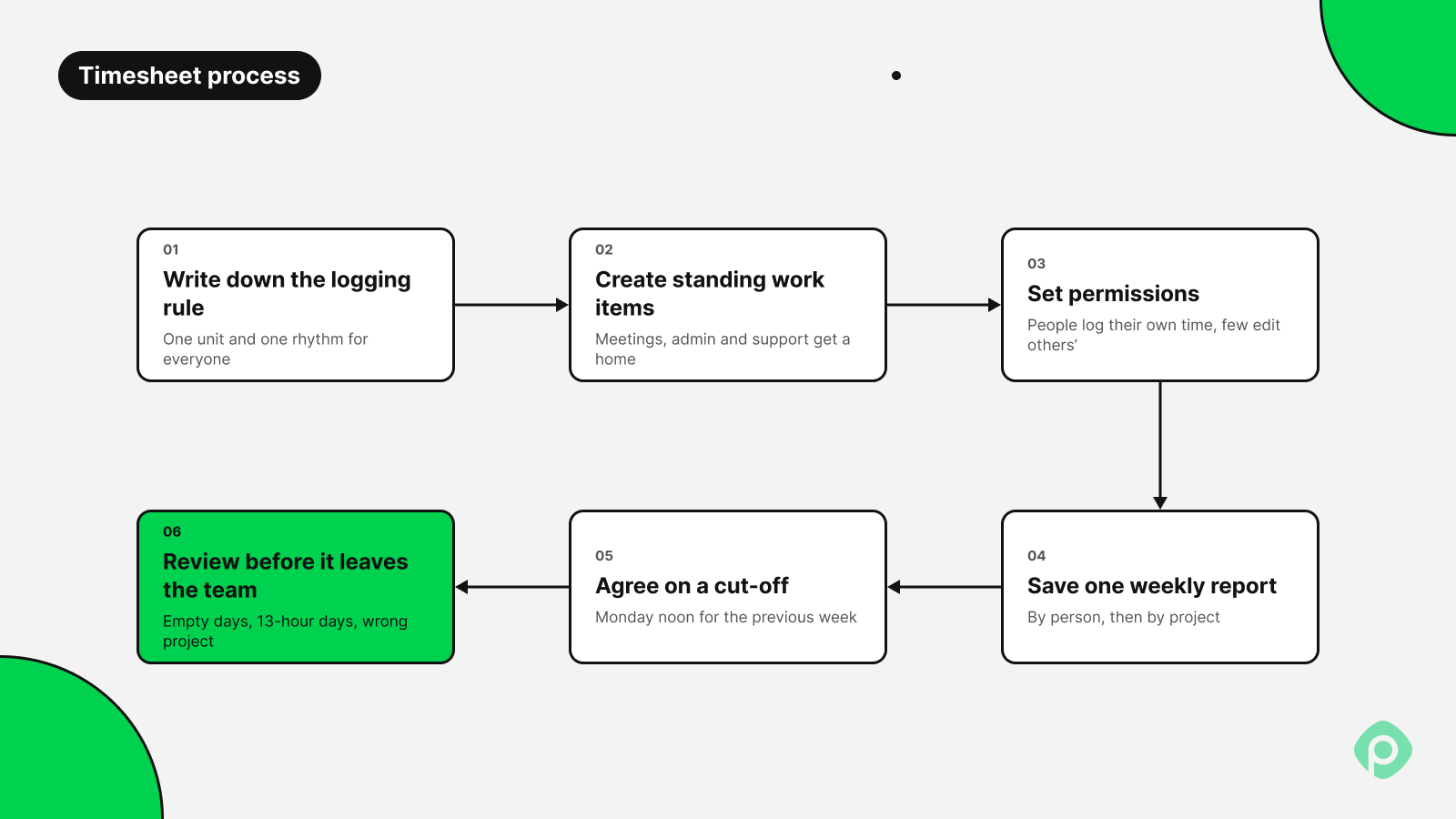
- Write down the logging rule, the unit, and how often people log, as one sentence on the team page that a new hire could follow.
- Create the standing work items for meetings, admin, support, and time off if you track it in Jira, without getting carried away and making twenty of them.
- Set permissions so everyone who logs time has Work on work items, while Edit all worklogs, the one that lets a person change somebody else's hours, stays with two or three people at most.
- Save one weekly report, grouped by person and then by project, and tell everyone it's the one that counts. The moment two managers keep their own versions, you'll spend a meeting arguing about whose numbers are right.
- Agree on a cut-off. Monday noon for the previous week is what a lot of teams settle on, with anything logged later rolling into the next period, so last week's totals don't keep shifting under finance.
- Review the week before it leaves the team. In practice, that means a manager glancing over the totals for a blank Wednesday, a 13-hour Tuesday, a few hours booked to the wrong client, and the timer somebody started on Monday morning and never stopped.
Getting a timesheet report out of Jira without rebuilding it every month
Jira will probably never have a timesheet button, but the gap is smaller than it looks once you know where the numbers go wrong. Those spots are the Time Spent column, the export date, and the hours nobody logged on Friday. Whatever you build, a spreadsheet you refresh every month or an app on top of your worklogs, the report holds up when people log daily in one place, and someone looks at the week before it goes to payroll. If you'd rather not rebuild that every month, Planyway turns the same Jira worklogs into a weekly timesheet with billable hours, plan vs actual, and approvals. It's free for teams of up to 10 users, so you can try it on one team before the next month-end.


FAQ
Jira doesn’t have a timesheet report in the sense most teams mean, a table of hours per person per day or week. Jira’s native time tracking stores worklogs on each work item and offers a Time Tracking Report scoped to one fix version. To get a real timesheet, you need an export, a script, Atlassian Analytics on an Enterprise plan, or an app from the Atlassian Marketplace.
To see hours per user per week in Jira, you have to work from individual worklogs, because JQL only finds work items, and its Time Spent column shows each item’s lifetime total. If you’re doing it by hand, Jira Cloud for Sheets or Excel is the quickest way to pull worklogs with their started date, and a pivot by author and week takes it from there. A timesheet app can generate that grouping for you and let you customize it once instead of rebuilding it every month.
You can export Jira worklogs to Excel with the CSV export (all fields). Each worklog lands in a Log Work column with the comment, a date, the author’s account ID and the time in seconds. The one thing that trips people up is that this date is when the entry was saved, so a team that logs everything on Friday ends up with a very busy Friday on paper.
You calculate overtime from Jira time by putting each person’s logged hours for the pay period next to their contracted hours, after taking out holidays and approved leave, and looking at the gap. In a spreadsheet that’s one formula, for example
=MAX(0, Logged - Contracted). We’d still check the local overtime rules before paying anyone from it.You can track billable hours in Jira, but only with workarounds, since worklogs simply don’t have a billable flag. An app with a billable toggle on each time entry ends up being the calmer option at invoice time.
The 7-minute rule for employees is a US payroll rounding practice under the Fair Labor Standards Act, used by employers who round time to the nearest quarter hour. Anything from 1 to 7 minutes past the quarter gets rounded down, and 8 to 14 minutes gets rounded up.