Billable vs non-billable hours in Jira: what’s missing and how to work around it

If you’ve spent half an afternoon clicking through Jira settings in search of a “billable” checkbox, we’re sorry to say you can close that tab, because there isn’t one, and there never was. That leaves the whole Jira billable vs non-billable hours question to you, the delivery lead or one of the project managers who ends up building the client report.
So in this piece, we’re going to look at what Jira gives you for tracking billable time without any apps, at the three setups people usually reach for and the point where each one starts eating your time, and at the habits we’d copy from teams whose month-end is boring in a good way.
What are billable and non-billable hours?
Billable hours are the ones that end up on the client’s invoice, so the work the client asked for and agreed to pay for, logged against their project.
Everything else your team does in a week (internal meetings, admin tasks, pre-sales calls, onboarding the new hire, etc.) is non-billable hours, or non-billable work if you prefer that wording.
Both kinds of time are real work, and both cost you money in salaries, which is exactly why mixing them up hurts. When billable time slips into the non-billable pile, you end up under billing, and honestly, undercharging clients happens far more often than the opposite, while the reverse mistake gets you an invoice that a careful client will push back on.
Then there’s the gray zone in between, where every team we know draws the line a little differently, so take this table as a starting point rather than a rule:
| Activity | Usually billable? | Why it’s a judgment call |
|---|---|---|
| Building a feature in the client’s scope | Yes | It’s what the contract covers |
| Sprint demo with the client | Usually | Some contracts include ceremonies, some don’t |
| Internal standup | Usually not | Unless the contract bills a fixed team overhead |
| Fixing your own bug after release | Depends | Warranty period vs. new request |
| Estimating a change request | Depends | Some teams bill estimation, many write it off |
| Admin tasks, internal meetings, hiring | No | Overhead for your company, not the client |
Pro tip: settle these cases once, in writing, before you configure anything in Jira. Clear definitions are boring to write, but without them, two developers will log the same kind of work in two different ways, and no tool will fix that for you.
Does Jira have a billable hours feature?
Jira Cloud has decent time tracking for the basics: anyone with the right project permission can log work on Jira issues, each issue shows the time spent next to the original estimate and estimated hours remaining, and an admin can set working hours per day and days per week. By the way, you can’t turn time tracking off globally in Jira Cloud. You can only hide the Time tracking field in certain projects, which shows how central Atlassian considers it.
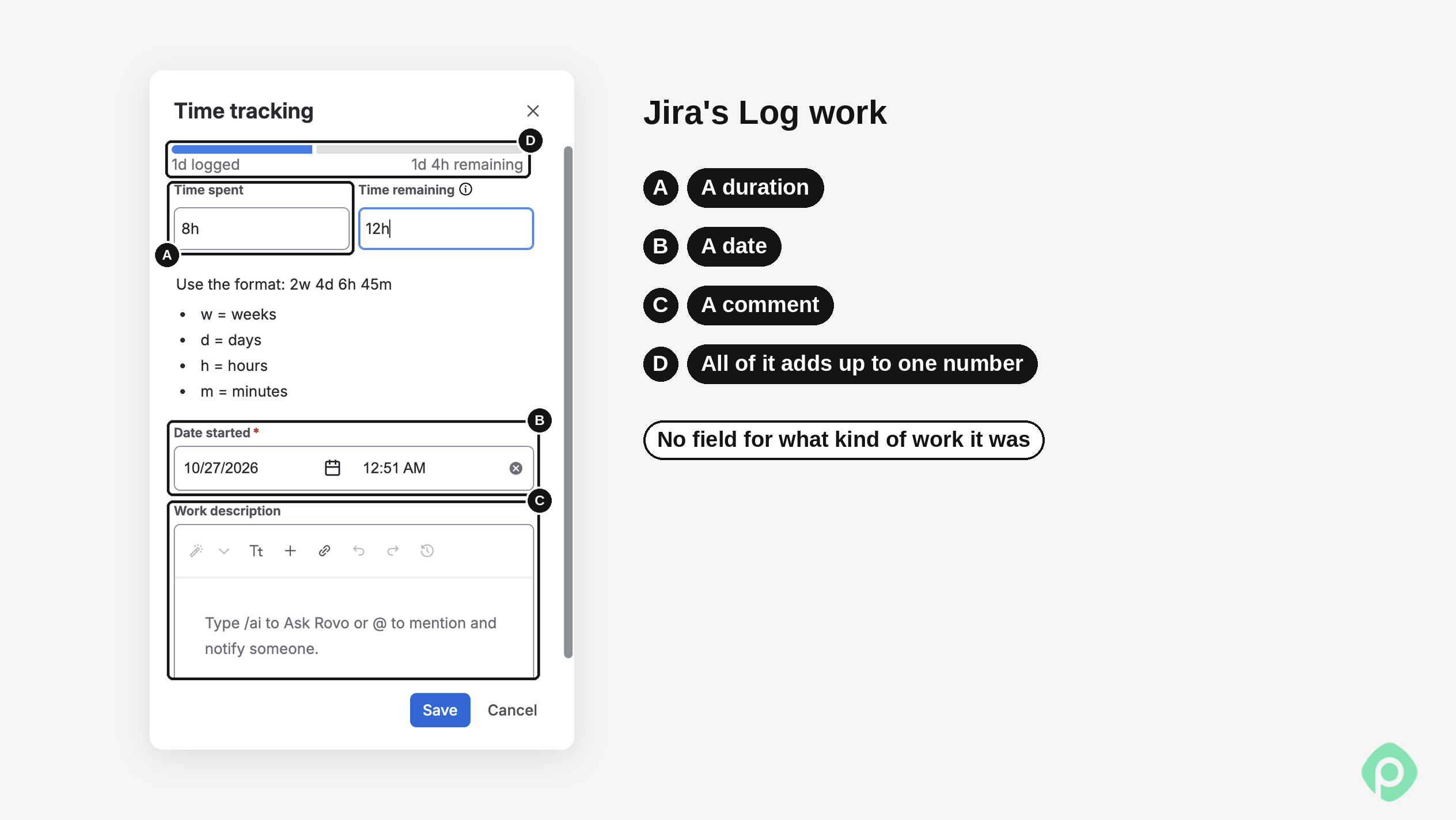
Jira will happily show you cycle time and lead time for a ticket, but it lacks any field that says what kind of work those hours were. The log work dialog takes a duration, a date, and a comment, and that’s it. Jira simply adds up the logged hours on each issue, so a ticket that holds three hours of client work and two hours of internal rework shows up as five hours, full stop.
Reporting is the second gap. You can find issues with a JQL clause like worklogDate, but the Time spent column shows the total for the issue’s whole life, not just the hours logged in your date range. Native time tracking doesn’t come with extensive reports, and there’s no detailed view of who logged what, when and for which client across projects. So you get the raw time data, but no billable data and no timesheet report you’d want to send to a client.
👉 If you want the full picture of what native Jira time tracking can and can’t do, check out our guide to Jira time tracking.
How to track billable hours in Jira: 3 workarounds
Each of these works. But the difference is in how they can scale to more clients, more people, and more tickets.
Workaround 1: A custom field on the issue
The quickest fix, and the one most people try first, is a custom field, typically a dropdown like “Spent hours type” or “Time type” with Billable, Non-billable, and maybe Mixed as options. You add it to your Jira projects, make it required when someone creates an issue, and then use it in a filter or dashboard that sums up the logged hours for everything marked Billable.
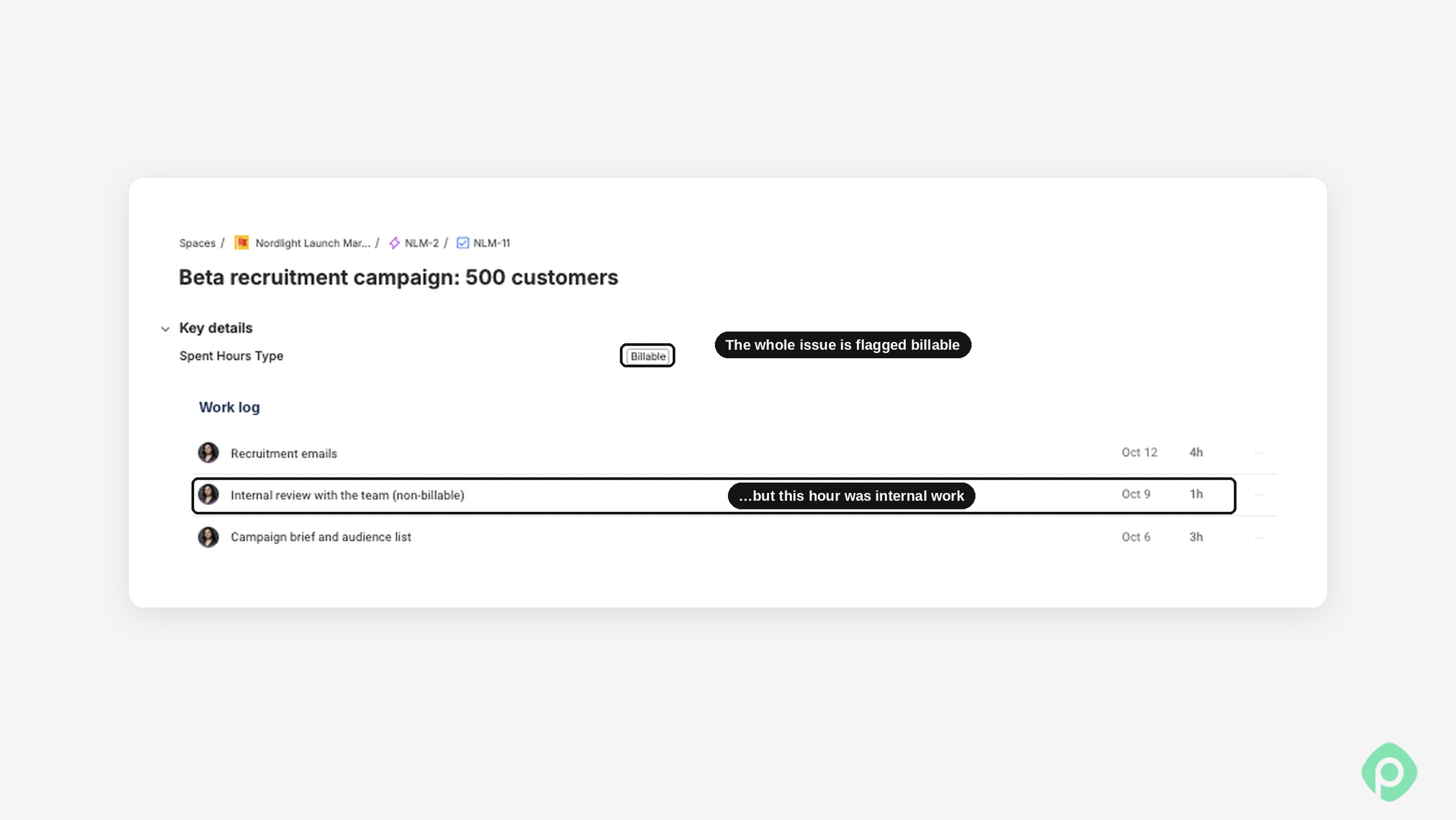
It works nicely as long as one ticket holds one kind of work. The trouble is that real tickets don’t behave like that. A bug fix might be half client-paid and half “our mistake, we’ll eat it”, and a field on the issue can only say one thing.
The usual patch is to split mixed tickets into Billable and Non-billable subtasks, sometimes with an automation rule that creates them, but now you’re creating admin work to fix a reporting problem, and your board fills up with subtasks nobody wanted. It’s also easy to change the field after the fact, which rewrites months of history for all the worklog hours already sitting on that issue, and nobody gets a notification about it.
Workaround 2: Separate projects or epics per client
The second approach puts the client in the structure: one Jira project per client or one epic per client inside a shared project, plus an “Internal” project for non-billable tasks. It answers the “which client” question really well, the same way most project management tools would suggest, and if your billing is per client rather than per activity, it can carry you a long way.
It falls apart on work that doesn’t belong to one client, like internal meetings, a shared component that two clients both use, or the hour someone spends helping a colleague who’s on a different account. In practice, people just log that time against whatever ticket happens to be open in their browser instead of their own assigned tasks, which is exactly how hours end up on the wrong client.
It also doesn’t solve the mixed-ticket problem at all, because inside the client’s project, you still can’t tell billable work from the rework you promised not to charge. And as the client list grows, so does the number of projects, permission schemes, and boards you have to maintain.
Workaround 3: A Marketplace app (feat. Planyway for Jira)
Option three is to install a time tracking app from the Atlassian Marketplace, and the reason it’s worth paying for is that the billable flag moves from the issue to the individual worklog, so the same ticket can hold three billable hours and two non-billable ones. The report counts them separately, which neither of the other two setups can do.
A few Jira apps do this, and Planyway for Jira is one of them. Planyway is a multifunctional Atlassian partner app built for Jira Cloud and Data Center that combines everything your team needs to plan, track, and report on work without leaving Jira: Gantt charts, roadmaps, workload and capacity planning, time tracking, timesheets, and reports all live in one place.
The billable hours feature in Planyway puts a Billable toggle right in the log time dialog, so the person who did the work marks it as client time at the moment they log time, and one issue can carry both kinds of hours without anyone spinning up subtasks to keep the report straight.
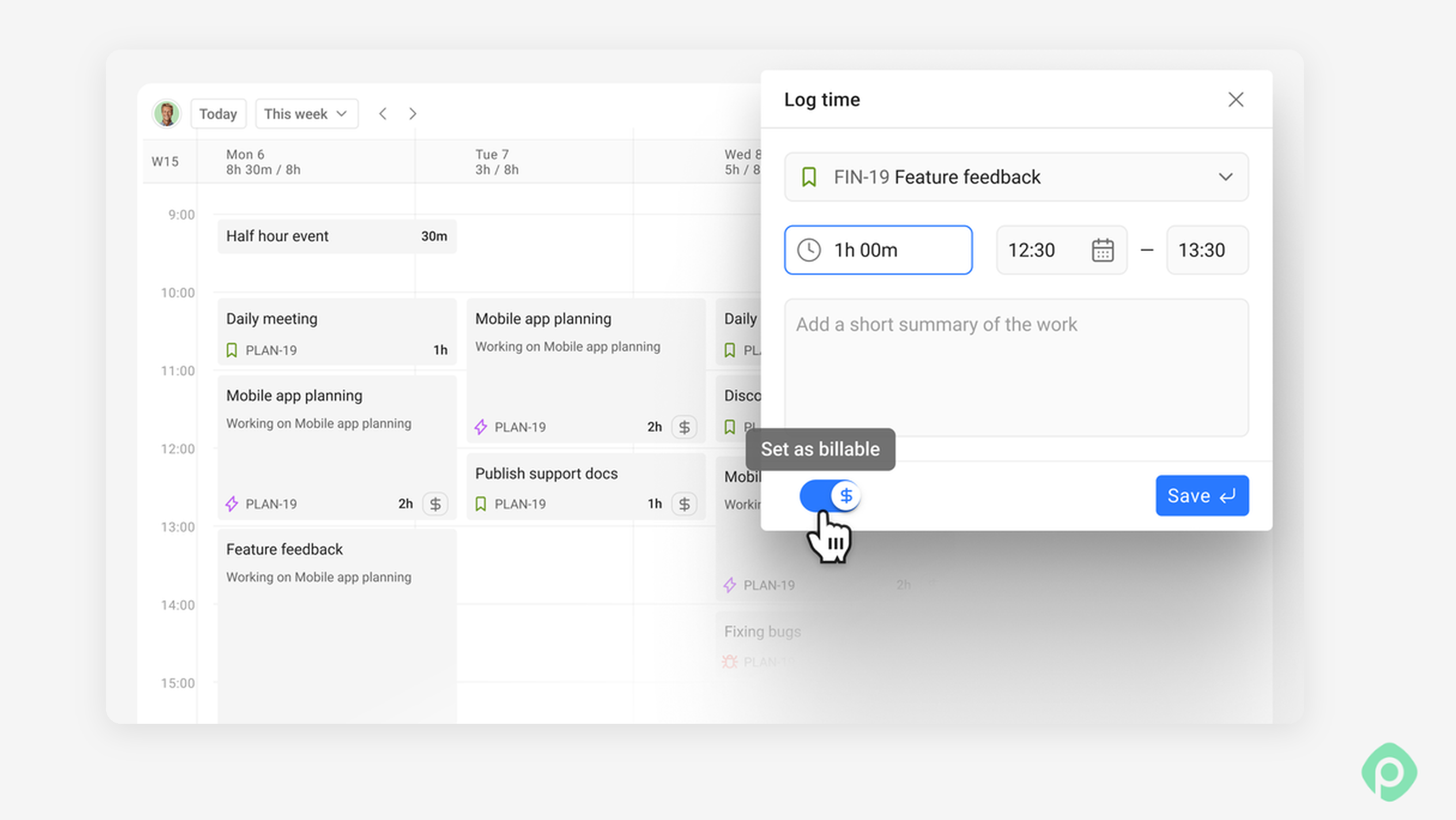
Nothing else changes for your team members, who keep logging from the issue or the time tracking calendar the way they already do, because time also syncs both ways. Hours logged in Planyway show up in the issue’s native time tracking, and hours logged in Jira show up in Planyway.
Why you might end up in a spreadsheet anyway
Here’s something app vendors don’t put on their landing pages: even with a billable flag on every worklog, plenty of teams still close the month in Excel. Before you buy anything, expecting the spreadsheet to vanish, it’s worth knowing why:
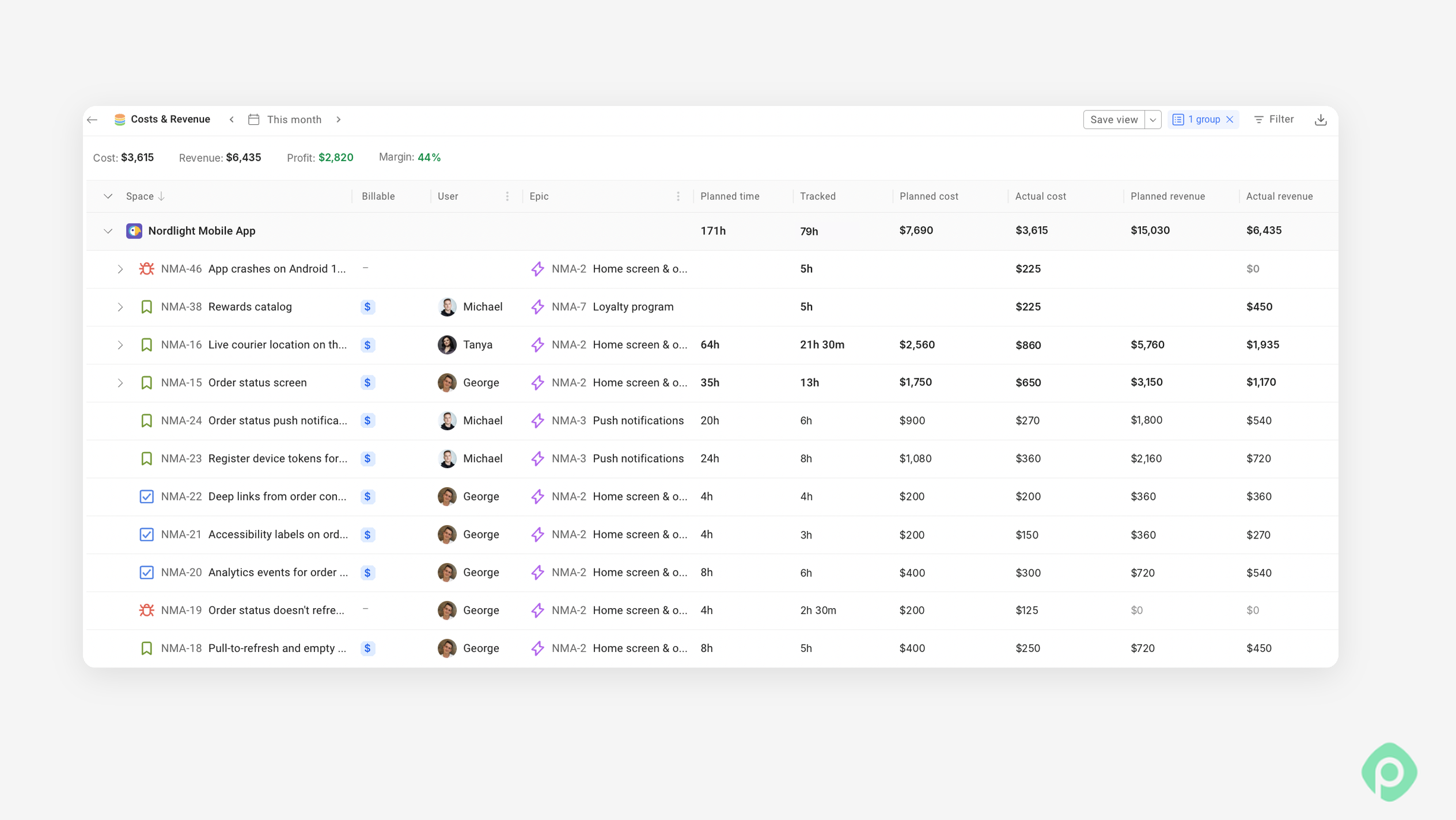
- Rates. Your senior developer bills at one number and your junior at another. One client negotiated a discount last year, and another is on a capped retainer with expected hours per month. Hours only become money once somebody does that math. Some apps store an hourly rate per user, and many don’t, so the billing reports you get out of them stop at hours.
Approvals. If people can still edit worklogs after you’ve exported them, the total billable hours on the invoice might not match what Jira shows next week, and that’s an awkward call to have with a client.
P.S. We have timesheet approvals in Planyway as well.
- The gray zone. The spreadsheet is usually where somebody finally decides that the sprint demo is billable for this client and free for that one. That decision lives in one person’s head, so when that person takes a week off, your billing logic takes a week off too. This step is the most error-prone and, frankly, the most time-consuming part of the month.
What separates teams that trust their numbers from teams that don’t
In our experience, the teams that send invoices without re-checking every line aren’t using a fancier tool than everyone else, they’ve just picked up a few habits that the rest haven’t.
- The first thing these teams do, before anyone logs a minute, is write the rules down. It’s rarely more than a page: what counts as billable work, plus a line for each gray-zone case per client (the demo is billable for one client and free for everyone else, that kind of thing), and it saves people from guessing while they piece their week together from memory.
- Defaults come next. On a client project where nine hours out of ten are billable, nobody should have to tick a box nine times. So the project defaults to billable, and the developer only flips the flag for that tenth hour. This matters more than it sounds, because manual tracking that needs a decision every time tends to become no tracking at all at some point.
- And when a ticket is mostly client work with an hour of rework you’ve agreed to eat, these teams split the hours, not the ticket. The developer marks that single hour on the worklog, the ticket stays where it is on the board, and three months later, nobody is digging through a pile of subtasks trying to remember why they exist.
- They regularly review the week instead of the month. If a team lead spends ten minutes every Monday looking through last week’s time entries, he will catch the hours that landed on the wrong client and move them to the correct client while people still remember what they did. Finding the same mistake on the 30th usually means a credit note, and credit notes chip away at client trust very fast.
- They close the period once it’s approved. Even a light approval workflow, where the team lead can confirm billable hours for the week and approved weeks can’t be edited afterwards, is what makes the number on your invoice match the number in Jira.
- They pay attention to the non-billable side as well, because the goal isn’t only to bill accurately but to see where the unbilled hours go. If internal meetings eat a fifth of a team’s week, that’s real input for decision making about pricing future projects, for resource planning and resource allocation, and for capacity planning.
Make time tracking useful and easy to do
It’s easy to treat billable hours as paperwork: log the time, approve the timesheet, send the invoice, and move on. But those numbers can tell you much more about your business.
The trick is to make time tracking easy enough that people actually do it, while still keeping billable and non-billable hours separate. Review entries weekly, agree on gray areas upfront, and compare estimates with actual costs — especially on fixed-price projects.
Jira is a good starting point, but its native worklogs won’t answer every billing question. Whether you use workarounds or a dedicated app, you should be able to see where the hours went, bill clients accurately, and spot projects that cost more than expected without spending days piecing the month back together.


FAQ
Jira tracks hours, but it is a stopwatch rather than a timesheet: you can log work on any issue with a duration, a date, and a comment, and the issue keeps a running total of time spent next to the original estimate. The part that’s missing is any notion of what kind of hours those were, so you won’t find a built-in way to separate billable from non-billable time, and if you want worklogs across a date range in one report, native Jira won’t get you very far.
The best time tracking tool for Jira depends far more on how you bill than on any feature list, so start from that end. Teams that need a billable flag on each worklog along with rates and approvals tend to end up on Planyway or Tempo Timesheets. In Planyway, logged hours live right next to the schedule, so you can see in one place what was planned, what was actually tracked and how much of it you can bill.
You can check the hours logged in Jira in a couple of places, starting with the issue itself, where the time tracking field and the Work log tab list every entry. Across issues, a JQL search with
worklogDatefinds the issues someone logged time on, though the Time spent column will still show lifetime totals, so for hours by person and week, by client, or for detailed reports you’d hand to finance, you’ll need a timesheet or report from a Marketplace app.The best software to track billable hours, whatever the brand, is one that puts the billable flag on each time entry rather than on the whole task, because otherwise a ticket with mixed work will always be counted wrong one way or the other.
If your team already works in Jira, track time there too, since a second system is one more thing people forget to update. Planyway for Jira lets people mark each worklog as billable or non-billable as they log it, syncs hours both ways with Jira, and turns billable time into money in the Costs & Revenue report.
However, if your work is spread across several tools, a standalone tracker with billing features can make more sense, as long as you don’t mind keeping two sets of data in sync.